Skip to content

Introduction to Shopify Speed Optimization
In Shopify Speed Optimization Guide we will check how a sluggish website can drive potential customers away, reduce conversions, and harm your SEO rankings. Optimizing your store’s speed is crucial for improving user experience and maximizing sales. we will walk you through proven techniques to enhance performance. From theme optimization and image compression to caching and content delivery networks (CDNs),</strongyou’ll learn everything needed to achieve lightning-fast loading speeds.
Why Shopify Speed Optimization Matters
- Did you know the average user’s attention span has dropped from 12 seconds to 8 seconds?
- If your Shopify store takes more than 3 seconds to load, conversions can significantly drop.
- A faster website means:
Higher conversions rates
Improved SEO rankings
A better shopping experience
Common Shopify Speed Optimization Mistakes to Avoid
To maximize speed, avoid these common pitfalls:
Uploading large, uncompressed images
Using JPEG/JPG images instead of modern formats like WebP
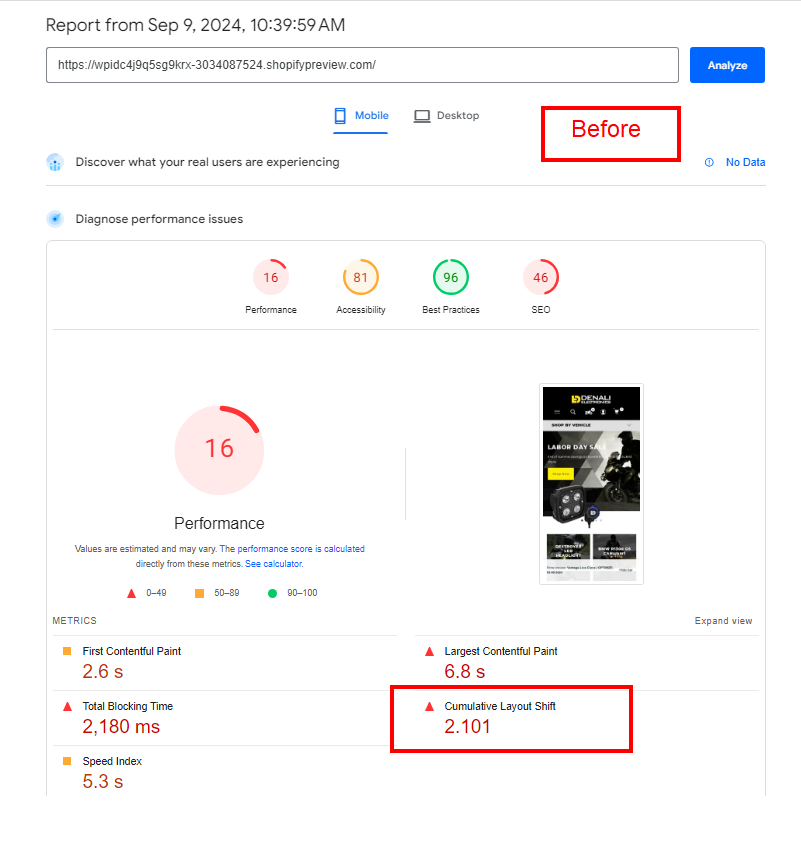
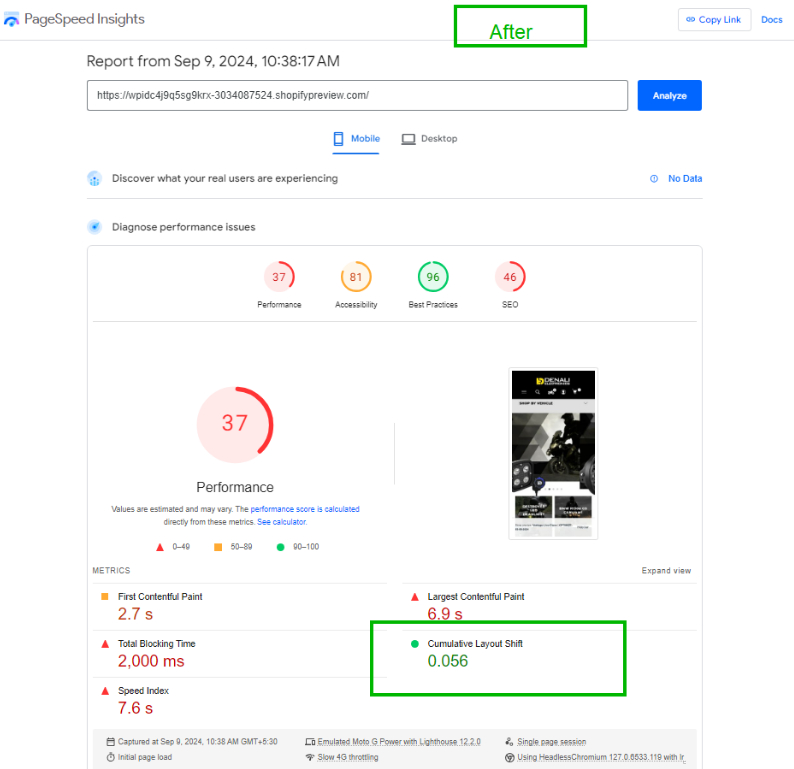
Allowing layout shifts (Cumulative Layout Shift – CLS)
Overloading the homepage with excessive content
Adding too many sliders on product and homepage
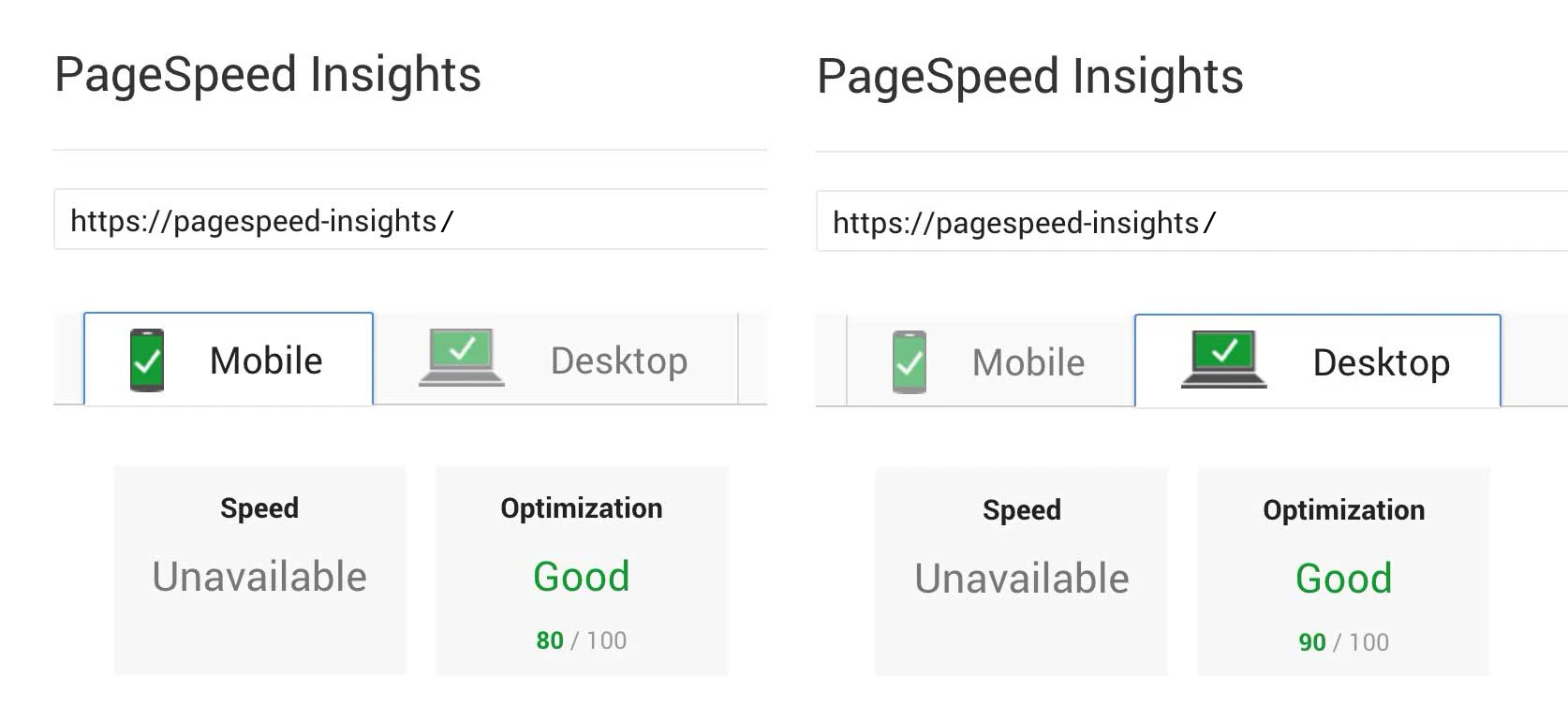
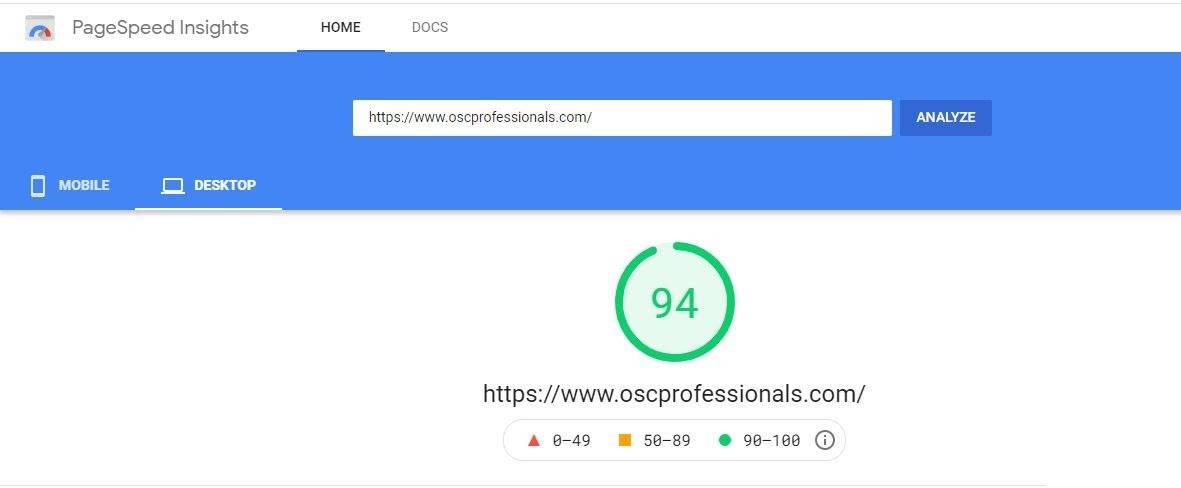
By addressing these issues, your store can achieve a Google PageSpeed Insights score of 90+ and a loading time of less than 2.5 seconds!
Faster performance means:
- Passing all Core Web Vitals.
- Higher search rankings.
- Higher SEO ranking.
- A seamless user experience.
- Any online store’s success is largely determined by user experience in this case speed is a very crucial factor for user experience.
- Cumulative layout shifting (CLS) has become an important factor of user experience this should be considered an integral part when Shopify speed optimization is done.
How to Audit Your Shopify Store Performance
1. Benchmark Your Current Shopify Speed Optimization
Before making improvements, measure your store’s performance using these tools:
Google PageSpeed Insights – Analyzes Core Web Vitals and mobile performance
GTmetrix – Provides speed reports & optimization suggestions
Pingdom – Tests page load time & performance grades
Google Analytics → Tracks average server response time
Google Search Console → Monitors Core Web Vitals & SEO metrics
Pro Tip: Speed optimization isn’t just about checking one page—it’s about ensuring a seamless user experience across all pages, especially during peak traffic hours.
2. Optimize Images for Faster Loading
- Compress images without losing quality (Use TinyPNG or ImageOptim)
- Convert images to WebP format for better compression
- Implement lazy loading to only load images only when needed
3. Minimize JavaScript & CSS
- Reduce unnecessary JavaScript and CSS files
- Minify and combine scripts to lower server requests
- Load scripts asynchronously to prevent blocking page rendering
4. Fix Broken Links & Redirects
Broken links slow down your store and hurt SEO. Regularly audit and fix any 404 errors or improper redirects.
5. Optimize Third-Party Scripts & Fonts
- Limit unnecessary third-party apps that add extra scripts
- Implement only essential tracking codes and analytics
- Reduce font variations & limit HTTP requests
6. Speed Up Shopify Checkout
- Simplify the checkout process to minimize friction
- Remove unnecessary steps for a smoother experience
- Ensure a secure, fast-loading checkout page
How to Optimize Your Shopify Website: A Complete Shopify Speed Optimization Guide
Enhancing your Shopify store’s speed is crucial for better performance and user experience. Before making any modifications, always back up your theme to prevent data loss.
Essential Shopify Speed Optimization Techniques
Implementing the right strategies can significantly improve your store’s loading speed. Below are key techniques to optimize performance::
1. Migrate Tracking Codes to Google Tag Manager
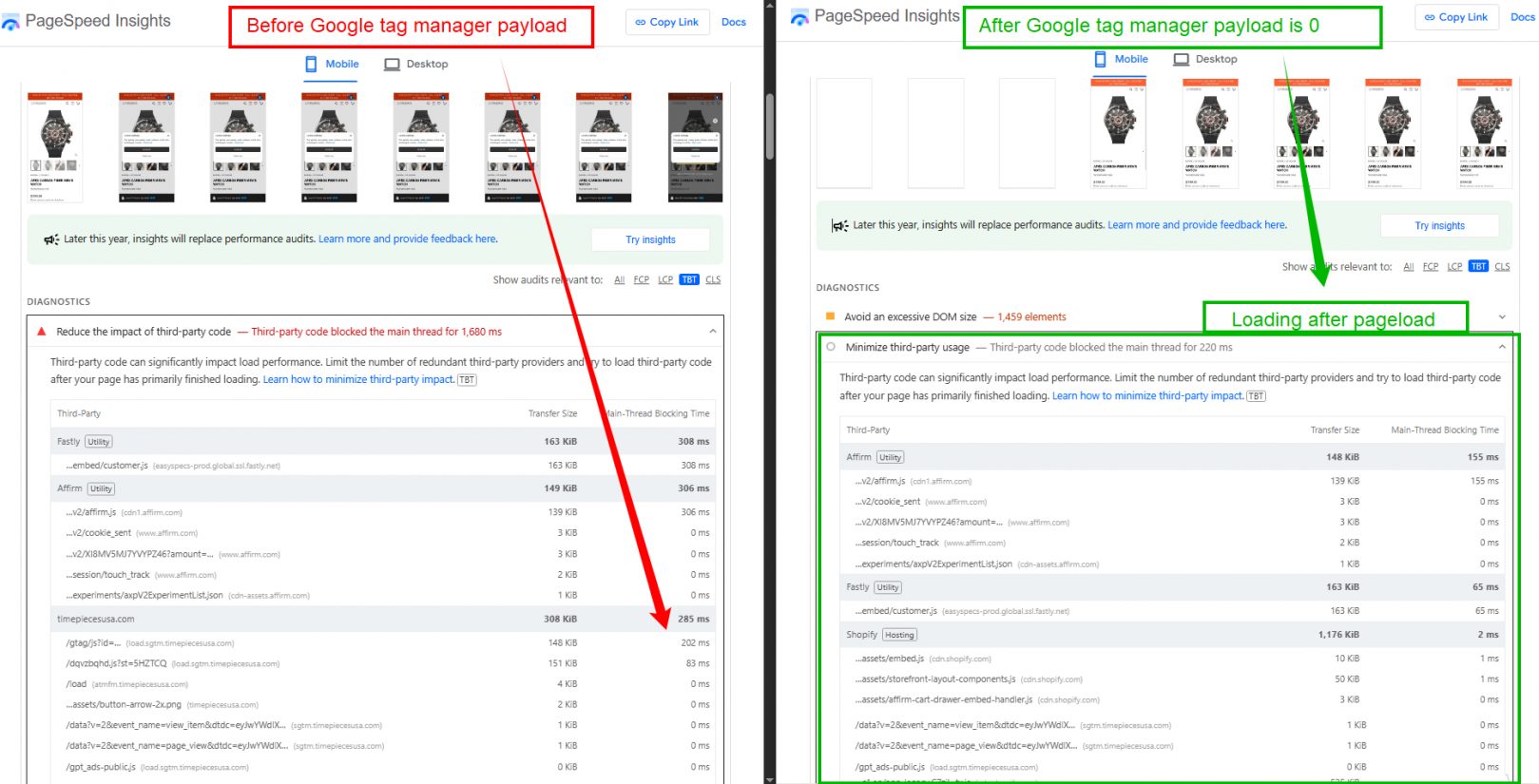
Instead of embedding multiple tracking codes directly in your Shopify theme, leverage Google Tag Manager (GTM). This approach streamlines script management and enhances loading speed.
Why Use Google Tag Manager for Shopify?
Minimizes code clutter by managing all tracking scripts in one place
Improves page speed by reducing HTTP requests
Enables easier tracking updates without modifying theme files
Enhances marketing insights with seamless Google Analytics integration
How to Set Up Google Tag Manager on Shopify
1️⃣ Install Google Tag Manager (GTM) Container Code
- Add the GTM snippet to your Shopify theme’ssection..
2️⃣ Create Tags in GTM
- Set up tags for Google Analytics, Facebook Pixel, and other tracking tools within the GTM dashboard.
3️⃣ Configure Triggers
- Define when each tag should activate, such as on page views, button clicks, or form submissions.
4️⃣ Set Up Variables (Optional)
- Capture dynamic data like order values and user interactions for advanced tracking.
5️⃣ Publish Container Changes
- Click “Submit” in GTM to apply changes to your Shopify store.
6️⃣ Verify Tracking Implementation
- Use Google Tag Assistant or GTM’s Preview Mode to confirm that tags are firing correctly..
By implementing these Shopify speed optimization techniques, your store can achieve faster load times while maintaining accurate tracking for marketing and analytics.
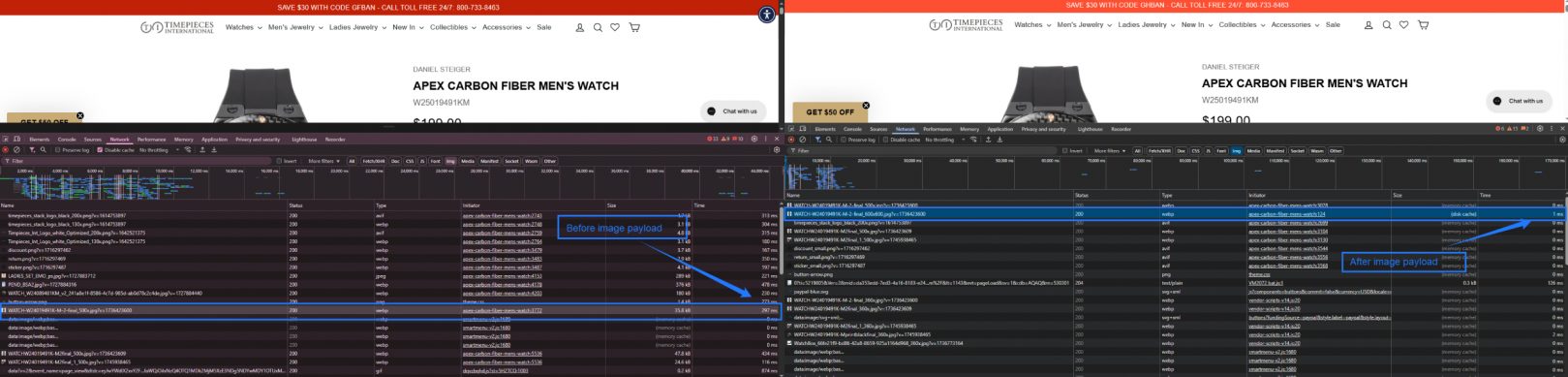
How to Improve Image Payload: Shopify Speed Optimization
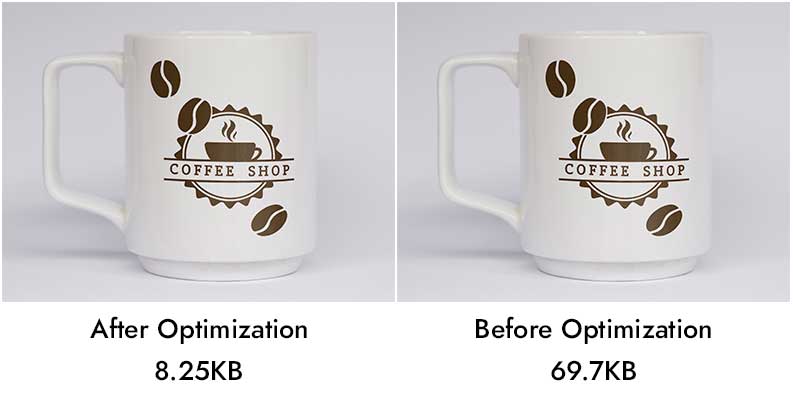
Optimizing images is is essential for enhancing Shopify store speed and performance. Large image files contribute to slow loading times, negatively impacting SEO rankings, user experience, and conversion rates. By following these best practices, you can significantly reduce image payload while improving overall performance.
1. Implement WebP for Faster Loading
Shopify automatically converts PNG images to WebP, a modern format that reduces file size without compromising quality. Since WebP images load faster, they contribute to better Core Web Vitals and improved Google PageSpeed scores.
2. Deliver Responsive Images Using
Implement responsive image techniques to serve optimized versions based on different screen sizes. Mobile users benefit from smaller images, reducing bandwidth usage and boosting site speed.
3. Leverage Shopify Image Optimization Apps
Tools like TinyPNG, Crush.pics, and Image Optimizer help automate image compression while maintaining visual quality. These apps process images in bulk, making it easier to optimize large collections efficiently.
4. Remove Hidden or Unused Images
Hidden images in sliders, pop-ups, or off-screen elements add unnecessary page weight. Removing them ensures that only visible images load initially, improving First Contentful Paint (FCP) speed.
5. Implement Lazy Loading
Instead of loading all images at once, apply lazy loading to delay loading until they appear in the viewport. Shopify supports native lazy loading (loading="lazy"), which significantly enhances page performance.
6. Optimize Page Design for Speed
A heavy reliance on images can slow down your store. Redesigning pages with a minimalist approach—using optimized graphics instead of large banners or sliders—reduces load time without sacrificing aesthetics.
7. Minimize Third-Party Image Dependencies
Embedding images from external sources like Instagram or Facebook increases HTTP requests. Instead, upload and optimize images directly within Shopify to maintain faster page speeds.
8. Replace Images with CSS Effects
Where possible, use CSS to replace image-based elements such as buttons, icons, and backgrounds. CSS-based designs load faster and contribute to a smoother browsing experience.
9. Choose SVG for Scalable Graphics
For logos, icons, and simple illustrations, SVG format is the best choice. Unlike PNG or JPG, SVG files are lightweight, scalable, and load instantly without losing quality.
By implementing these Shopify speed optimization techniques, you can reduce image payload, improve loading speeds, and enhance user experience. A faster store leads to better SEO rankings and increased conversions.
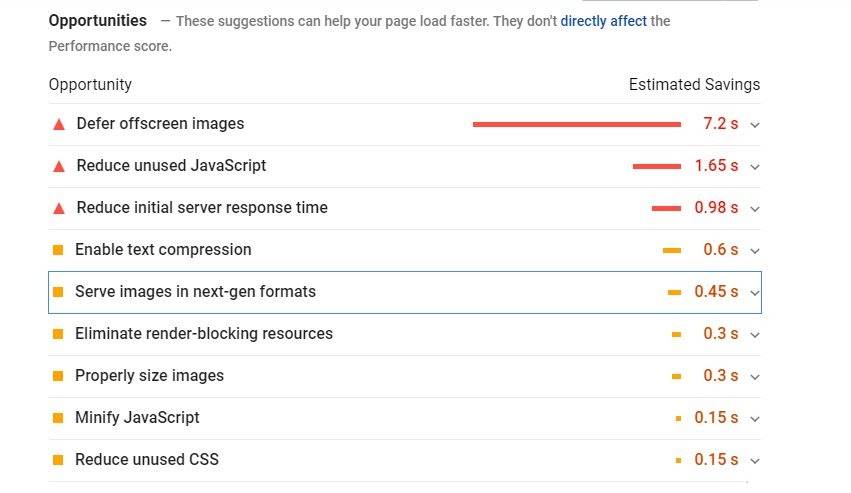
Shopify Speed Optimization: Reduce Image & App Impact for Faster Loading
Enhancing Shopify store speed is crucial for user experience, SEO rankings, and conversion rates. By optimizing images and reducing unnecessary app load, you can significantly improve site performance and loading times.
1. Replace GIFs with Static Images
Large GIF files consume excessive bandwidth, slowing down page speed. Instead, consider using static images or CSS-based animations for a more efficient alternative.
Shopify recommends PNG (30KB – 100KB) or JPEG (around 30KB) for optimal loading speeds.
GIFs often exceed 10MB, negatively impacting performance.
Where possible, replace GIFs with lightweight static images or CSS animations to achieve similar effects without slowing down the page.
2. Decrease Thumbnail Image Size
Unnecessarily large thumbnails add to page weight and increase load times. Optimizing them ensures a smoother shopping experience.
Thumbnails should be significantly smaller than the main product image.
Avoid using the same large image and relying on browsers to scale it down.
Optimized, compressed thumbnails help render product pages faster
3. Reduce the Impact of Apps on Performance
While apps enhance functionality, excessive use can slow down your Shopify store. Minimizing unnecessary scripts helps improve loading speed.
Limit third-party apps and prioritize built-in Shopify API methods.
Identify and remove resource-heavy apps that increase HTTP requests.
After uninstalling apps, clean up leftover code in theme files to prevent slowdowns.
4. Replace Apps with Code for Faster Performance
Instead of relying on multiple apps, implementing lightweight code-based solutions can improve speed and efficiency.
Popups → Use CSS/JS-based popups instead of third-party apps.
Image Galleries → Implement custom galleries with optimized lazy loading.
Faceted Search → Leverage Shopify’s built-in filtering rather than external apps.
Product Metadata → Store metadata within Shopify fields instead of app-dependent solutions.
By applying these Shopify speed optimization strategies, you can create a faster, more efficient store that enhances user experience and boosts conversions. ?
Shopify Speed Optimization : Choose a Lightweight Theme for Faster Performance
Selecting the right Shopify theme is crucial for website speed, user experience, and conversions. A lightweight, well-optimized Shopify theme ensures faster load times, improved SEO rankings, and a seamless shopping experience.
1. Why Choose a Lightweight Shopify Theme?
A poorly optimized theme with excessive animations, heavy scripts, and bloated elements can significantly slow down your store. A fast-loading theme helps:
- Improve user experience by reducing page load times.
- Increase conversions by keeping visitors engaged.
- Boost SEO rankings as Google prioritizes fast websites.
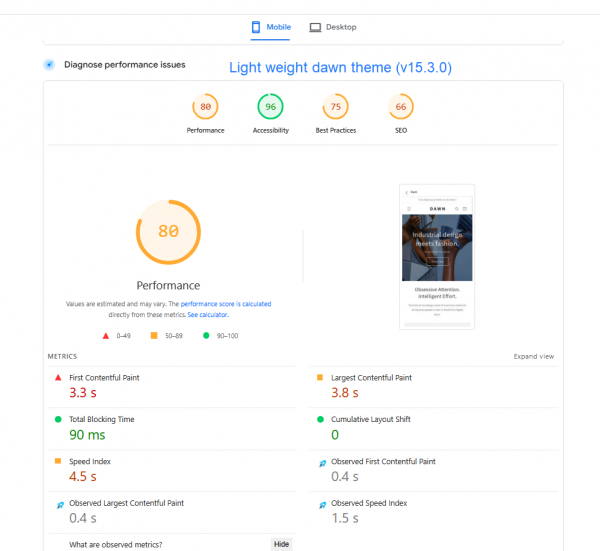
2. Dawn Theme: The Fastest and Most Powerful Shopify Theme
If you’re looking for a powerful, free, and fast Shopify theme, Dawn is the best choice.
- Why Choose Dawn for Shopify Speed Optimization?
- Ultra-fast and lightweight – Minimal bloated code.
- Optimized for mobile-first experience – Loads quickly on all devices.
- Native Shopify 2.0 compatibility – Uses the latest speed and flexibility features.
- Flexible and customizable – Clean design, yet highly adaptable for branding.
- No unnecessary third-party dependencies – Reduces external requests and improves speed.
3. Other Best Shopify Themes for Speed Optimization
Besides Dawn, here are some well-optimized, fast Shopify themes:
- Prestige Theme – High-performance, elegant design.
- Flex – Highly customizable yet lightweight.
- Turbo – Speed-focused and built for performance.
- Shoptimized – Optimized for conversions and speed.
- Booster Theme – Designed for fast-loading stores.
- Shella – Lightweight, modern UI.
- Fastor – Built for mobile speed.
- Debutify – Free, optimized theme with essential features.
Shopify Speed Optimization : Choose the Right Font for Faster Performance
A well-chosen font enhances readability, user experience, and website performance. The right font ensures customers can easily navigate and engage with your Shopify store without distractions or slowdowns.
1. Why Fonts Matter for Shopify Speed Optimization?
- Improves readability – Ensures clear, easy-to-read text across all devices.
- Enhances user experience – A well-structured font hierarchy makes navigation seamless.
- Boosts performance – Minimizing font requests speeds up page load times.
- Increases conversions – If text is easy to read, users are more likely to take action.
2. Best Practices for Choosing Shopify Fonts
- Limit the number of fonts – Stick to one or two fonts to avoid unnecessary font requests.
- Use standard web fonts – Web-safe fonts load faster than custom fonts.
- Leverage Shopify’s built-in fonts – Shopify provides a library of system fonts, Google fonts,, and licensed Monotype fonts, all optimized for Shopify stores.
3. Shopify-Optimized Fonts for Better Speed
- System Fonts (Recommended) – Load instantly as they are pre-installed on users’ devices.
- Google Fonts – Optimized for web use but should be used sparingly.
- Monotype Fonts – Licensed fonts available in Shopify’s library, ensuring proper compatibility.
Advanced Shopify Speed Optimization: Optimize Cumulative Layout Shift (CLS)
Cumulative Layout Shift (CLS) is a Google Core Web Vital that measures unexpected page layout movements while loading. A high CLS score negatively affects user experience and SEO rankings.
1. How to Fix CLS Issues in Shopify?
- Set explicit width and height for images – Prevents unexpected resizing when images load.
- Define dimensions for video elements – Ensures consistent layout spacing.
- Avoid inserting dynamic content above existing elements – Prevents page shifting during load.
- Use a proper font-display property – Reduces FOUT (Flash of Unstyled Text) when fonts load.
2. Example of CLS-Optimized Image Code
<img src="puppy.jpg" width="640" height="360" alt="Puppy with balloons"/>
By specifying width and height, this prevents layout shifts when images load.
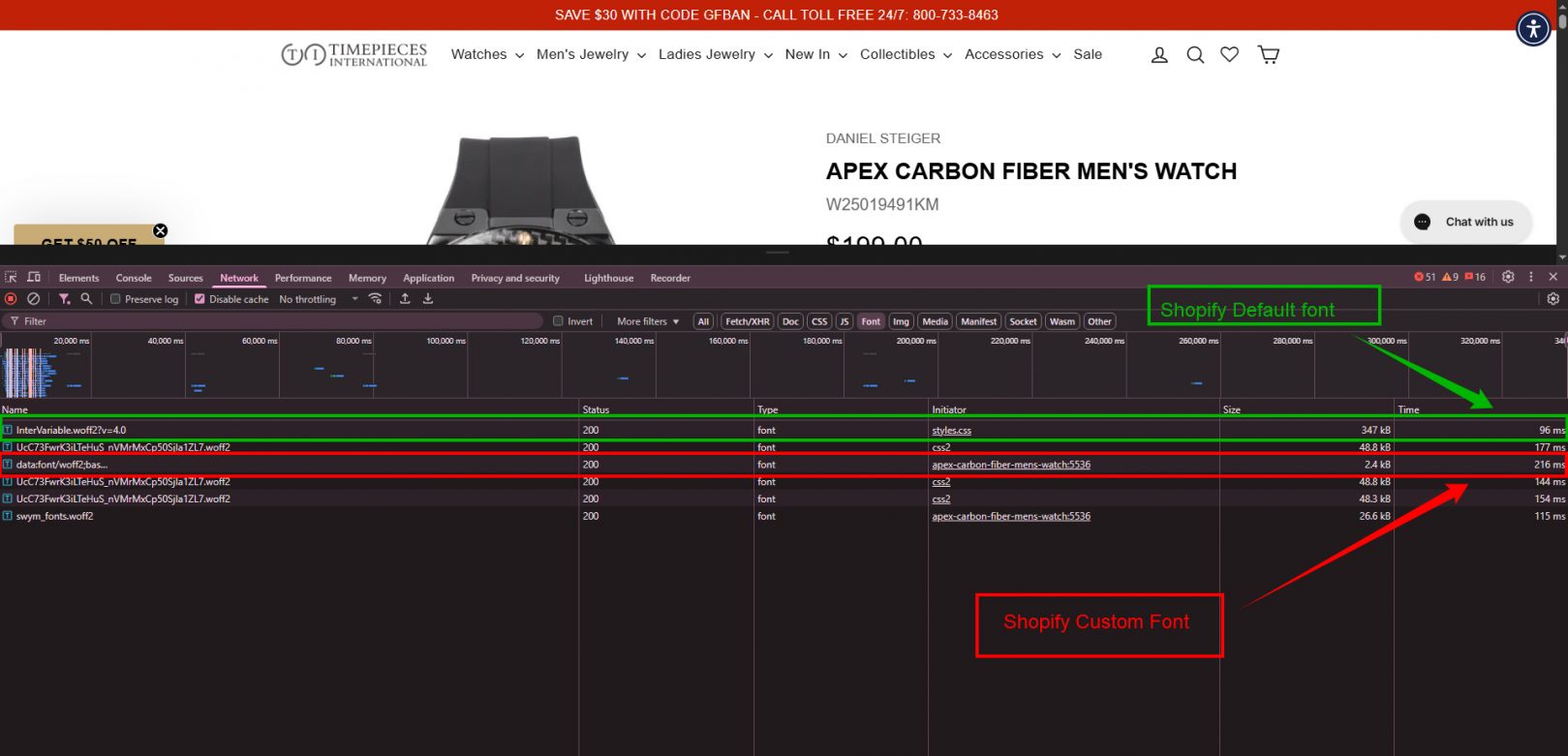
- Webfonts that are Invisible Should be Prevented.
- You should avoid adding content existing content, except in response to a user interaction.
For More details you can check this link :
Read this Blog – Cumulative Layout Shifting
Empowering E-Commerce Success
Best Score Achieved
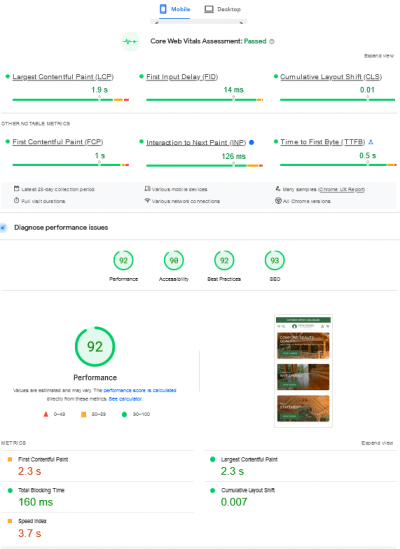
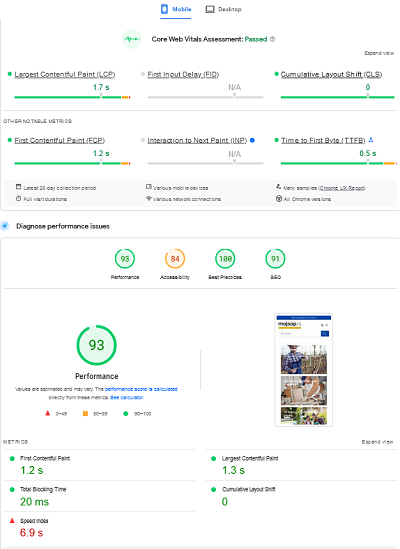


They gave us a very detailed review of recommendations and solutions on our site's speed issue.
We saw a significant improvement in load times after completing the work.
I would highly recommend their services to potential clients.


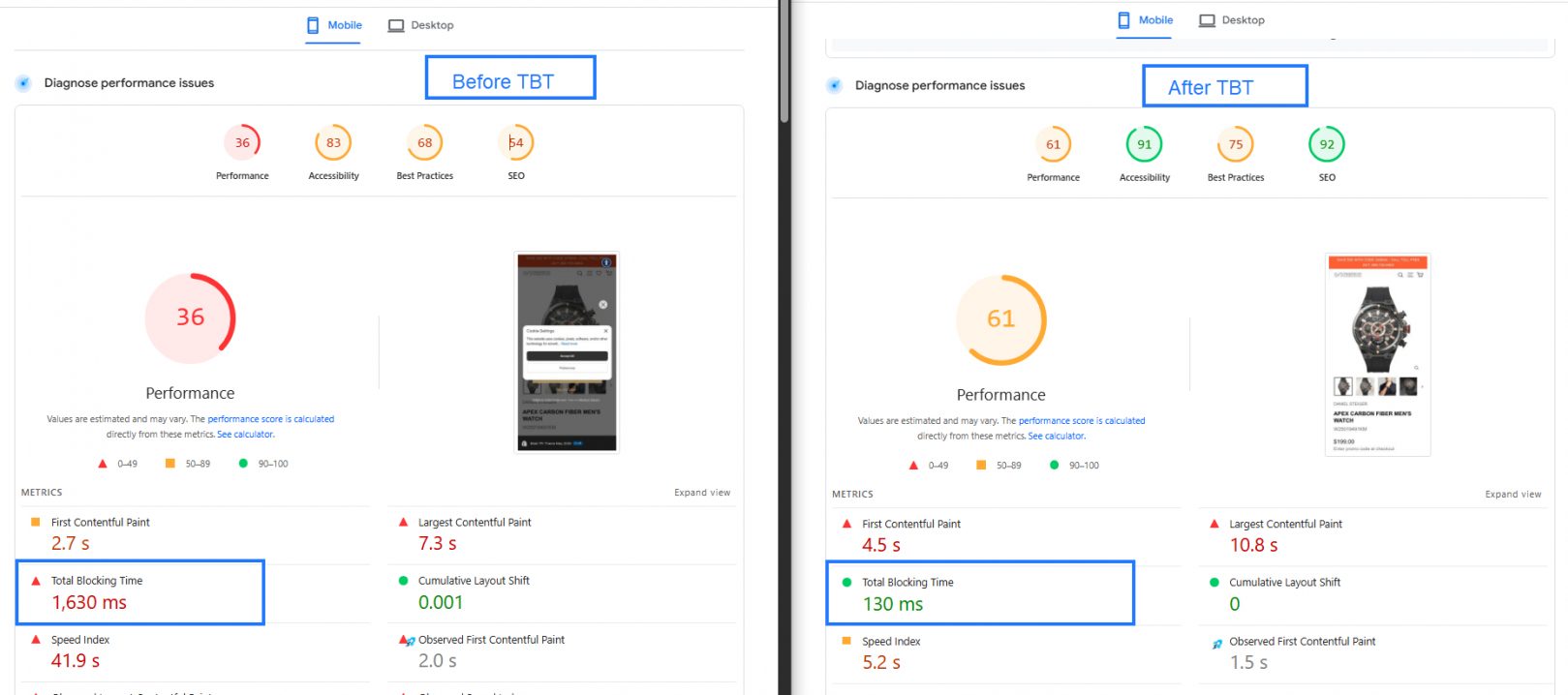
Optimize Total Blocking Time (TBT) for Shopify Speed Optimization
Total Blocking Time (TBT) is a crucial performance metric in
Google Core Web Vitals, measuring the time a page remains unresponsive due to heavy JavaScript execution.
A high TBT can slow down page interactivity, leading to a poor user experience and lower SEO rankings.
Learn more:
How to Reduce Total Blocking Time (TBT) in Shopify
1. Apply Async & Defer for JavaScript Execution
Instead of loading all JavaScript files simultaneously, use the async or defer attributes to optimize script loading:
- Async → Loads scripts without blocking page rendering.
- Defer → Loads scripts after the HTML parsing is complete.
Example:
<!-- Defer Attribute --><head><script type="text/javascript" src="theme.js"defer/></head><!-- Async Attribute --><head><script type="text/javascript" src="theme.js"async/></head>2. Delete Unused JavaScript & App Code
Many Shopify themes retain leftover JavaScript from uninstalled apps, increasing page load time. Regular cleanup helps reduce TBT.
- Open Google Chrome DevTools → Coverage tab to identify unused scripts.
- Remove leftover app scripts from your theme.liquid file and layout includes.
3. Replace Large JavaScript Libraries with Smaller Alternatives
Heavy JavaScript libraries like jQuery can slow down execution. Replace them with modern, lightweight alternatives.
- Avoid using heavy libraries like jQuery if possible.
- Choose lightweight frameworks like Alpine.js or Vanilla JS.
- Use CDN-hosted JavaScript to reduce your server load.
4. Reduce Third-Party JavaScript Load
Third-party scripts — such as tracking codes, live chat widgets, or social media integrations —
can significantly impact loading performance by blocking rendering.
- Load all third-party scripts asynchronously to prevent them from delaying page rendering.
- Use Google Tag Manager (GTM) to organize and manage tracking scripts efficiently.
- Audit and remove any unnecessary third-party apps or scripts that add extra load time.
5. Key Takeaways for Shopify Speed Optimization
- Optimize and minimize JavaScript execution to enhance interactivity.
- Use Async and Defer attributes for non-critical scripts.
- Identify and remove unused JavaScript or old app-related scripts.
- Replace heavy JavaScript libraries with lightweight alternatives where possible.
- Manage and optimize all tracking and third-party scripts through Google Tag Manager.
9. High-Priority Code Optimization
- Remove commented HTML, unused CSS & JS from old apps.
- Eliminate render-blocking resources (move critical CSS above the fold).
- Load JS only on necessary pages using conditional logic.
- Replace heavy third-party JS (like jQuery) with lightweight JavaScript.
- Keep Shopify theme JS under 16KB for better performance.
- Consider implementing PWA (Progressive Web App) for a faster experience.
10. Weekly Shopify Store Health Check
- Google Analytics → Track response & load times.
- Google Search Console → Monitor Core Web Vitals (3-month history).
- Maintain performance logs → Record JS, CSS, and image payload changes.
- Track app installs/uninstalls → Prevent unnecessary code bloat.
6. Reduce Third-Party Code Impact & JavaScript Execution Time
- Load third-party scripts using async or defer to prevent blocking.
- Google Tag Manager (GTM) to manage and delay non-critical scripts.
- Remove unused app scripts from theme.liquid and assets.
- Minify JavaScript and replace heavy libraries like jQuery with lightweight alternatives.
- Choose code splitting to load JavaScript only when needed.
7. Optimize Largest Contentful Paint (LCP)
- Apply WebP images instead of PNG/JPEG for faster loading.
- Enable lazy loading for images.
- Eliminate render-blocking resources by preloading important CSS & fonts.
- Use a fast Shopify theme like Dawn, Turbo, or Prestige.
8. Optimize First Contentful Paint FCP
- Prioritize loading above-the-fold content first.
- Reduce server response time by optimizing Liquid code.
- Ensure text remains visible during web fonts load.
- Ensure Optimize store images. load via Shopify’s CDN.
11. Simplify Your Homepage for Better Speed & UX
- Focus on essential content – Highlight key products, offers, and announcements.
- Use trust indicators – Add testimonials, reviews, and brand logos.
- Ensure mobile responsiveness – Optimize layout for all devices.
- Include strong CTAs – Feature New Arrivals, Best Sellers, and Promotions.
A clean, well-structured homepage boosts engagement, trust, and conversions ?
12. Minify Webpage
13. Optimize Image Loading with Lazy Loading
Shopify automatically compresses images, but lazy loading ensures faster page speed. Instead of loading all images at once, images will only load as the user scrolls.
- Reduces initial page load time
- Improves performance & user experience
- Optimizes bandwidth usage
Example: If your page has 100+ images, lazy loading will load only the visible ones, enhancing speed & efficiency ?
14. Reduce Unnecessary HTTP Requests
Too many HTTP requests slow down your Shopify store. Optimize by:
- Combining & inlining CSS to reduce external file requests
- Inlining small JavaScript snippets instead of external files
- Deferring low-priority JavaScript (load on scroll instead of page load)
- Using Base64 for small images to reduce separate requests
- Limiting social buttons to avoid extra external requests
Fewer requests = Faster page load & better user experience ?
For more information please visit
https://www.oscprofessionals.com/blog/how-to-make-fewer-http-requests-to-speed-up-your-site/
15. JavaScript, CSS Performance Optimization:
- Some apps will come with CSS, JS.
- As an expert you need to identify how some of the CSS, JS of an app can be removed.
- Always beware of excessive liquid loops.
List of Opportunities Audit Tool :
List down all opportunities link them to a specific blog as for those opportunities.
Conclusion
Applying these optimization techniques consistently will improve your Shopify store’s speed and performance. This guide is based on real-world experience and practical implementation.
Many developers overlook speed optimization when working on themes, but keeping speed in mind ensures better Web Vitals scores and an enhanced user experience.
By following these steps, your site will load faster, rank higher, and convert better.
? Best of luck with your Shopify store’s speed and conversions!