Skip to content

Create Hide Shipping Method Rule
Step 1: Open Additional Discounts
Go to OSCP Wholesale → Additional Discounts from the left-hand menu in your app dashboard.
Click Manage Rules under Hide Shipping Methods.
This will directly open the Hide Shipping Rule Creation page.

Step 2: Enter Offer Name
In the Rule Label section, enter the name of the Hide Shipping offer.

Step 3: Add Conditions
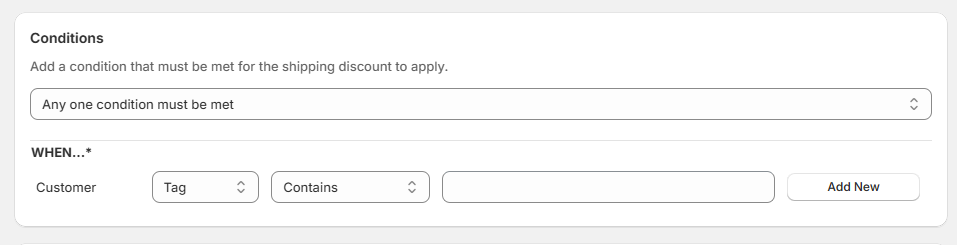
You can set conditions based on Cart, Product, or Customer:
Option A: Cart Conditions
Set conditions based on cart amount or total quantity.
Option B: Product Conditions
Select one or multiple products to apply the rule.
Option C: Customer Tag Conditions
Add customer tags to restrict the rule to specific customers.
Step 4: Select Shipping Method Behavior
Choose one of the options:
Option A: Hide All Shipping Methods
Hides all available shipping methods at checkout.
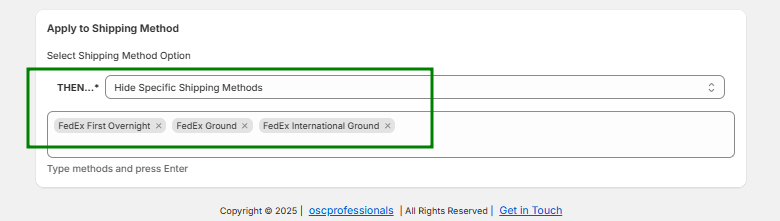
Option B: Hide Specific Shipping Methods
Type the exact name of the shipping method and press Enter.
The selected method will appear inside the text box.
Click on Save button.
Step 5: Review Offer Listing
After saving, the offer will appear on the Offer Listing page with:
- Offer Name
- Status (Active/Inactive)
- Action (Edit)
Offer Display: