Skip to content

Table of Contents
Magento Server Troubleshooting: From Browser to Backend
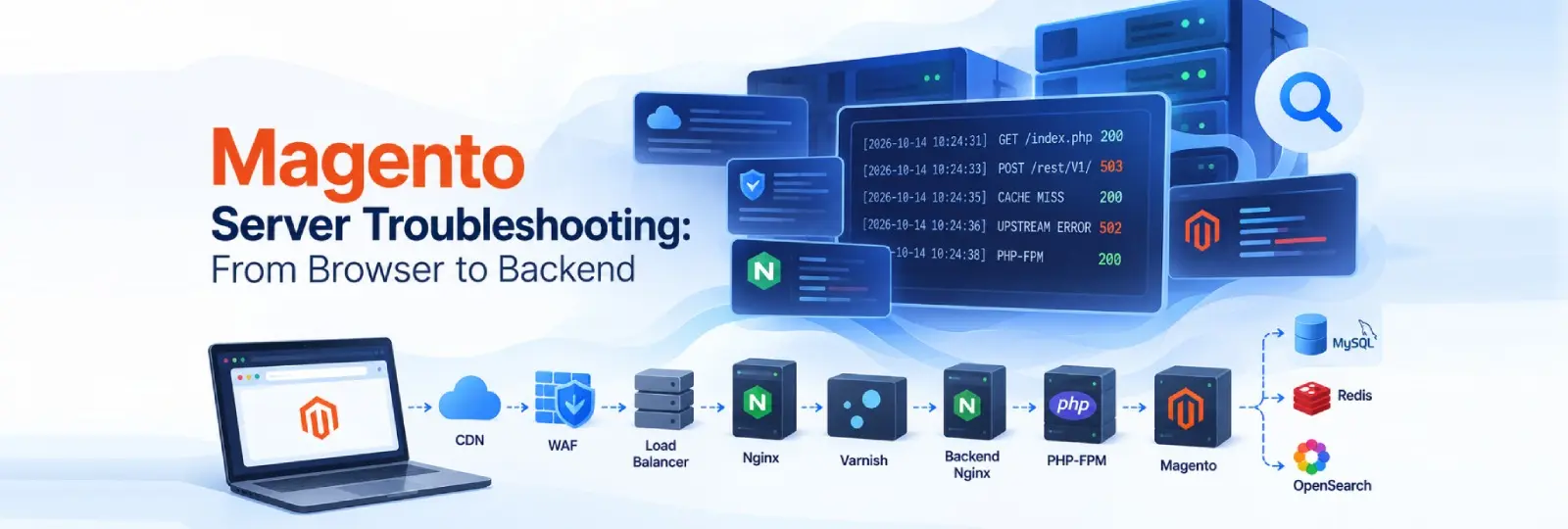
A typical Magento environment may include a browser, CDN, Web Application Firewall (WAF), load balancer, Nginx, Varnish, PHP-FPM, Magento, and backend services such as MySQL, Redis, and OpenSearch.
Each layer plays a role in processing requests. When something goes wrong, checking the correct logs in the right order helps you identify the failing layer and investigate the root cause.
This guide explains the request flow and the key log points to check when troubleshooting Magento performance and application issues.
Understand the Magento Request Flow
A Magento request passes through multiple infrastructure layers before the response reaches the browser.
In a typical Magento hosting environment, the incoming request may follow this path:
Browser → CDN → WAF → Load Balancer → Nginx → Varnish → Backend Nginx → PHP-FPM → Magento → Database and Other Services
The exact request flow depends on the server architecture and configuration. For example, some environments may not use a CDN, load balancer, or separate backend Nginx server.
After Magento processes the request, the response travels back through the relevant application and infrastructure layers to the browser.
Each layer can provide logs and metrics that help you trace the request, identify where delays or errors occur, and determine which component requires further investigation
Browser to Magento Application: Where to Check Logs
Start with the incoming request and follow its path toward the Magento application. Reviewing logs at each layer helps you identify where a request was blocked, delayed, or failed.
The exact log sources depend on your infrastructure, hosting provider, and logging configuration.
Browser to CDN
Logs and tools to check:
- Browser DevTools Network tab
- CDN access logs
- CDN cache logs or cache analytics, if available
The browser’s Network tab helps you inspect individual requests, response status codes, headers, timing, and response details. CDN access logs and cache analytics help you investigate how requests are handled at the edge.
Start here to identify the affected request, review its response, and check the corresponding CDN activity.
CDN to WAF
Logs to check:
- CDN request logs
- WAF security events
- WAF rule-matching logs
The WAF layer provides information about security events, matched rules, and potentially blocked requests.
Review these logs when investigating whether a request was blocked, challenged, or otherwise affected by a security rule, and whether it was allowed to continue toward the origin infrastructure.
Note: The CDN and WAF may be integrated into the same service, and their processing order depends on the provider’s configuration.
WAF to Load Balancer
Logs to check:
- WAF origin or upstream logs, if available
- Load balancer access logs
- Backend health and target status logs
These logs help you trace requests moving from the security layer toward the backend infrastructure.
Load balancer access logs can help identify forwarding errors, response status codes, and request-processing delays. Backend health logs and target status information help determine whether the load balancer could reach a healthy backend server.
Load Balancer to Nginx
Logs to check:
- Nginx
access.log - Nginx
error.log
Nginx logs help you investigate how requests reach the web server and whether errors occur during request processing.
The access log records request details such as the requested URL, HTTP status code, response size, and request duration, depending on the configured log format. The error log helps investigate issues such as upstream connection failures, timeouts, and other web-server errors.
Correlate these entries with the load balancer logs to determine whether the request reached Nginx successfully.
Nginx to Varnish
Logs to check:
- Nginx
access.log - Nginx
error.log - Varnish
varnishlog
When tracing a request through Nginx and Varnish, review the logs from both components according to your configured request flow.
Varnish logs help you investigate cache behavior, request handling, backend communication, and response delivery. Comparing them with Nginx logs can help you determine whether the request was served from cache or forwarded for backend processing. For more details, see our guide to Magento Varnish Cache Diagnostics to investigate cache hits, misses, and backend communication issues.
Keep in mind that Varnish may serve a cached response directly without forwarding the request to backend Nginx or Magento.
Varnish to Backend Nginx
Logs to check:
- Varnish
varnishlog - Backend Nginx
access.log - Backend Nginx
error.log
When Varnish forwards a request to backend Nginx, use the corresponding logs to trace the transition.
Varnish logs can show backend selection, connection problems, and backend response details. Backend Nginx access and error logs help you verify whether the request arrived and how the web server handled it.
Correlating timestamps, request paths, status codes, and available request IDs helps you investigate upstream failures and delays.
Nginx to PHP-FPM
Logs to check:
- Nginx
error.log - PHP-FPM error log
- PHP-FPM slow log, if configured
PHP-FPM becomes an important investigation point when a request proceeds from the web server to PHP processing.
The Nginx error log can reveal upstream issues, such as connection failures or timeouts while communicating with PHP-FPM. PHP-FPM error logs help identify worker and process-related problems, while the slow log can help identify PHP execution that exceeds the configured threshold.
Review these logs together to distinguish web-server communication issues from slow or failing PHP execution. If the issue involves delayed responses, our guide on solving slow server response times in Magento 2 explains common causes and possible optimization approaches.
PHP-FPM to Magento
Logs to check:
var/log/system.logvar/log/exception.logvar/log/debug.log, if enabled or generated by the application configuration- Custom module logs, where applicable
Once the request reaches Magento, application logs become particularly important.
Magento’s system and exception logs can help investigate application-level errors, exceptions, and warnings. Debug logs, when available, and custom module logs can provide additional context about specific features, integrations, and business logic.
Correlate application log entries with the request timestamp and relevant error details to narrow down the cause of the issue.
Note: These paths are relative to the Magento project root. The logs generated and the details recorded depend on the Magento version, logging configuration, enabled modules, and deployment environment.
Magento to Database, Redis, and OpenSearch
Magento requests may depend on backend services such as MySQL or MariaDB, Redis, and OpenSearch, depending on the application’s configuration and the operation being performed.
Logs to check:
- MySQL or MariaDB error logs
- MySQL or MariaDB slow-query logs, if enabled
- Redis logs
- OpenSearch logs
When investigating a Magento issue, do not stop at the application logs if the request depends on one of these services.
Database error logs can help identify database failures and connection-related issues, while slow-query logs can help pinpoint queries that exceed the configured logging threshold. For deeper database performance analysis, read our guide to InnoDB optimization for Magento server performance, which explores database memory configuration and buffer pool performance.
Redis logs provide visibility into service-level events, and OpenSearch logs can help investigate search-related errors and service availability.
Review the logs for the service involved in the request rather than assuming that every issue originates in Magento itself. Where possible, correlate service logs with Magento application logs using timestamps, error details, and request context.
Trace the Response from Magento Back to the Browser
Troubleshooting does not end when Magento finishes processing a request. You should also investigate how the response travels through the relevant backend and infrastructure layers before reaching the browser.
The exact response path depends on the server architecture, caching behavior, and request-routing configuration.
Magento to PHP-FPM
Logs to check:
- Magento application logs
- PHP-FPM error logs
- PHP-FPM slow log, if configured
Review these logs to investigate application-level errors, PHP execution problems, and slow-processing activity.
Correlating Magento log entries with PHP-FPM records can help you determine whether an issue occurred during application execution or PHP worker processing.
Backend Nginx to Varnish and Other Upstream Layers
Logs to check:
- Backend Nginx
access.log - Backend Nginx
error.log - Varnish
varnishlog - Frontend Nginx logs, where applicable
Review the logs from the components involved in your actual response path.
Correlate request status codes, timestamps, and available timing information to investigate backend response delays, upstream errors, and caching behavior.
Depending on the configuration, Varnish may receive a response from the backend and return it to the upstream client. A cache hit, however, may bypass backend processing entirely.
Nginx to CDN/WAF to Browser
Logs and tools to check:
- Nginx
access.log - Nginx
error.log - CDN access logs and cache analytics, if available
- WAF event logs, if available
- Browser DevTools Network tab
Compare server-side records with the request and response details visible in the browser.
The browser’s Network tab helps you inspect HTTP status codes, response headers, response timing, and other request details. CDN and WAF logs can provide additional information about
Follow a Structured Magento Troubleshooting Process
When debugging a Magento issue, avoid checking logs randomly across the infrastructure.
Instead, follow a structured process:
- Start at the browser: Inspect the request using DevTools Network.
- Trace the incoming request: Review CDN, WAF, load balancer, Nginx, and Varnish logs.
- Investigate application processing: Check PHP-FPM and Magento logs.
- Review backend dependencies: Inspect database, Redis, or OpenSearch logs where relevant.
- Trace the response: Correlate backend, Varnish, Nginx, CDN, WAF, and browser records.
- Identify the failing layer: Use the available log evidence to narrow down the problem.
- Fix the root cause: Address the component responsible rather than treating only the visible symptom.
Following the request in order makes troubleshooting more systematic and reduces the time spent investigating unrelated components.
Conclusion: Identify the Failing Layer and Fix the Root Cause
Magento troubleshooting becomes more efficient when you know which logs to check at each stage of a request.
From browser DevTools and CDN logs to Nginx, Varnish, PHP-FPM, Magento, and backend service logs, each layer can provide valuable information about request processing, errors, and performance bottlenecks.
The key is to correlate the available logs and trace the request from the browser to the backend, then investigate how the response returns through the relevant infrastructure layers.
Identify the failing layer. Fix the root cause.
Need better visibility into your Magento infrastructure? Explore AutomateSRE for server monitoring, alerts, and AI-assisted root cause analysis to help your team monitor its Magento environment and investigate infrastructure issues more efficiently.
Visit https://automatesre.com/ to learn more.