Skip to content

How to Create an Order Limit
Table of Contents
How to Create an Order Limit
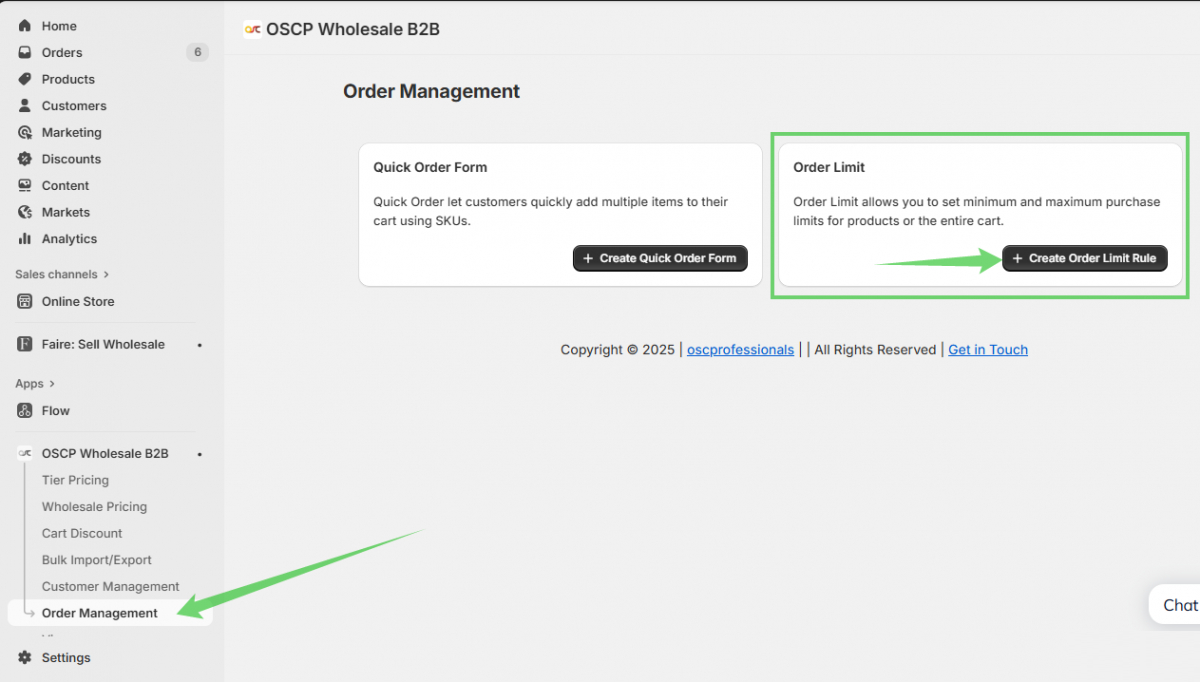
Step 1: Navigate to Order Management
- Go to the OSCP Wholesale B2B app in your admin panel.
- Select Order Management from the sidebar.
Step 2: Access Order Limit Section
In the Order Management page, click Create Order Limit Rule under the Order Limit section.
Step3: Set General Settings
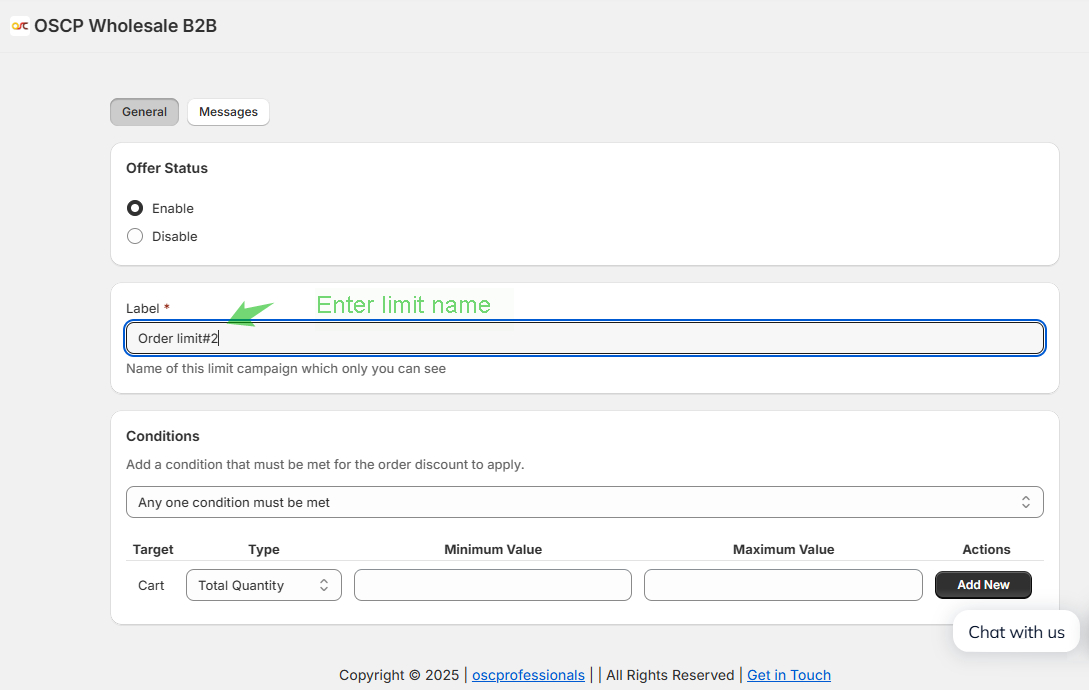
- Enable the limit by selecting Enable under Offer Status.
- Enter a Limit Name for your reference (this is internal and won’t be visible to customers).
Step 4: Define Conditions
- Choose whether All conditions must be met or Any one condition must be met.
- Set the Target as Cart.
- Select Type (e.g., Total Quantity or Total Value).
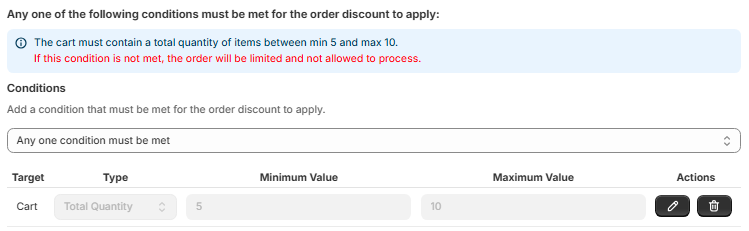
- Enter Minimum Value and Maximum Value (e.g., quantity between 1 and 5).
Step 5: Save the Limit
- Click Add New to save the condition(s).
- Review and save the entire order limit rule
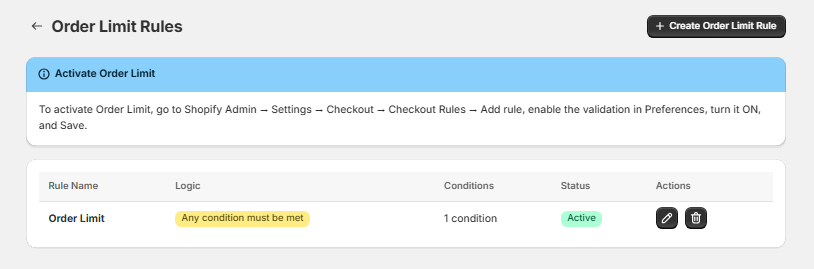
Step 6: You can view and manage the listing of Order Limit.
Customizing Messages
You can customize the messages as you wish and use the variables noted in the ‘Message’ tab.
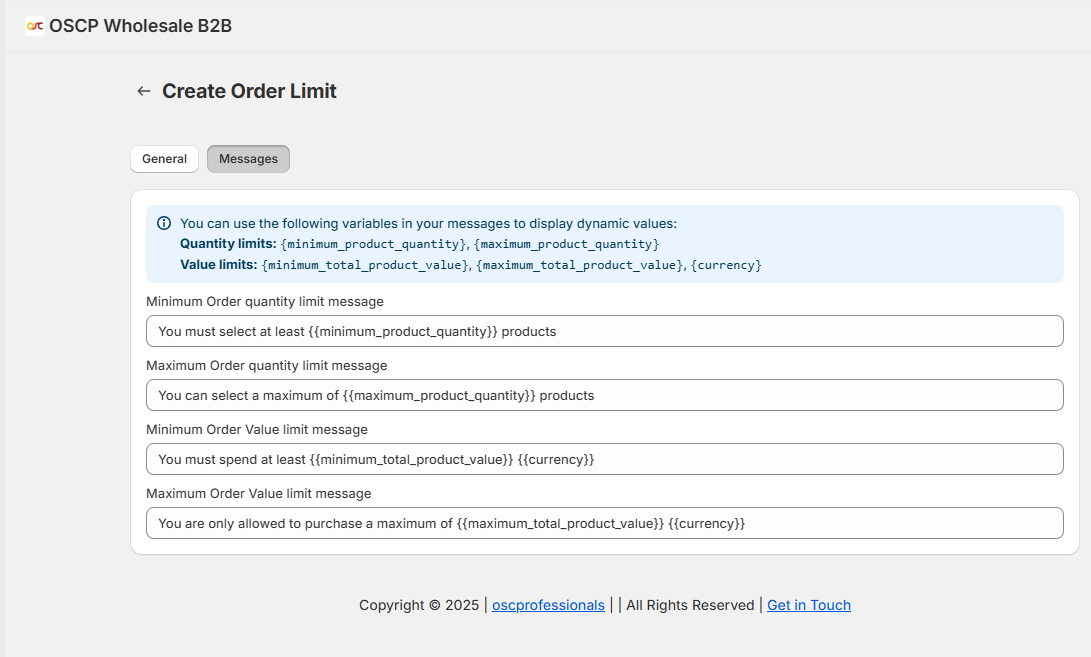
- Review and save the entire order limit rule.
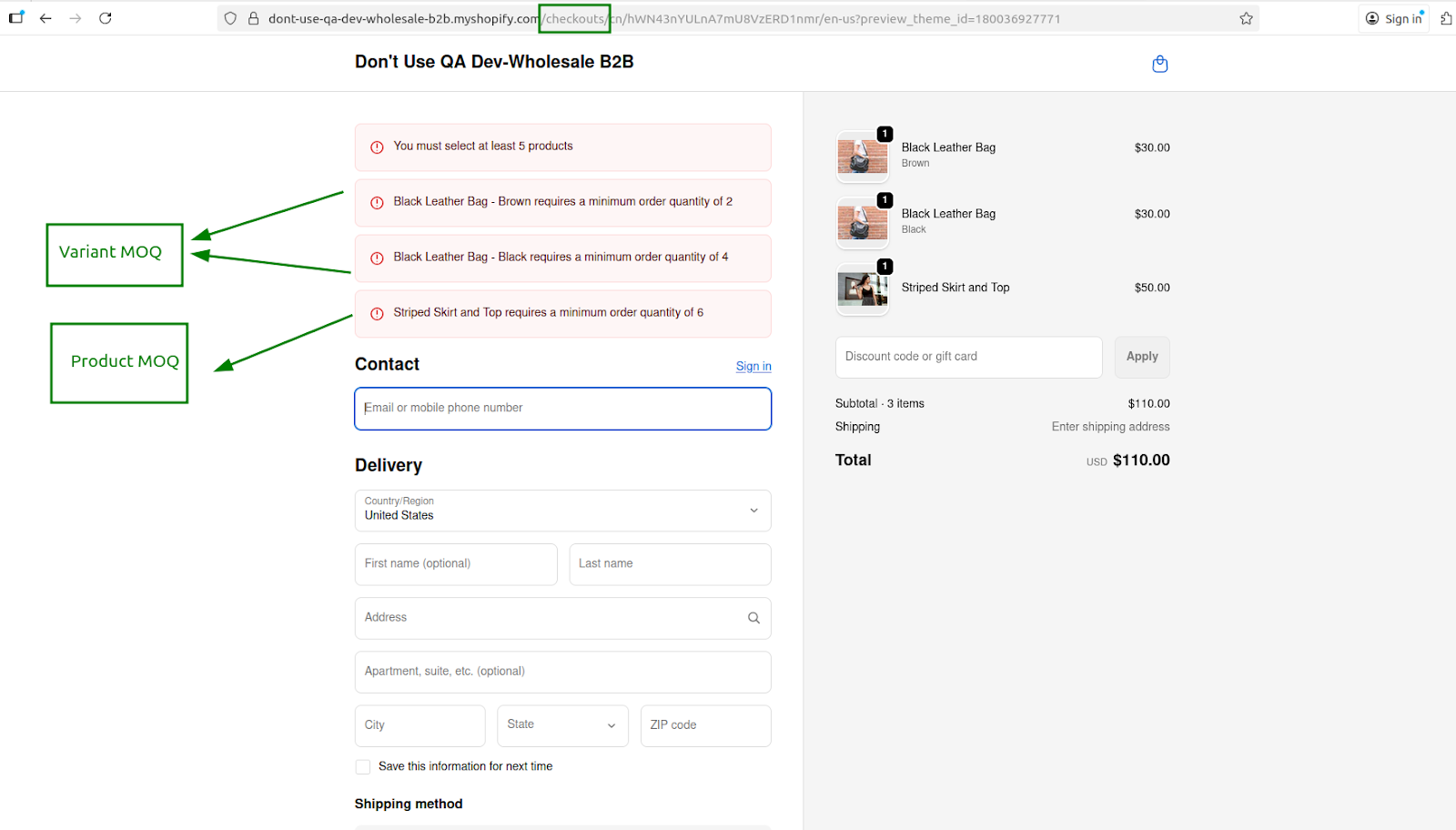
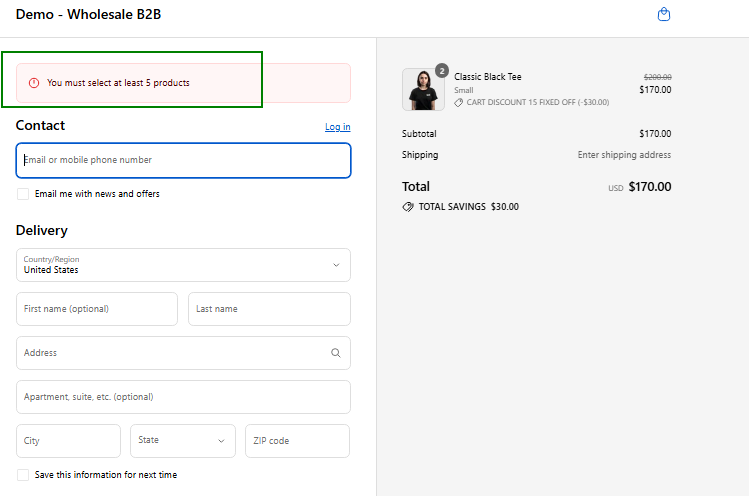
Frontend Display
Create MOQ Metafields for Product and Variant
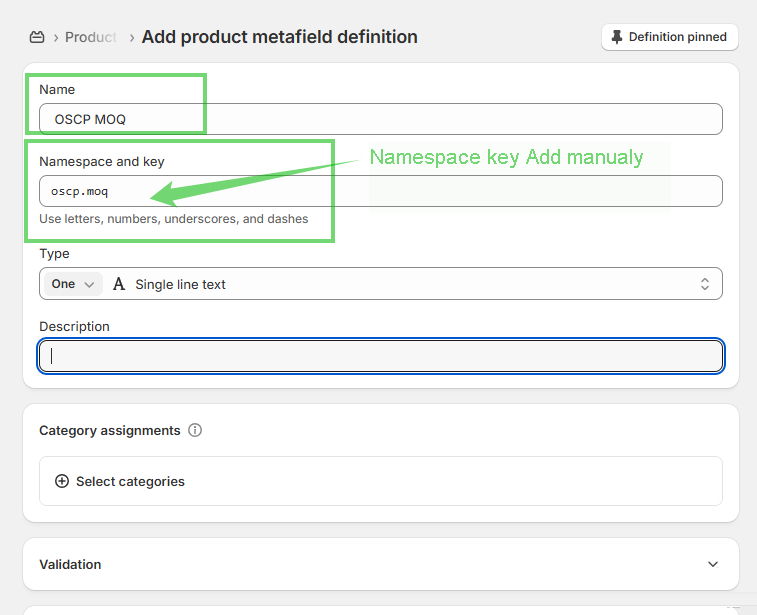
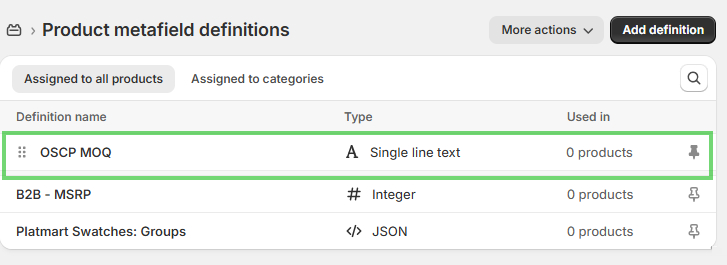
Step 1: Add Product MOQ Metafield
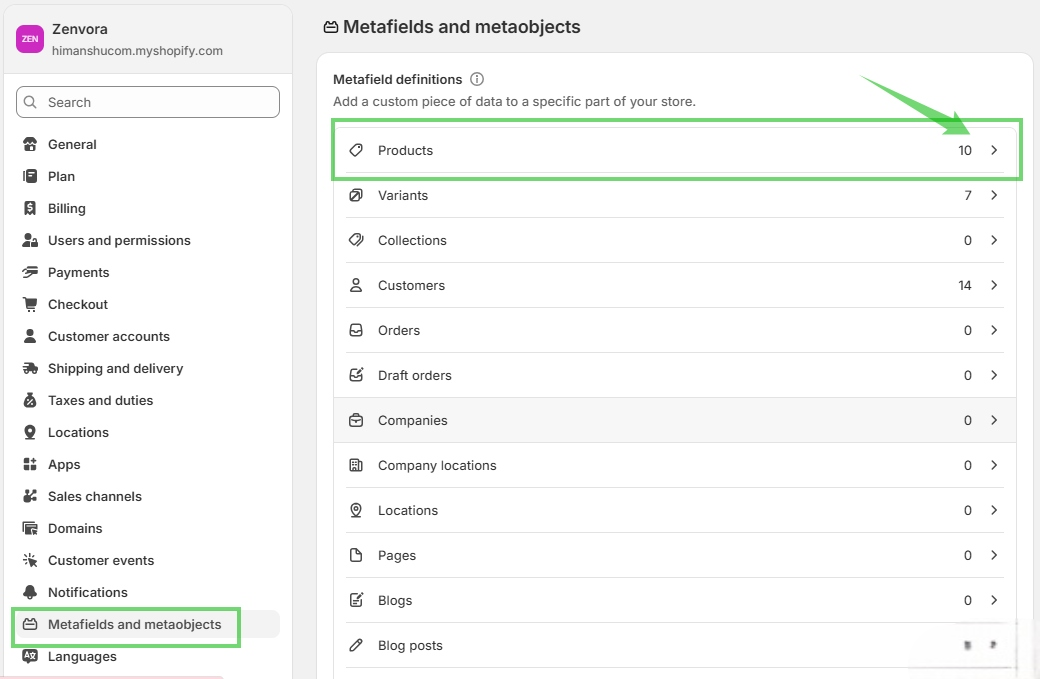
- Go to Settings → Metafields and metaobjects → Products
- Click Add definition
- Name: OSCP MOQ
- Namespace and key: oscp.moq
- Type: Single line text
- Limit: 1–3 characters (example: 5)
Click Save
Step 2: Add Variant MOQ Metafield
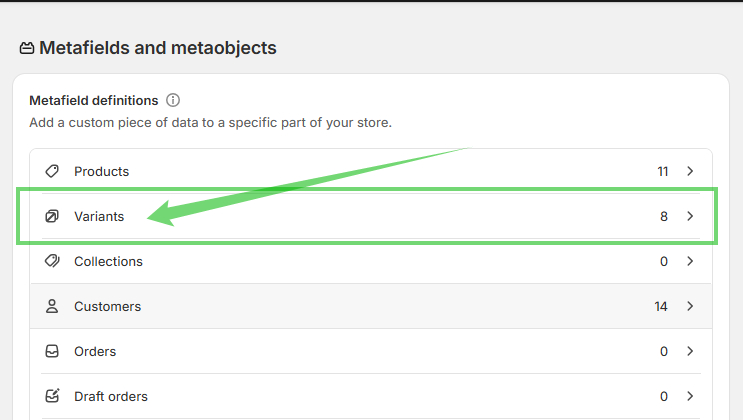
Go to Settings → Metafields and metaobjects
From the list, click Variants (this is the Product variants level shown on the page)
Click Add definition
Now enter the following details:
- Name: OSCP MOQ
- Namespace and key: oscp.moq
- Type: Single line text
- Limit: 1–3 characters (example: 5)
Click Save
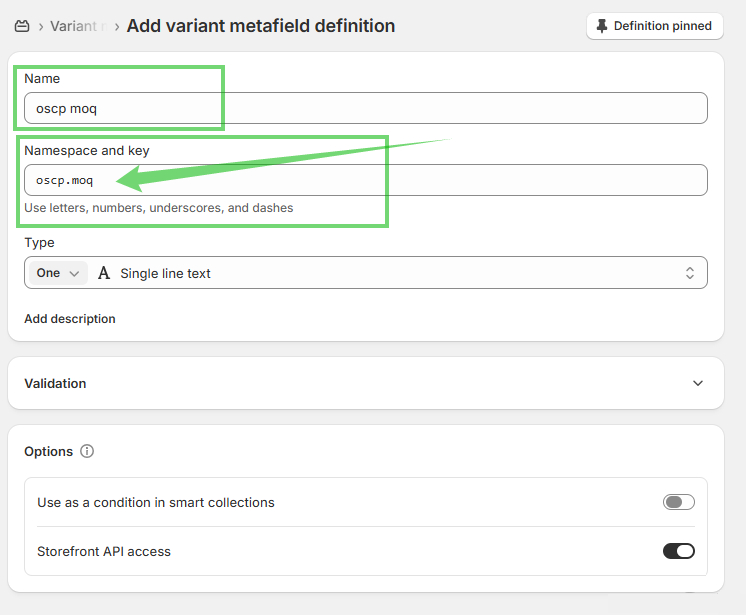
This will create the MOQ metafield at the variant level, allowing you to set different minimum quantities for each product variant.
Step 3: Set MOQ for Products
- Go to Products → Select your product
- Scroll to the Product metafields section
- Enter the MOQ value (example: 5) in OSCP MOQ
- Click Save
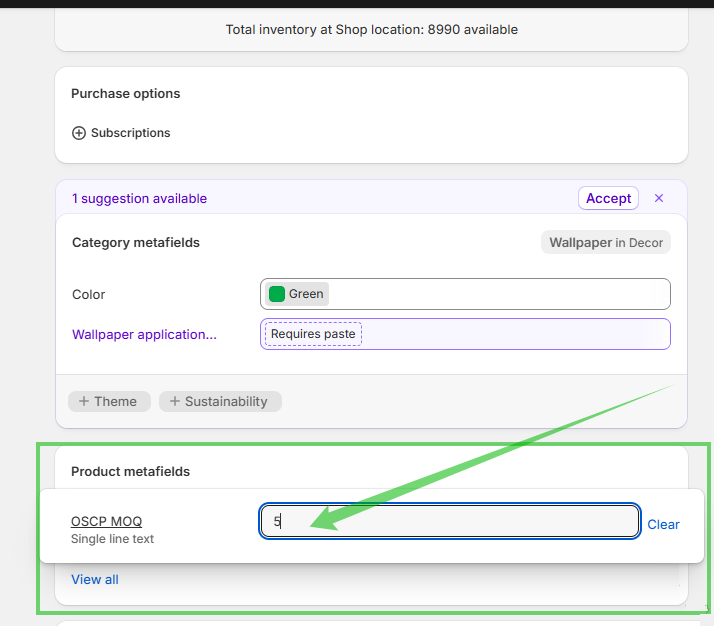
Step 4: Set MOQ for Variants
- Open the same product
- Go to the Variants tab
- Click on a variant (example: Black)
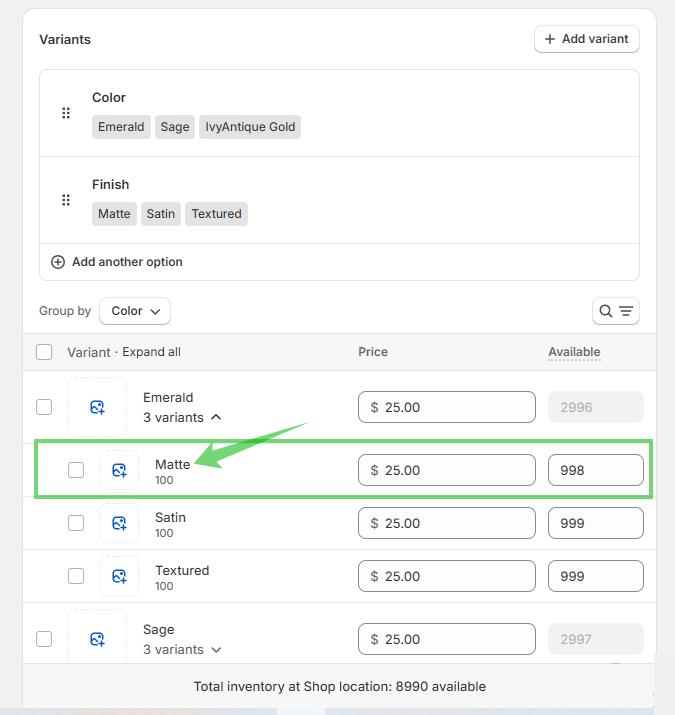
Scroll to Variant metafields
Enter the MOQ value (example: 4) in OSCP MOQ
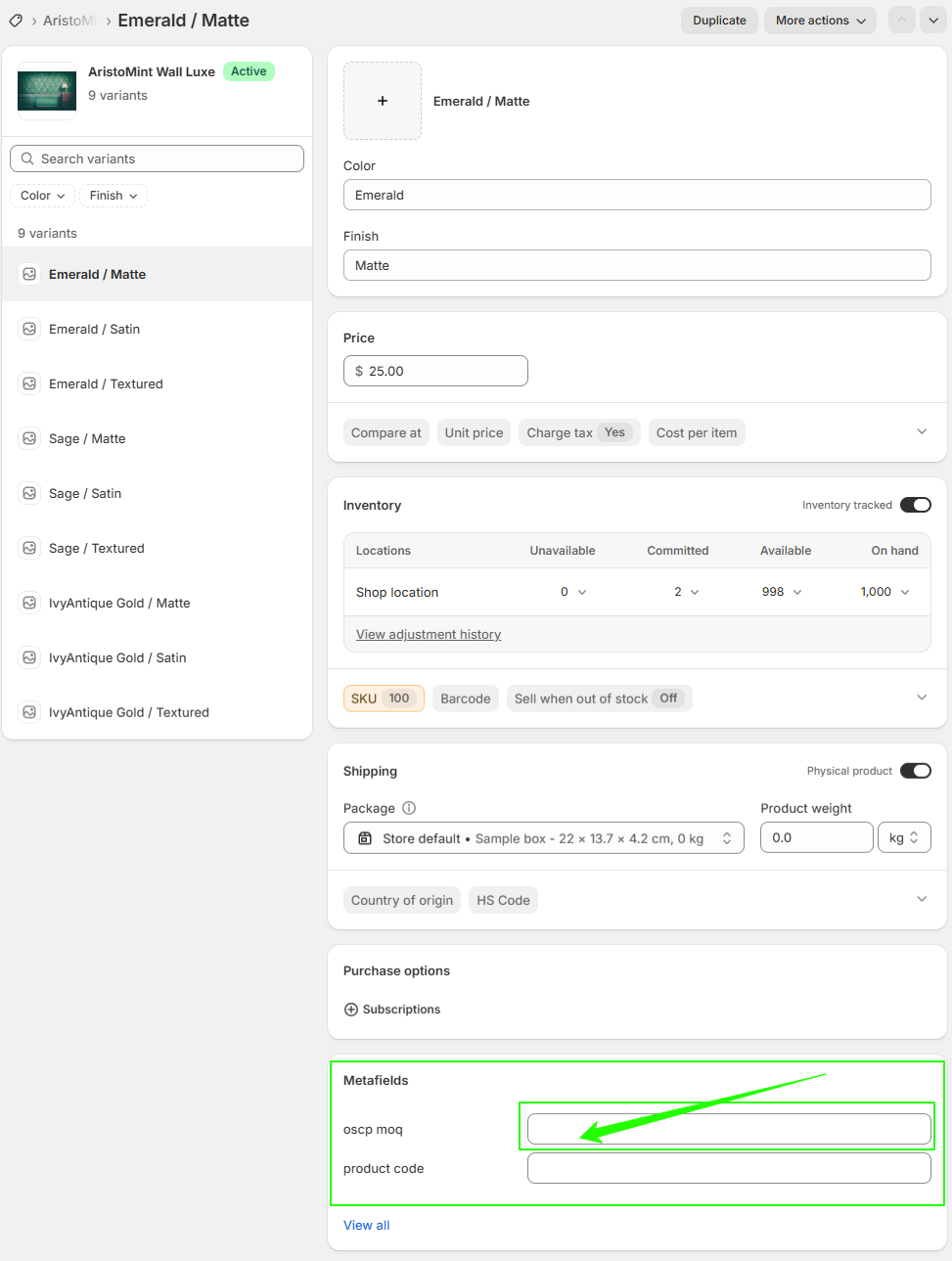
Click Save
Step 5: Enable Checkout Validation Rule
Go to Settings → Checkout
- Open Checkout rule for cart-checkout-validation (OSCP)
- Turn the rule ON
- Keep “Allow all customers to complete checkout” checked
- Click Save
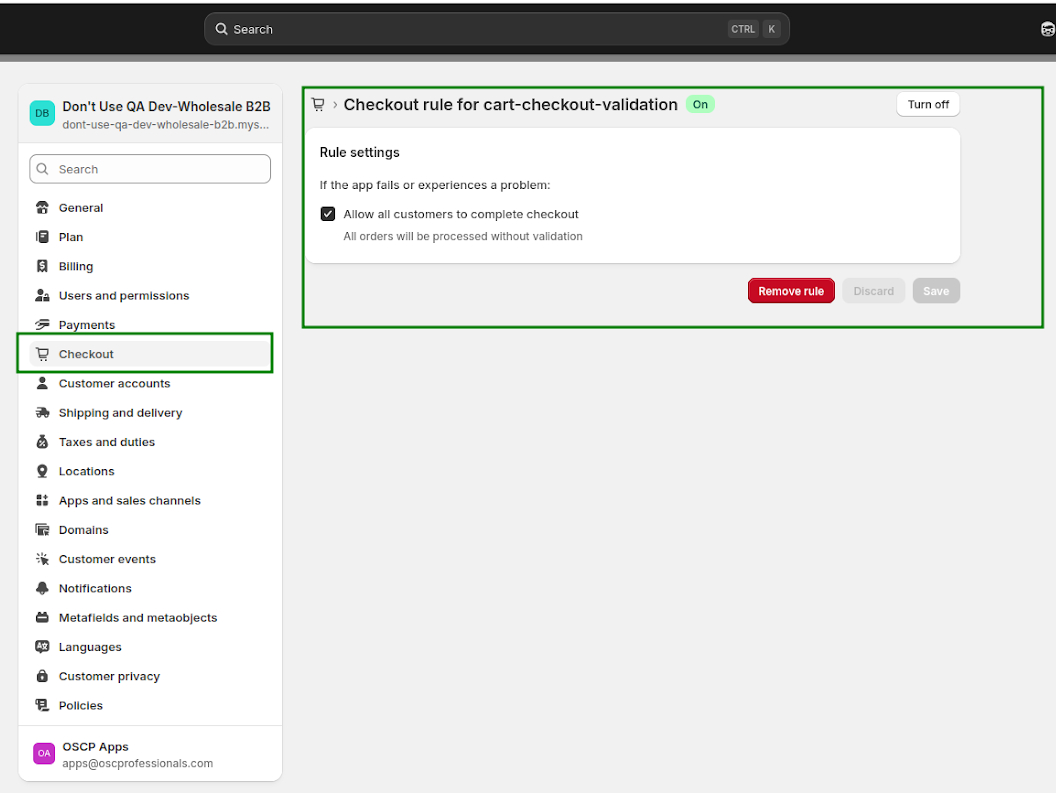
Step 6: Test the MOQ Rule
- Add items below the MOQ (example: 2 items when MOQ = 5)
- Proceed to checkout → an error message will be shown
- Add items equal to or above the MOQ
- Checkout will work successfully ✅
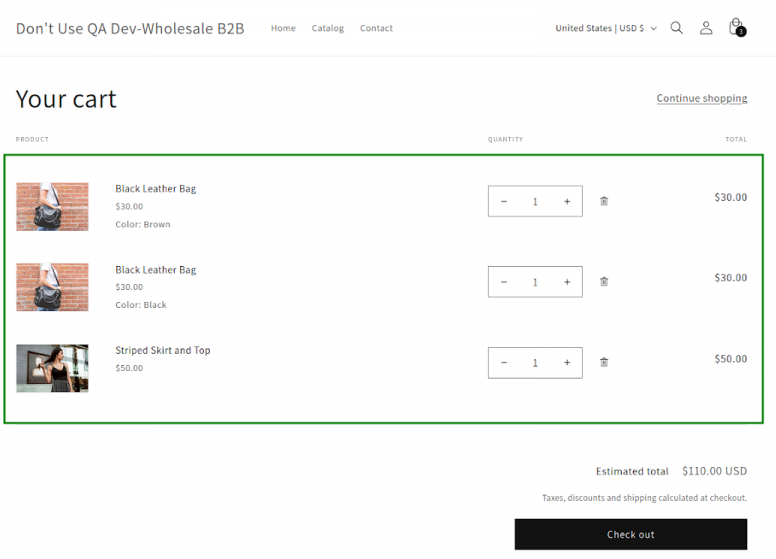
Check for errors (e.g., “requires a minimum order quantity of 6”).