Skip to content

How to Set Up Wholesale Pricing
Tier Pricing enables your store to offer bulk quantity discounts on products or their variants. For volume pricing at the collection level, use offer-based rules instead.
A. Set Up Wholesale Pricing for Products
Create Wholesale pricing for Products based on Customer Groups / Tags.
Step 1:Creating a Product-Level Discount
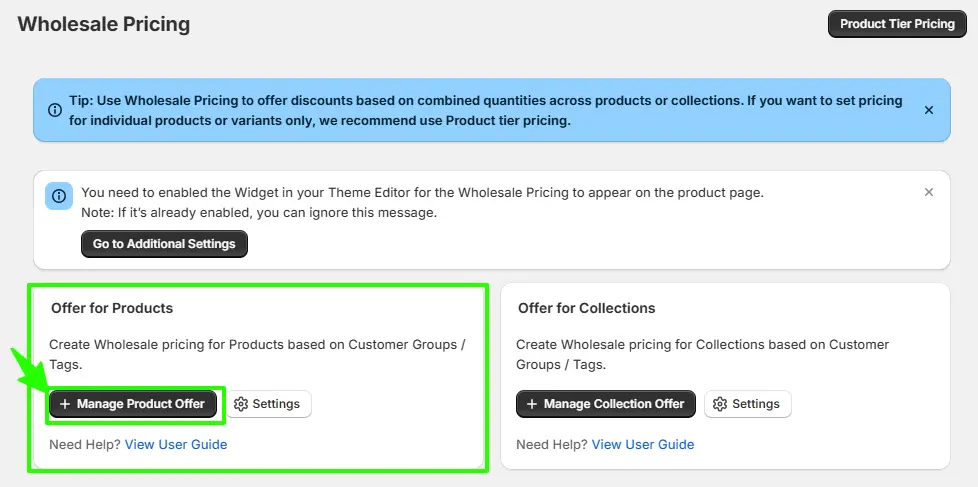
1.Click “+ Manage Product Rule”
This allows you to create tier pricing rules at the product level.
2. Create a New Offer
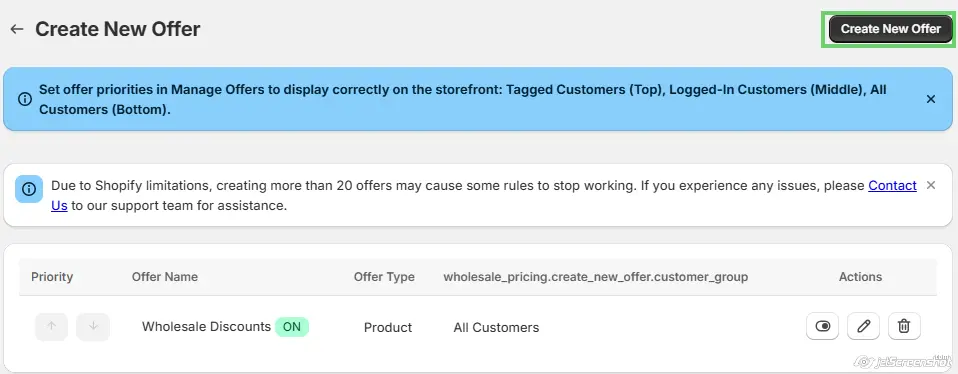
On the Create New Offer screen, click Create New Offer (top right).
Step2 : Create Wholesale Product Offer
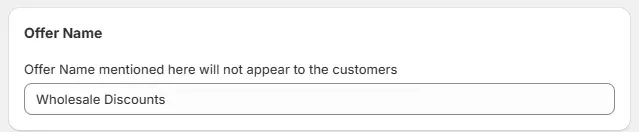
1. Offer Name
Enter an internal name (this will not be visible to customers).
2. Apply to Markets (Optional)
Select the market where the offer should apply (e.g., United States).

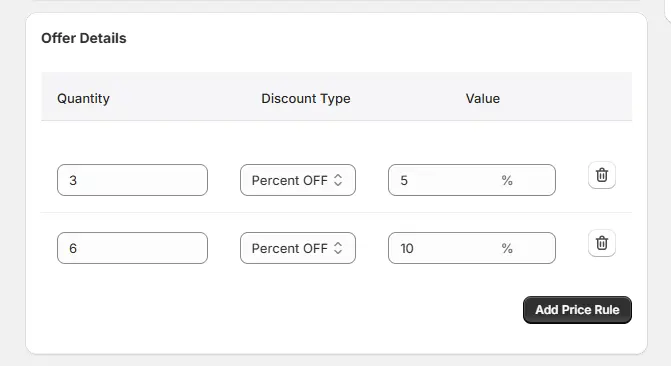
3. Offer Details (Tier Pricing)
- Enter Quantity (e.g., 3, 6)
- Choose Discount Type (Percent OFF or Fixed Price)
- Enter the Discount Value
- Click Add Price Rule to add more tiers
4. Apply Discount to Products
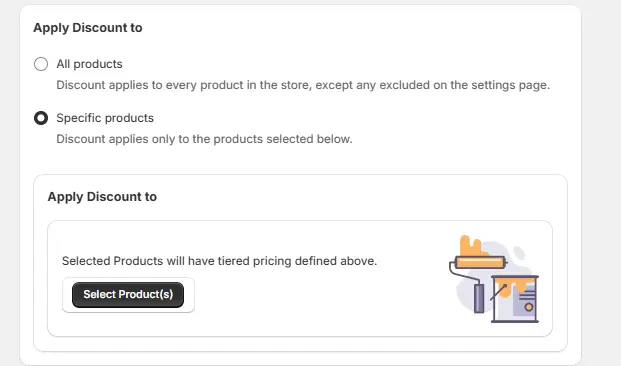
Choose how you want to apply the wholesale pricing offer.
All Products
Select All Products to apply the wholesale offer to all products in your store, except those excluded in the Offer for Products Settings.
Specific Products
Select Specific Products to apply the wholesale offer only to selected products.
- Click Select Product(s).
- Search for and select the products you want to include in the offer.
- Click Done to save your selection.
Information Message
An information message is displayed below the Apply Discount to section to help you manage product exclusions.
To exclude specific products or variants from this offer, manage exclusions in Offer for Products Settings.
To manage exclusions:
- Click the Offer for Products Settings link in the information message.
- You will be redirected to the Offer for Products Settings page.
- Configure the products or variants you want to exclude from wholesale offers.
- Save your changes and return to the offer setup.
Note: Product and variant exclusions can only be managed from the Offer for Products Settings page. They cannot be configured while creating or editing a wholesale offer.
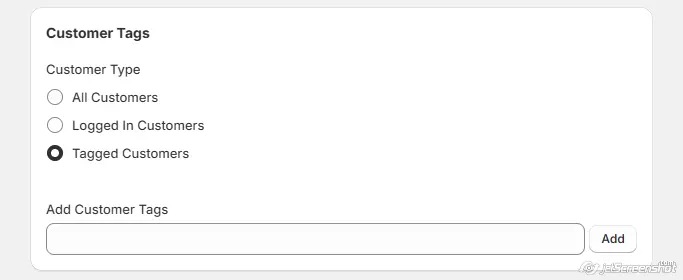
4. Customer Tags / Eligibility
In this section, you can define which customers are eligible to receive the wholesale Product discount. You have the following options:
All Customers
By default, the discount will be available to all customers.
Logged-in Customers
Select this option to make the discount available only to customers who are logged in.
Specific Customer Tags
Select this option to apply the discount only to customers with specific tags (e.g., wholesale, vip).
5. Save the Offer
Review the table preview and save the offer.
? Tip: Set correct offer priority to ensure the right pricing shows on the storefront.
Offer for Products Settings
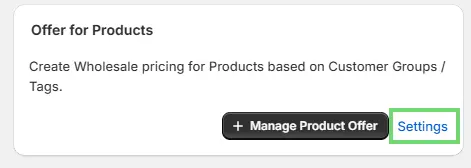
Use this section to control how product offer labels appear on the storefront.
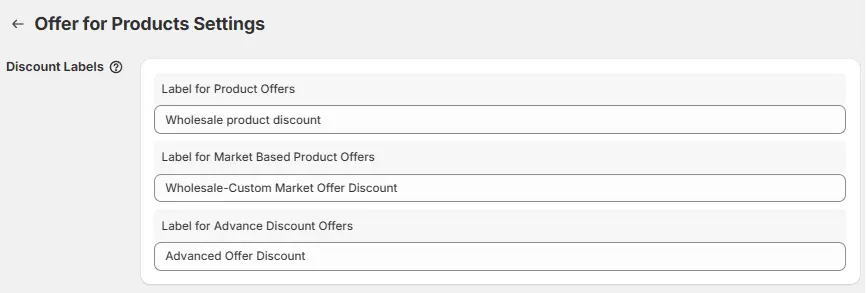
Discount Labels
You can customize the label text shown to customers for product offers:
- Label for Product Offers
Example: B2B - Label for Market-Based Product Offers
Example: Wholesale – Custom Market Offer Discount - Note :These labels help customers identify standard offers and market-specific offers clearly.
- Label for Advanced Discount Offers
Example: Advanced Offer Discount
Note: If only a specific variant is excluded from a wholesale offer, the discount will continue to apply to the remaining eligible variants. The excluded variant will display its regular price.
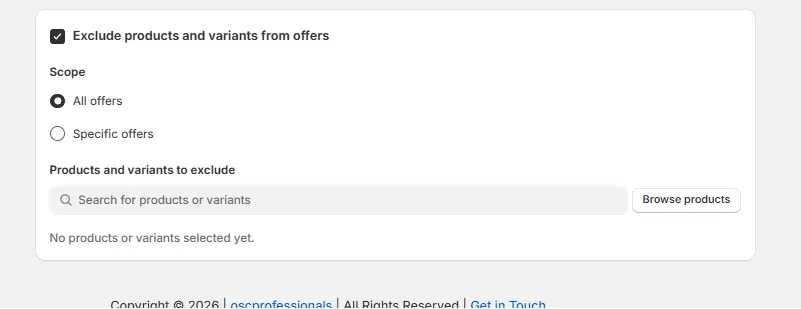
Exclude Products and Variants from Offers
Use this setting to exclude specific products or variants from receiving wholesale pricing.
Scope
Choose where the exclusion should apply.
- All Offers – The selected products or variants will be excluded from every wholesale pricing offer.
- Specific Offers – The selected products or variants will be excluded only from the selected offers.
Products and Variants to Exclude
- Select the desired Scope.
- Search for the products or variants you want to exclude.
- Select one or more products or variants.
- Click Save Settings to apply the exclusions.
Note: Excluded products and variants will not receive wholesale pricing, even if they are included in an offer and the customer is eligible for the discount.
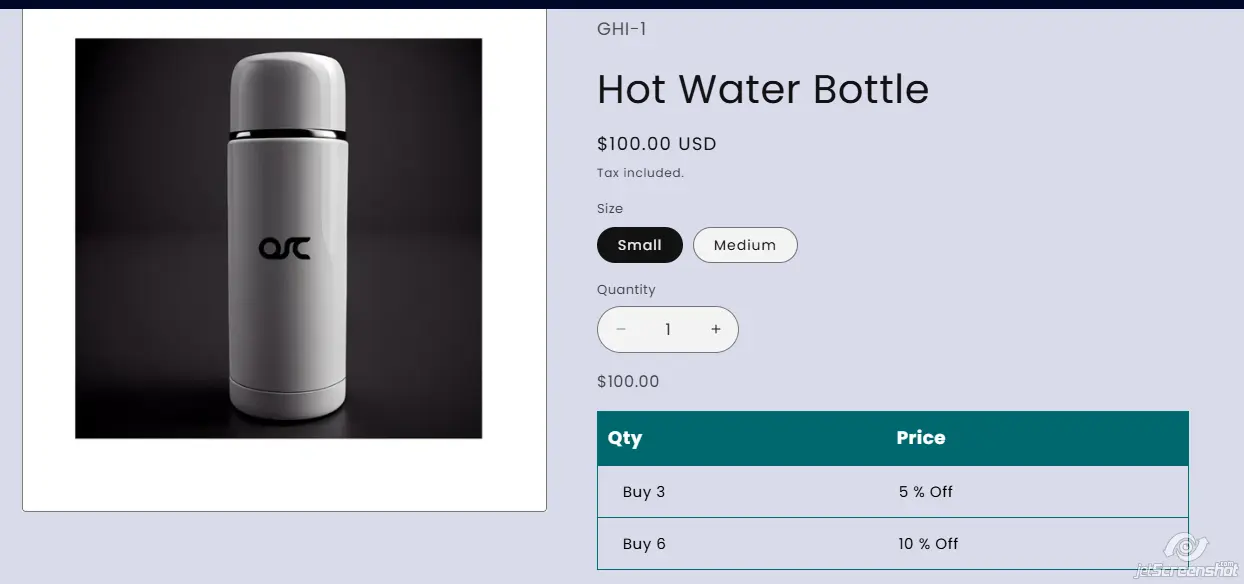
Storefront View
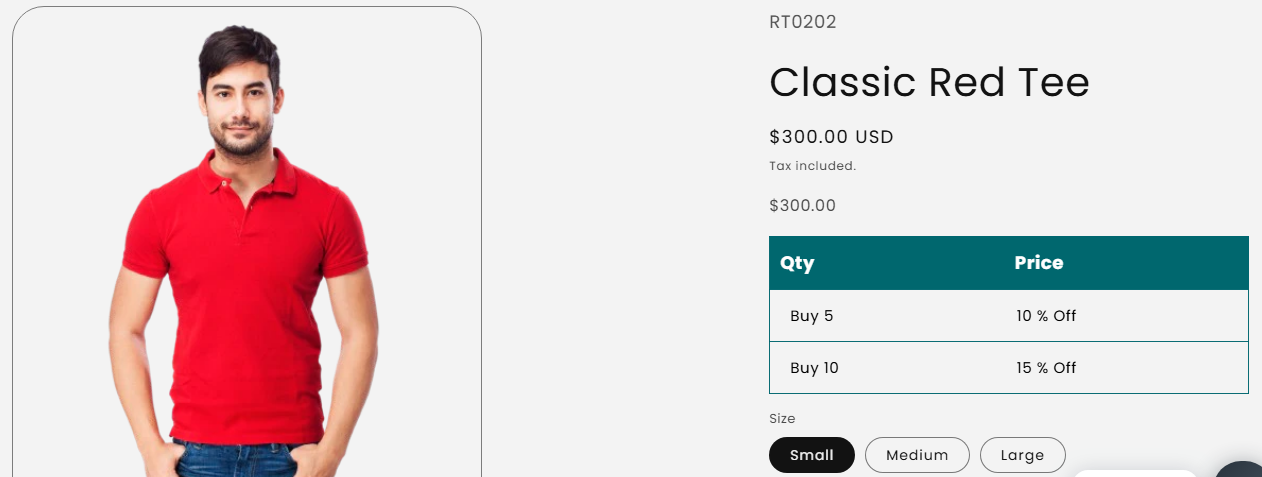
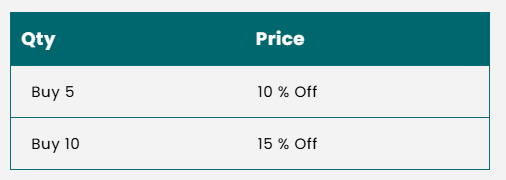
Customers in the targeted group will see wholesale pricing applied to the product, with discount tiers displayed on the Product Detail Page (PDP) based on the total quantity of all variants.
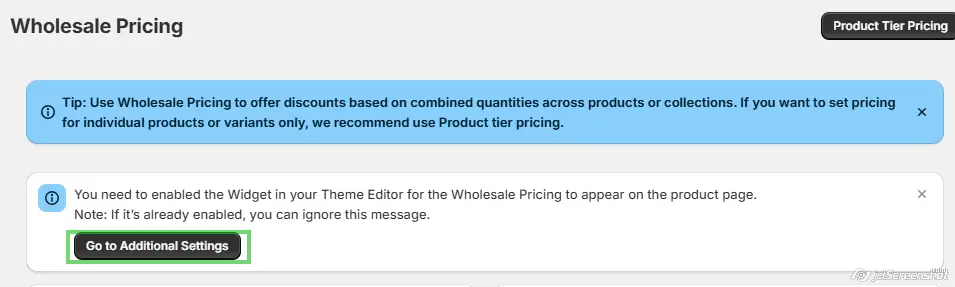
Enable Wholesale Price Grid Widget (Required)
Important: Wholesale Pricing will appear on the product page only after the widget is enabled.
1. From the Wholesale Pricing page, click Go to Additional Settings.
2. You will be redirected to the Additional Settings page.
3. Scroll to the Widget Section.
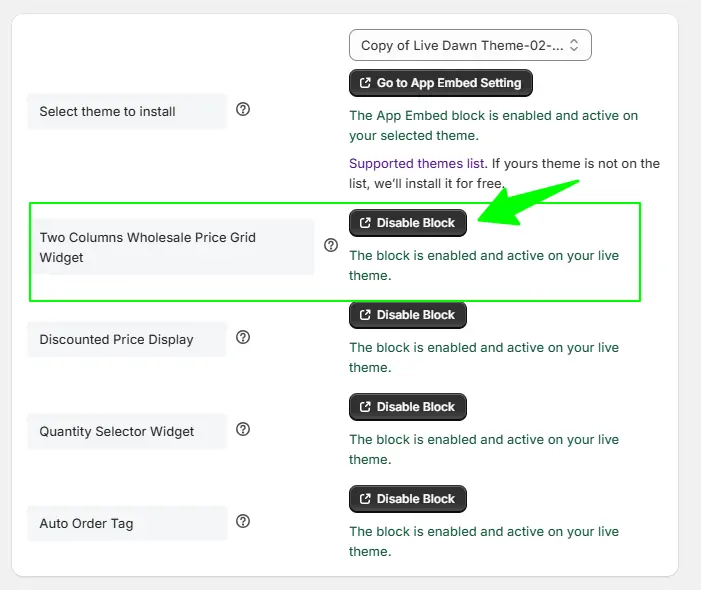
4. Enable (select) the Wholesale Price widget
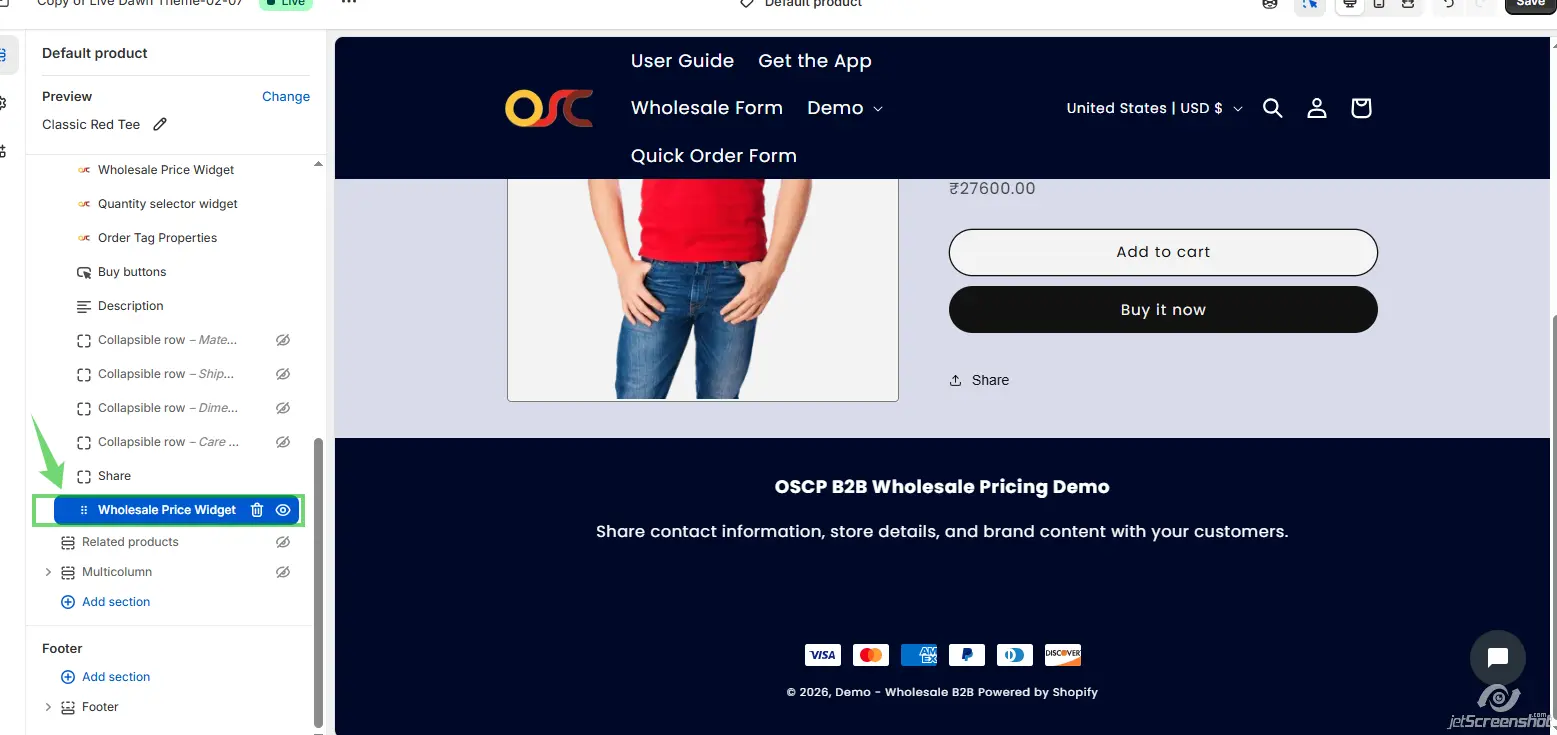
5. Click Save Settings.
B. Set Up Wholesale Pricing for Collections
Create Wholesale pricing for Collections based on Customer Groups / Tags.
Step 1: Navigate to Collection-Level Wholesale Pricing
1. From the admin dashboard, go to Navigation > Wholesale Pricing > Wholesale Price for Collection Level.
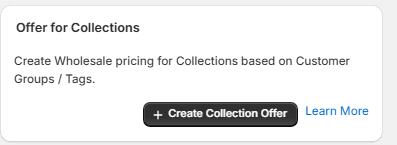
Step 2: Create a New Collection Discount
1. Click the Create Collection Offer button.
Step 3: Configure Wholesale Pricing Rules
Enter Offer Name:
- In the Offer Name field, type a name for the wholesale offer

In the Offer Details section, configure each pricing tier:
- Quantity:
- Discount Type:
- Value:
- Click Delete next to a rule to remove it if needed.
- Click Add Price Rule to add additional pricing tiers.
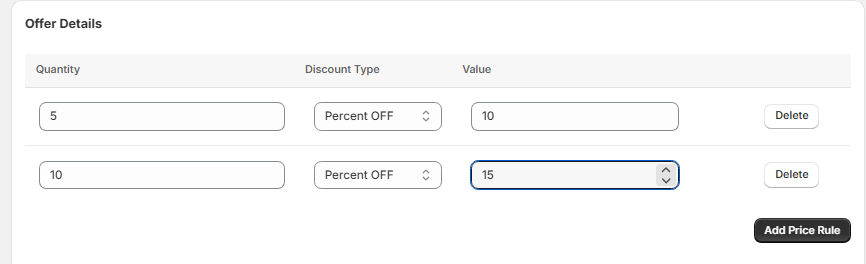
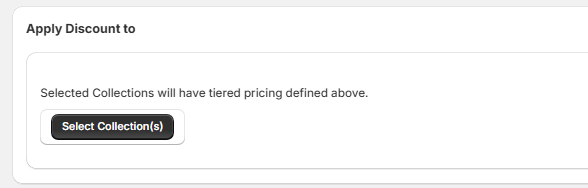
4. Apply Discount to Collections:
Click Add Collections to include more collections.
5. Select Customer Group:
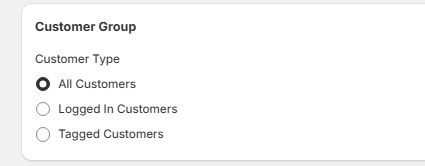
6. Save the Configuration:
Step 4: View Created Tier Pricing Rules
- All rules will be listed under the Wholesale Price for Collection Level section.
- Manage (edit or delete) rules directly from this page.

Storefront View
Customers in the targeted group will see wholesale pricing applied to products within the selected collection, with discount tiers displayed on the Product Detail Page (PDP) for eligible products.
Need Assistance?
If you have questions or need help configuring tier pricing, contact our support team — we’re here to help!