Skip to content

Import/Export Product Rules
Table of Contents
Export Product Rules
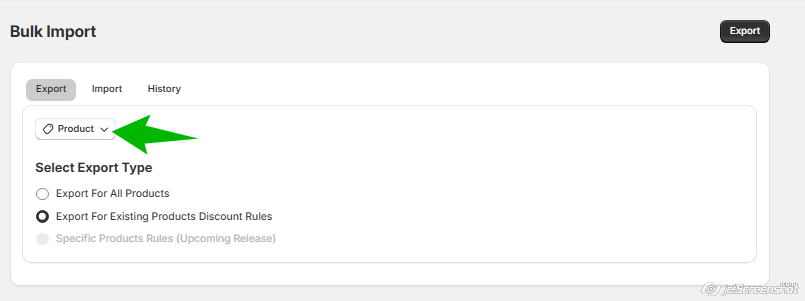
Step 1: Access Export Page
- Go to the Bulk Import/Export page from the left-hand menu in your app dashboard.
Step 2: Choose Export Option
You’ll be presented with two export options:
- Option A: Export for All Products
- Select this if you want to export all products (including those with and without any discount rules).
- Option B: Export for Existing Products Discount Rules
- Select this if you only want to export products that already have discount rules applied.
Step 3: Click on Export
Under the Product Rules section, click the Export button.
Step 4: Download Exported File
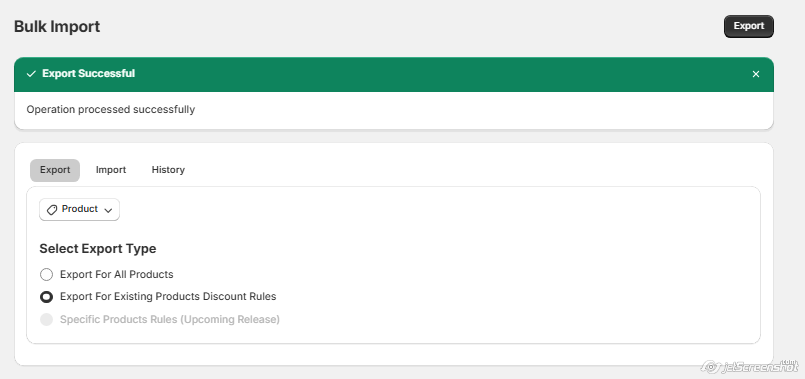
- After clicking the Export button:
- You will receive a notification confirming the export.
- A CSV file will be sent to your store’s registered email address.
Import Product Rules
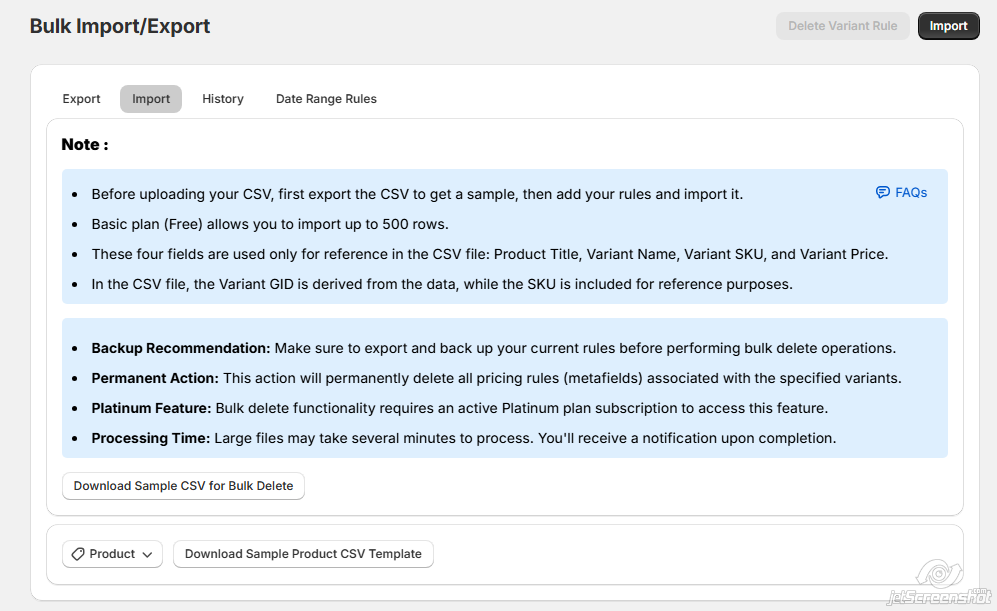
Step 1: Download Sample CSV
- Click on Download Product Sample CSV Template to understand the correct format for your data.
Step 2: Export First (Recommended)
- It’s recommended to export your current product rules first. This gives you a sample file with existing data, which you can modify and re-import.
- Before uploading your CSV, first export the CSV to get a sample, then add your rules and import it.
Step 3: Prepare Your CSV File
- Use the exported or sample file to enter your new or updated discount rules.
- Keep in mind:
- The following fields are for reference only and do not affect the import:
- Product Title
- Product SKU
- Product Price
- Product GID is a required field and used to identify each product.
- SKU is optional and used for reference only.
- The following fields are for reference only and do not affect the import:
Step 4: Import the File
- Upload the edited CSV file using the Import function.
Note: If you are on the Basic (Free) plan, you can import up to 500 rows per file.
Import History
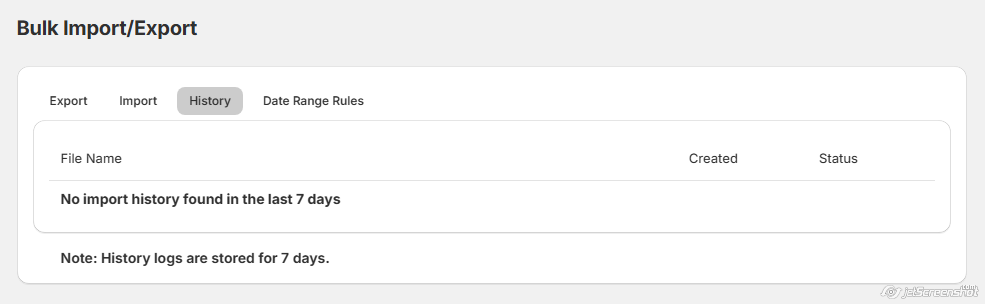
Step 1: Open History Tab
- Navigate to the History tab from the Bulk Import/Export page.
Step 2: Review Past Imports
- You can view details of your past imports.
- Only imports from the last 7 days will be visible.