Skip to content

How to Create Free Gift Rule
Step 1: Navigate to Free Gift Rules
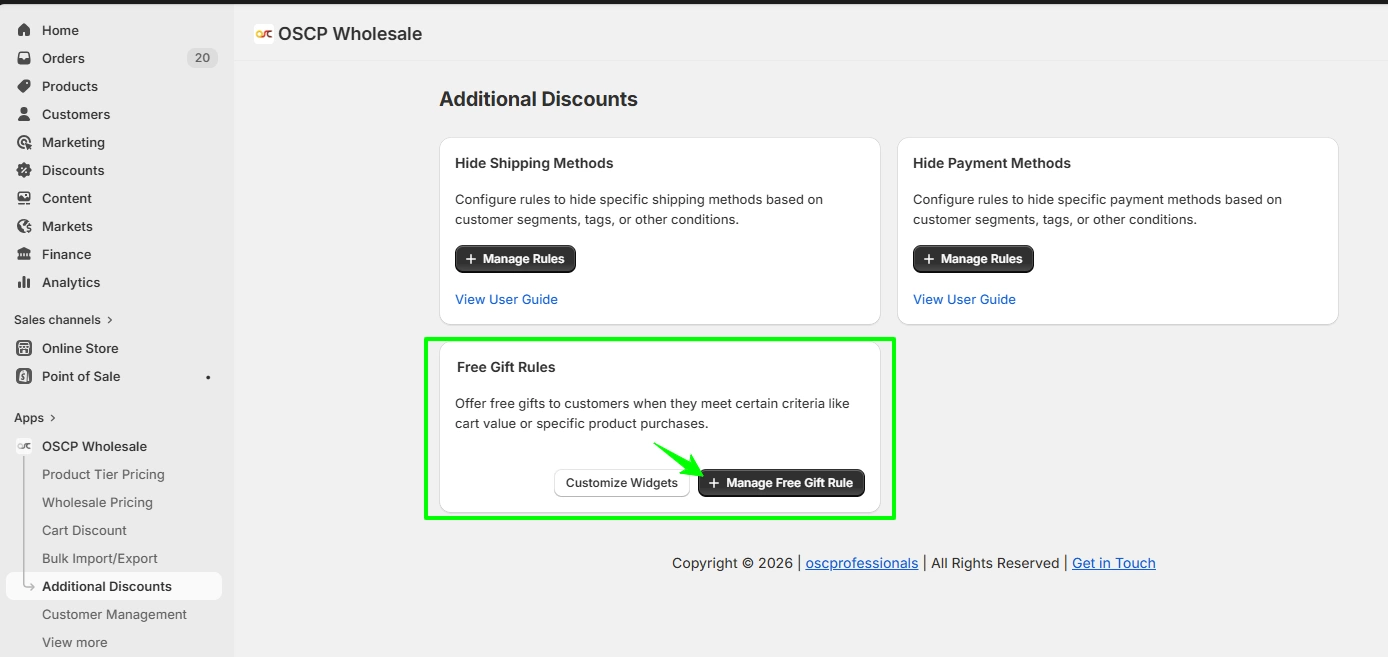
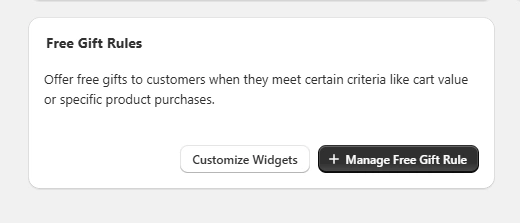
Go to Additional Discount → Free Gift Rules
Click “+ Manage Free Gift Rule” to start creating a free gift rule.
Step 2: Create a Rule
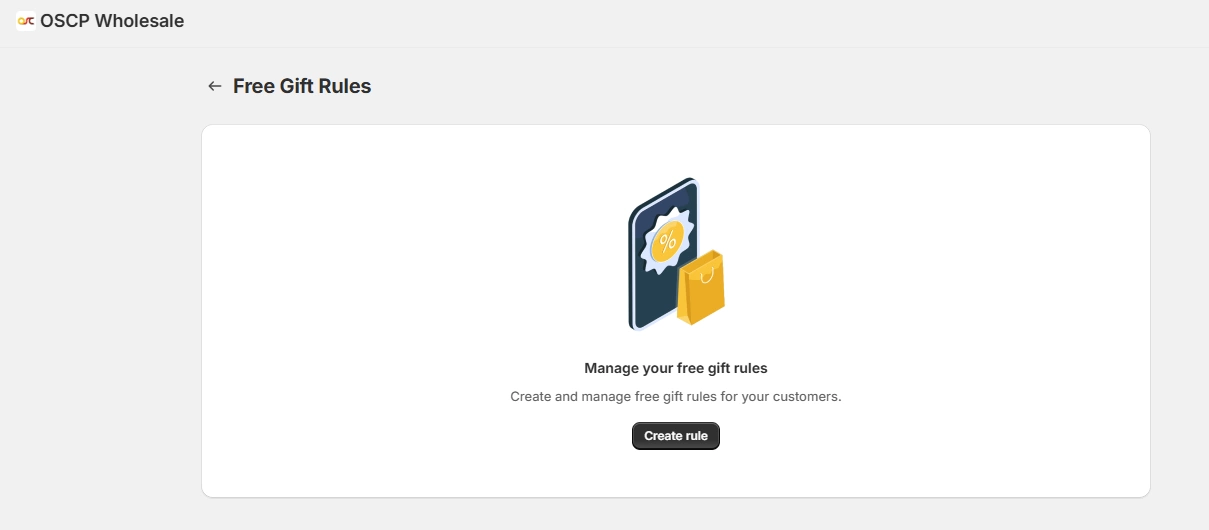
On the next screen, click “Create Rule”
This will open the free gift rule configuration page.
Step 3: Basic Rule Setup
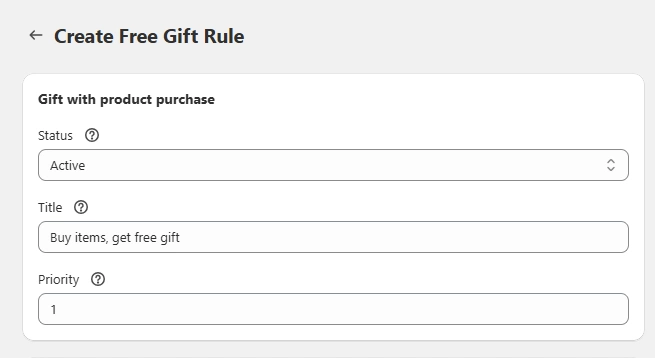
Fill in the following details:
- Status
Set the rule as Active or Inactive - Title
Enter a name (e.g., Buy items, get free gift) - Priority
Set rule priority (lower number = higher priority)
Step 4: Apply Rule To
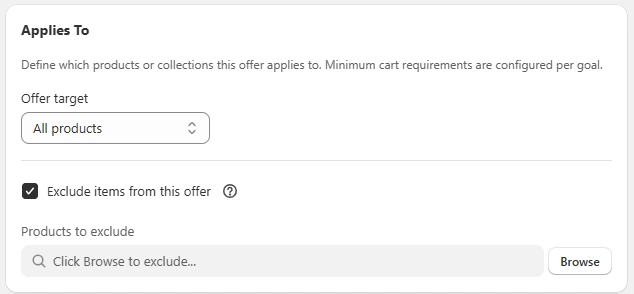
Choose where the free gift offer applies:
- All products
- Specific products
- Specific variants
- Specific collections
Only selected items will trigger the free gift.
Exclude Items from this Offer
You can exclude specific products from the free gift rule.
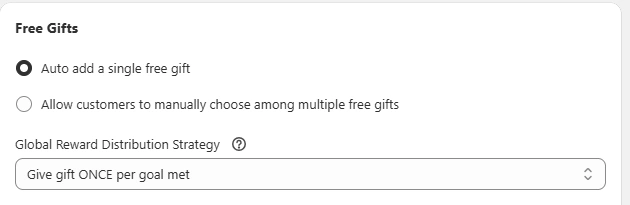
Step 5: Configure Free Gift
1. Gift Type
- Auto add a single free gift
- Allow customers to choose from multiple gifts
2. Distribution Strategy
- Give gift ONCE per goal met
- Give gift PER X value spent
Step 6: Set Conditions
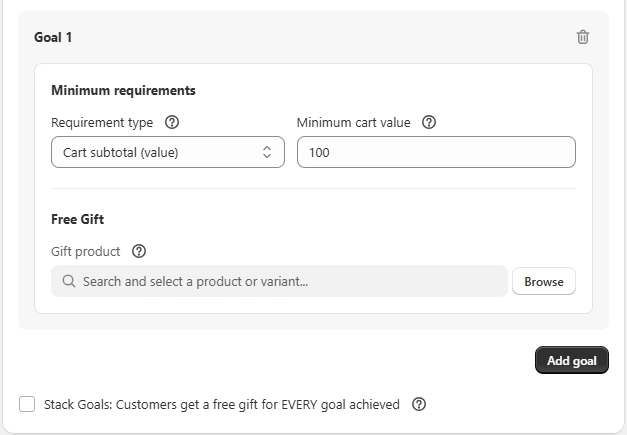
1. Requirement Type
- Cart subtotal (value)
- Cart quantity (items)
2. Minimum Value / Quantity
Example: ₹100 cart value
3. Gift Product
Select the product to be given as a free gift
Click “Add Goal” to apply the condition.
Step 7: Additional Settings
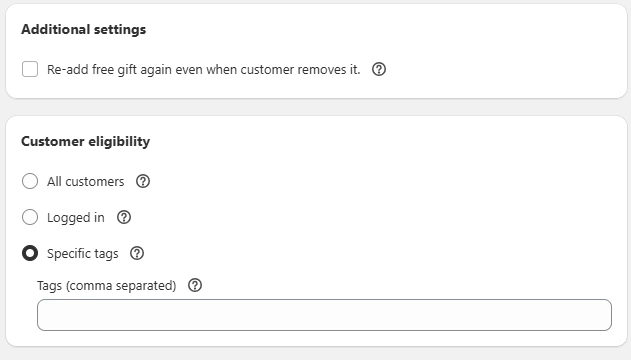
- Enable Re-add free gift if customer removes it
- Enable Stack Goals to allow multiple gifts
Step 8: Customer Eligibility
Choose who can get the free gift:
- All customers
- Logged-in customers
- Specific customer tags
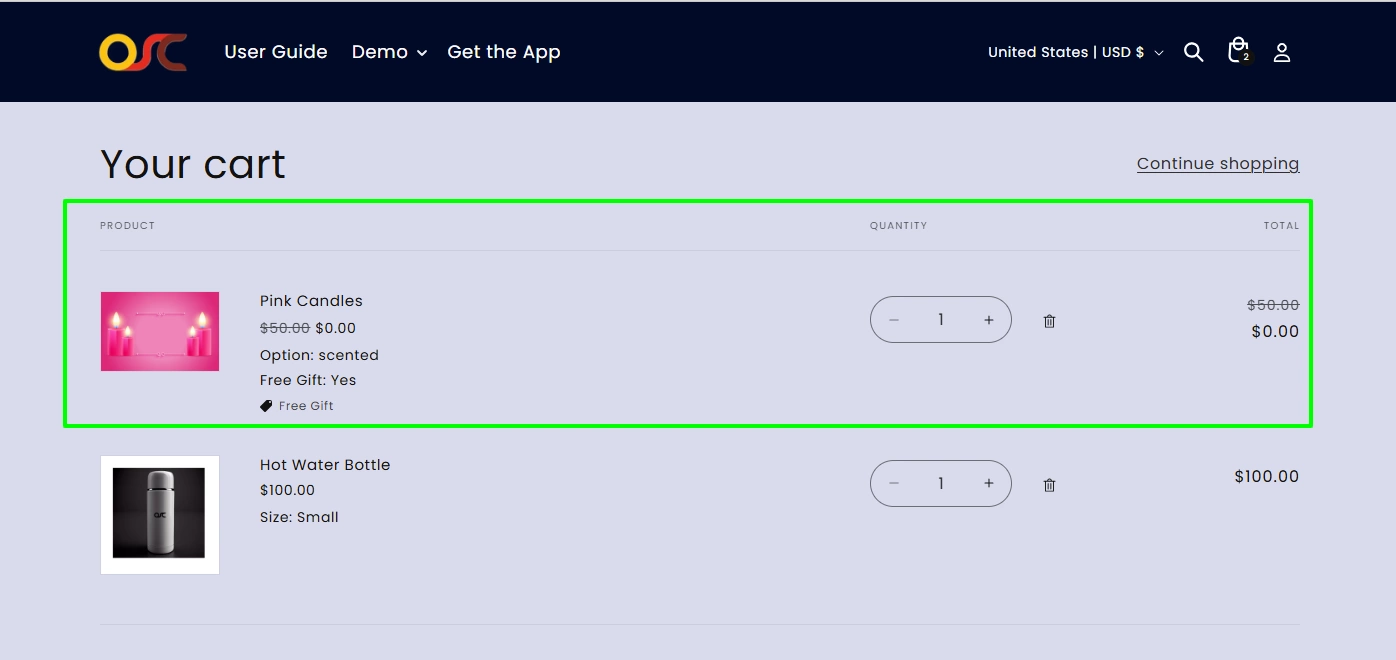
Storefront View
- Free gift is automatically added when conditions are met
- If multiple gifts → customer can choose
- Gift updates based on cart changes
Free Gift Customization (Widget Settings)
Go to Free Gift Rules → Click “Free Gift Widget Settings”
Available Widgets
- Progress Bar
- PDP Widget
- Popup Widget
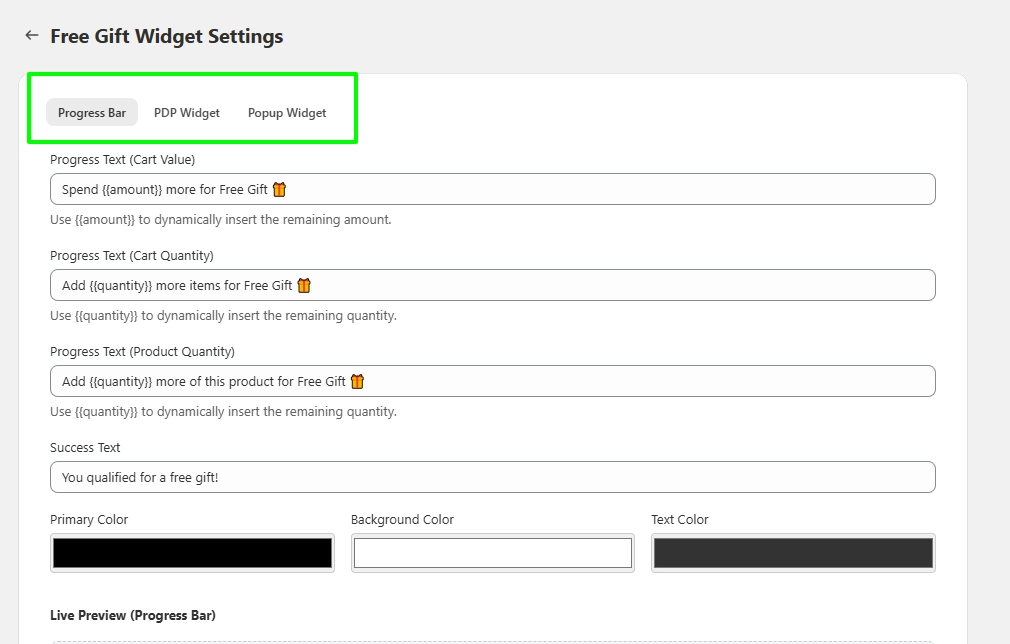
Progress Bar Settings
1. Progress Text (Cart Value)
Spend more for Free Gift
2. Progress Text (Cart Quantity)
Add more items for Free Gift
3. Progress Text (Product Quantity)
Add more of this product for Free Gift
4. Success Text
You qualified for a free gift!
5. Colors
- Primary Color
- Background Color
- Text Color
PDP Widget Settings
-
- Title Text
Pick your FREE Gift - Subtitle Text (Cart Value)
Spend over to unlock - Subtitle Text (Cart Quantity)
Add more items to unlock - Subtitle Text (Product Quantity)
Add more of this product to unlock - Colors
- Primary Color
- Background Color
- Text Color
- Title Text
Popup Widget Settings
- Title Text
Congrats! You have unlocked a free gift - Subtitle Text
You can choose any one from the following gifts - Button Text
Claim Gift - Colors
- Primary Color
- Background Color
- Text Color
Notes
- Use to show remaining cart value
- Use to show remaining quantity
- Changes are visible in Live Preview