Skip to content

How to Set Up Tier Pricing at the Variant Level?
Step 1: Create a Variant-Level Tier Pricing Rule
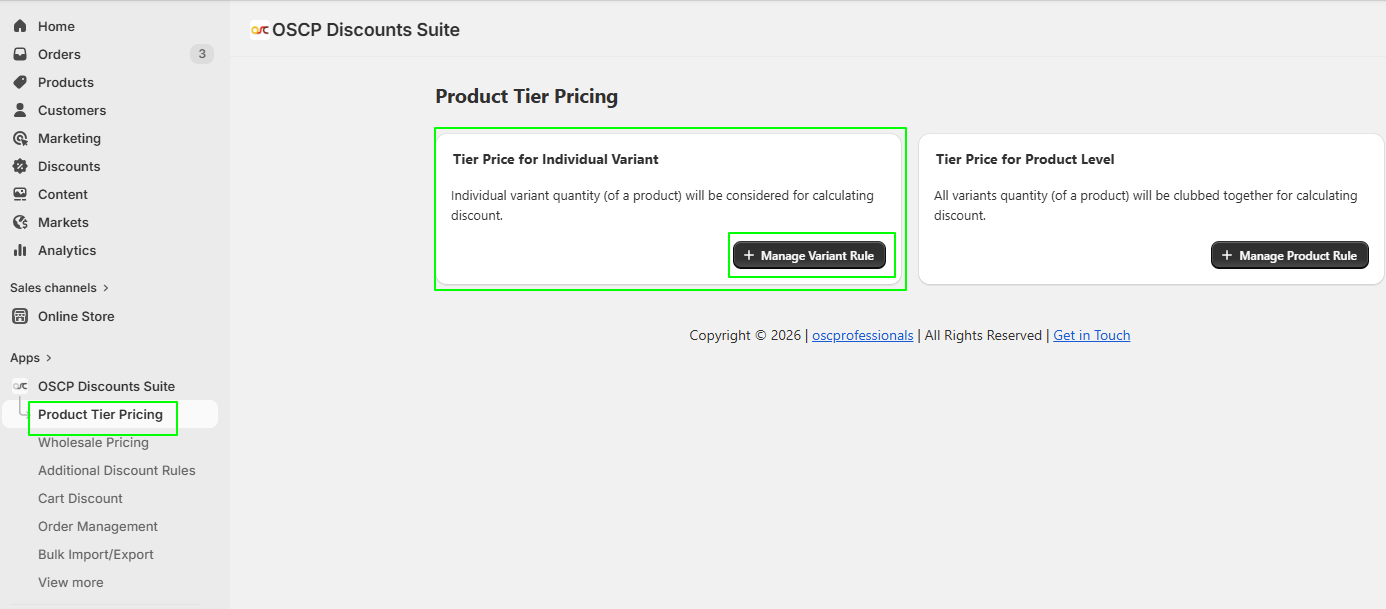
- Navigate to Product Tier Pricing → Tier Price for Individual Variant-Level .
- Click “+ Manage Variant Rule” to start creating pricing rules for product variants.
Step 2: Create a Discount
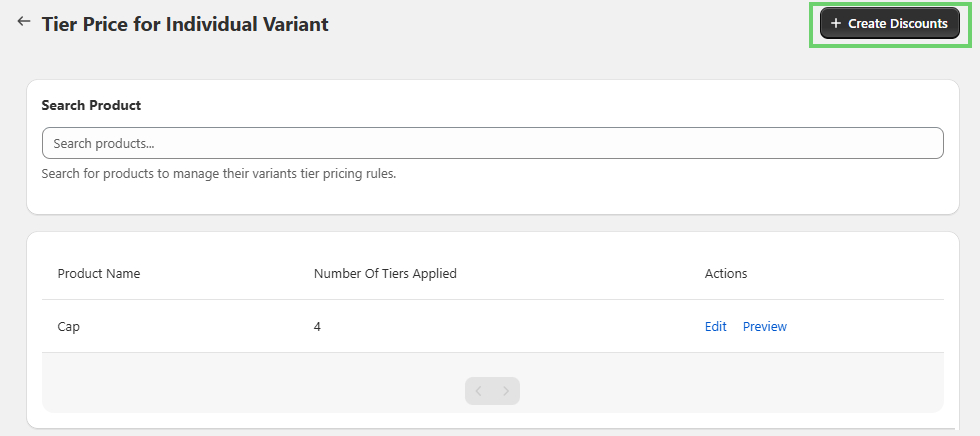
- On the next screen, you will see a list of products along with their existing tier rules.
- Click “+ Create Discount” (top-right corner) to add a new variant-level tier pricing rule.
Step 3: Select Products & Variants
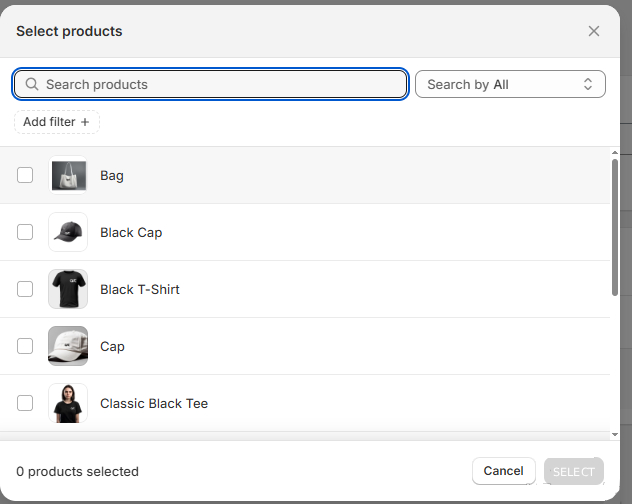
- Choose the product variants where tier pricing should be applied.
- Only the selected variants will follow the defined tier pricing rules.
Step 4: Define Tier Pricing Rules
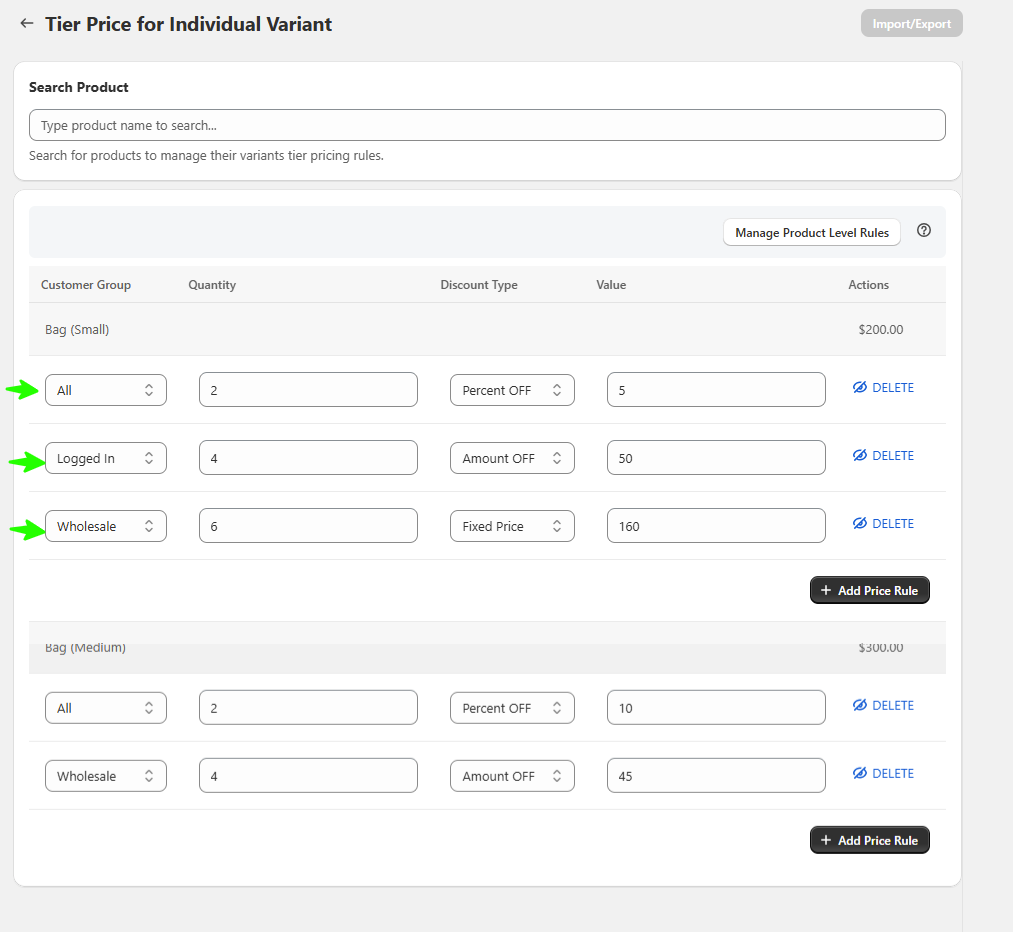
For each tier rule, configure the following fields:
1. Customer Group
Select the customer group for which this tier pricing applies.
2. Quantity Range
Define the minimum and maximum quantity required to activate the tier pricing.
3. Discount Type
Choose how the discount should be calculated:
- Percent OFF
Applies a percentage discount on the original product price. - Amount OFF
Deducts a fixed amount from the original price. - Fixed Price
Sets a final price directly for the selected quantity range.
4. Discount Value
Enter the discount value based on the selected discount type.
Click Save once all tier rules are configured.
Step 5: Customer Eligibility
Choose who can view and use the tier pricing on the storefront:
General → All
Tier pricing is visible to all customers.
Logged In
Tier pricing is visible only to logged-in customers.
Customer Tags
Tier pricing is visible only to customers with specific tags
(e.g., wholesale, vip).
How to Configure Customer Tags
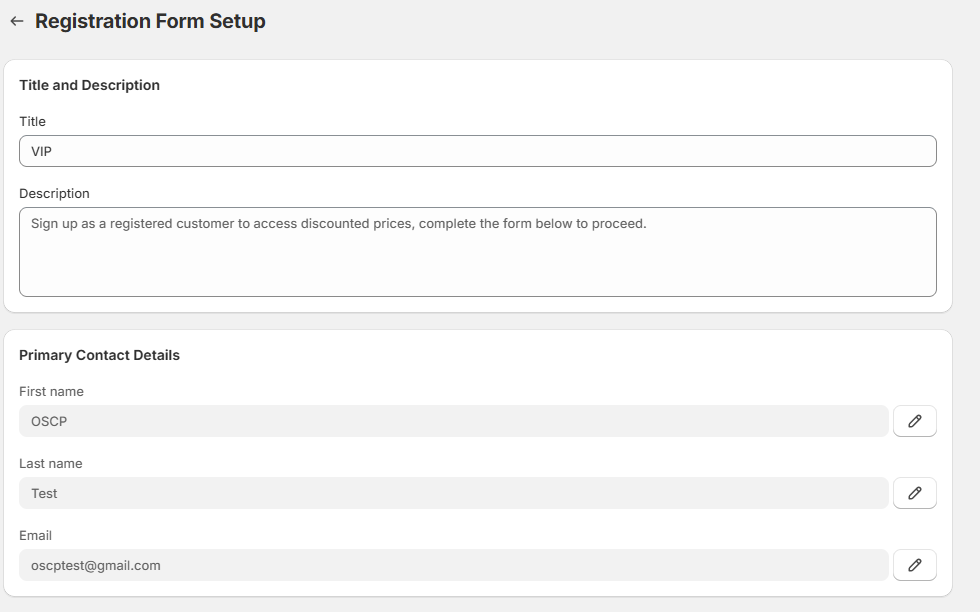
- Navigate to : Customer Management → Registration Form
- Add the required customer tag (e.g., wholesale, vip).
- Use these tags while configuring tier pricing rules.
Click Save.
Step 6: Viewing & Managing Variant-Level Rules
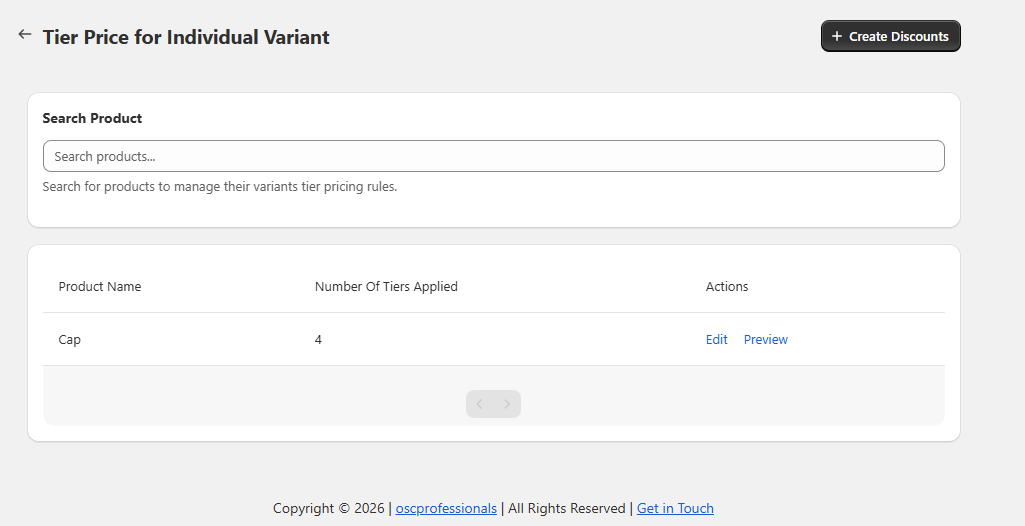
After saving the rules, you can manage them from the listing page:
- Product Name
Displays products that have variant-level tier pricing applied. - Number of Tiers Applied
Shows how many tier rules are configured for each product. - Actions
- Edit – Modify existing tier rules
- Preview – View how the tier pricing will appear
Search Product
Quickly locate tier pricing rules for a specific product.
- Discount Labels (Additional Settings)
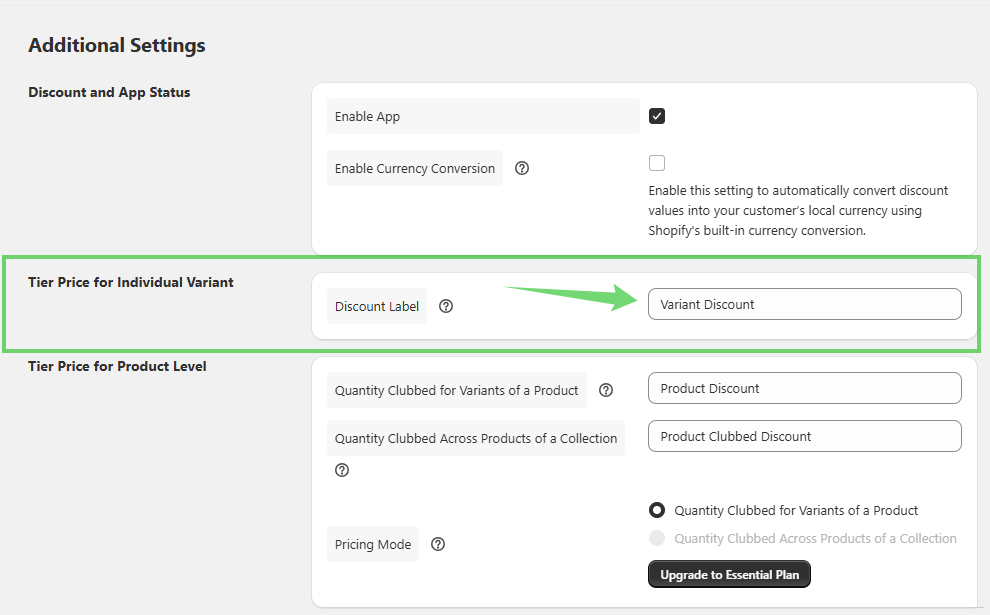
- Open the Additional Settings page from the app navigation.
- Select the Discount Labels section.
Discount Labels
This option allows you to customize the label text displayed to customers for product offers.
Storefront View (Variant Level)
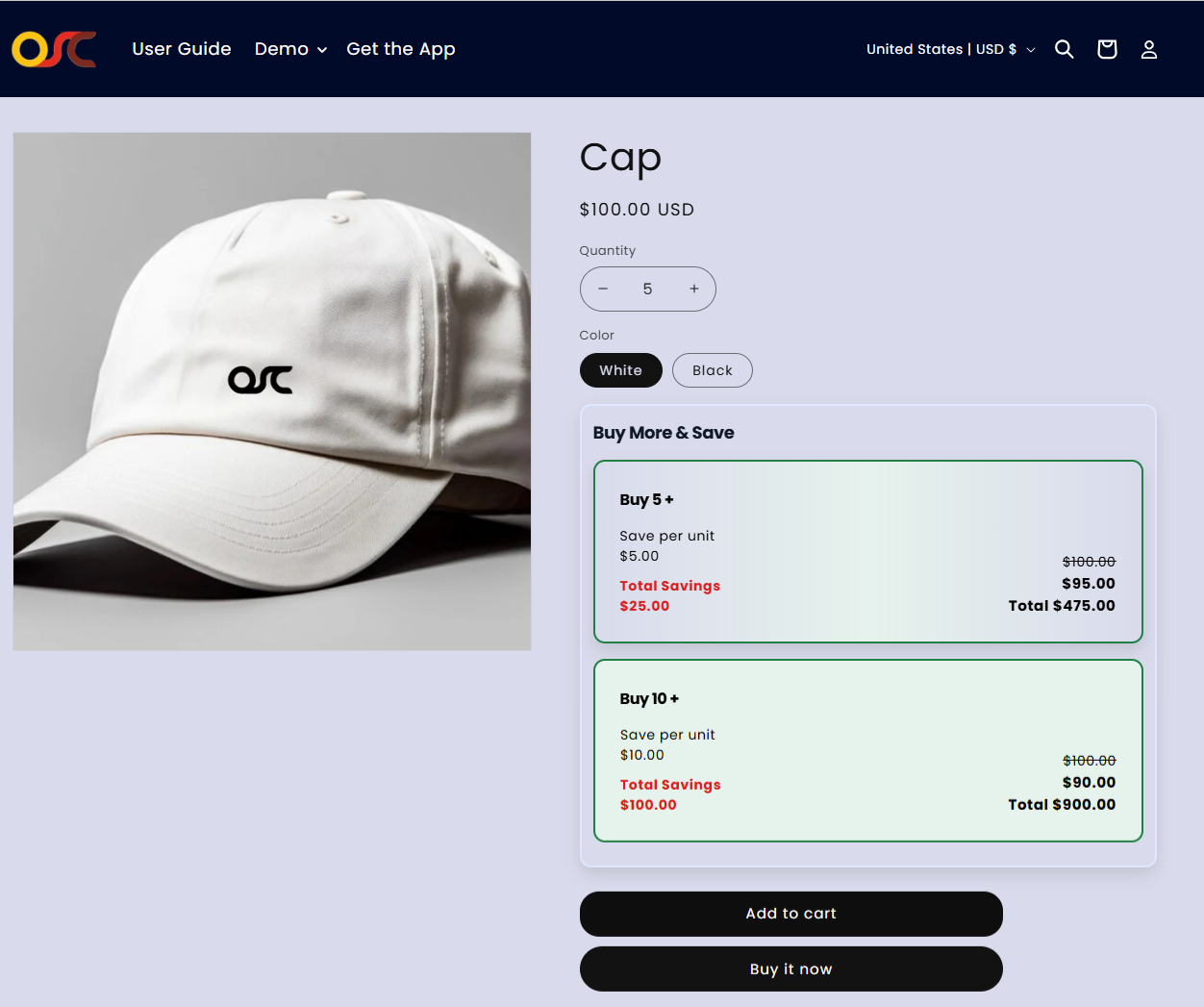
- Customers will see a tier pricing on the Product Detail Page (PDP) for applicable variants.
Prices update automatically based on the selected variant and quantity.
Enable Wholesale Quantity Selector Widget (Required)
Important:Tier pricing will appear on the product page only after the widget is enabled.
- From the Product Tier Pricing page, click Additional Settings.
- You will go to the Additional Settings page.
- Scroll to the Widget Section.
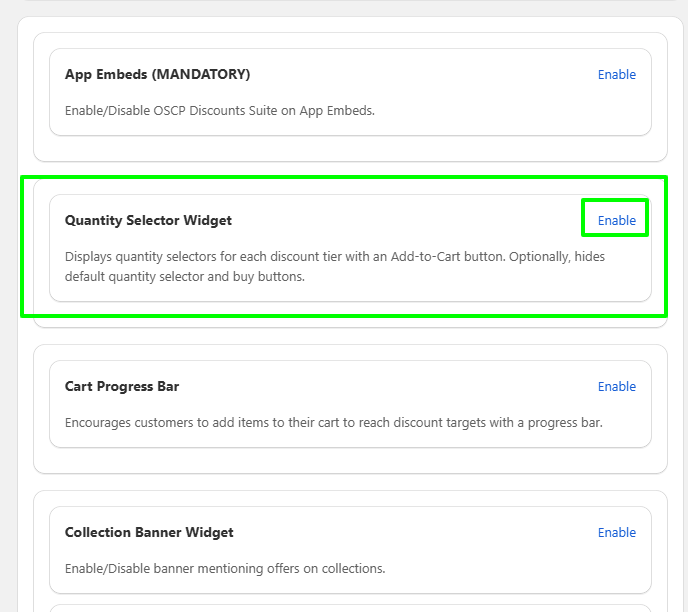
- Enable (select) the Quantity Selector Widget
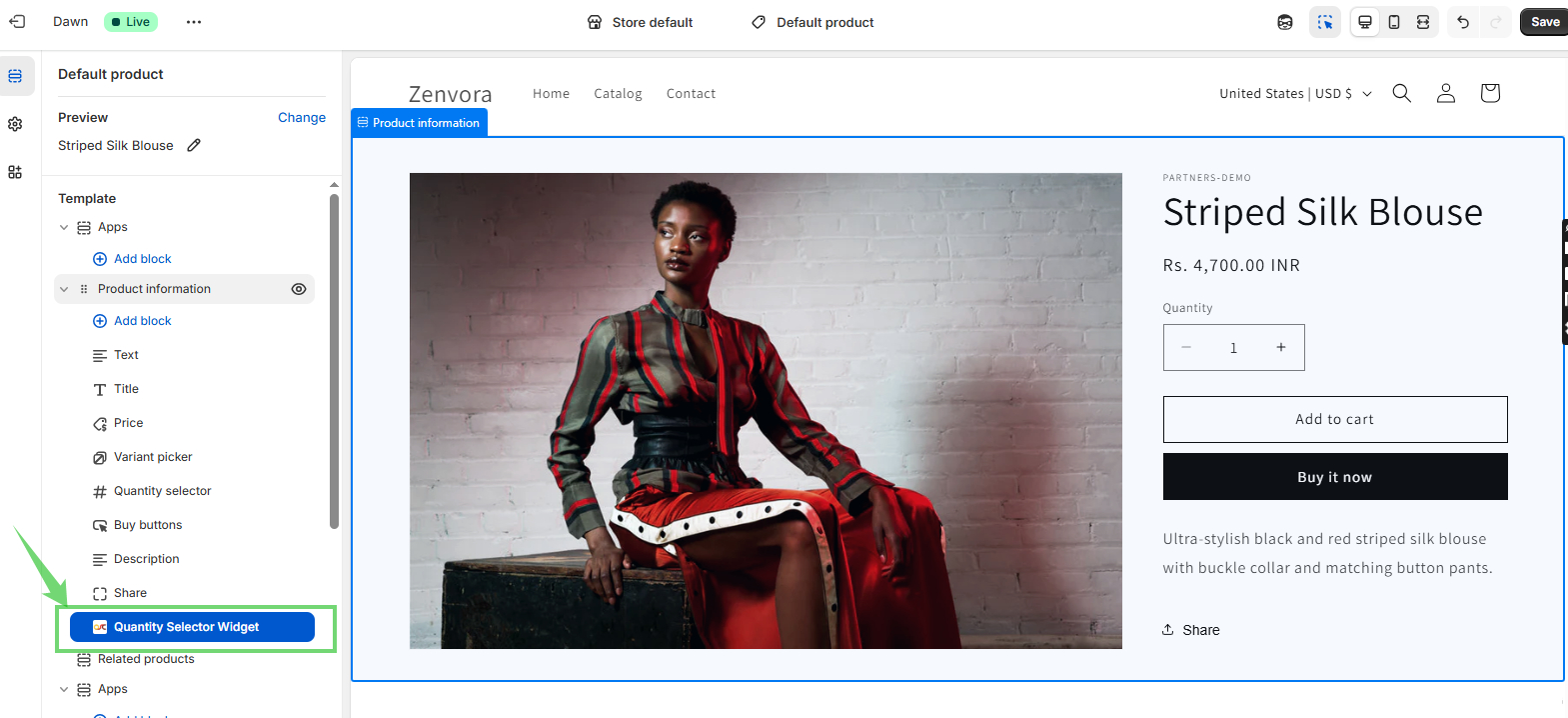
- Click Save Settings.