Skip to content

How to Set Up Tier Pricing at the Product Level
Tier Pricing allows you to offer quantity-based discounts. You can configure it in two modes:
- Quantity Clubbed for Variants of a Product
- Quantity Clubbed Across Products (within a collection – Subscription Feature)
Step 1: Navigate Additional settings
From your Admin Dashboard, go to:
App → OSCP B2B Wholesale Pricing → Additional Settings
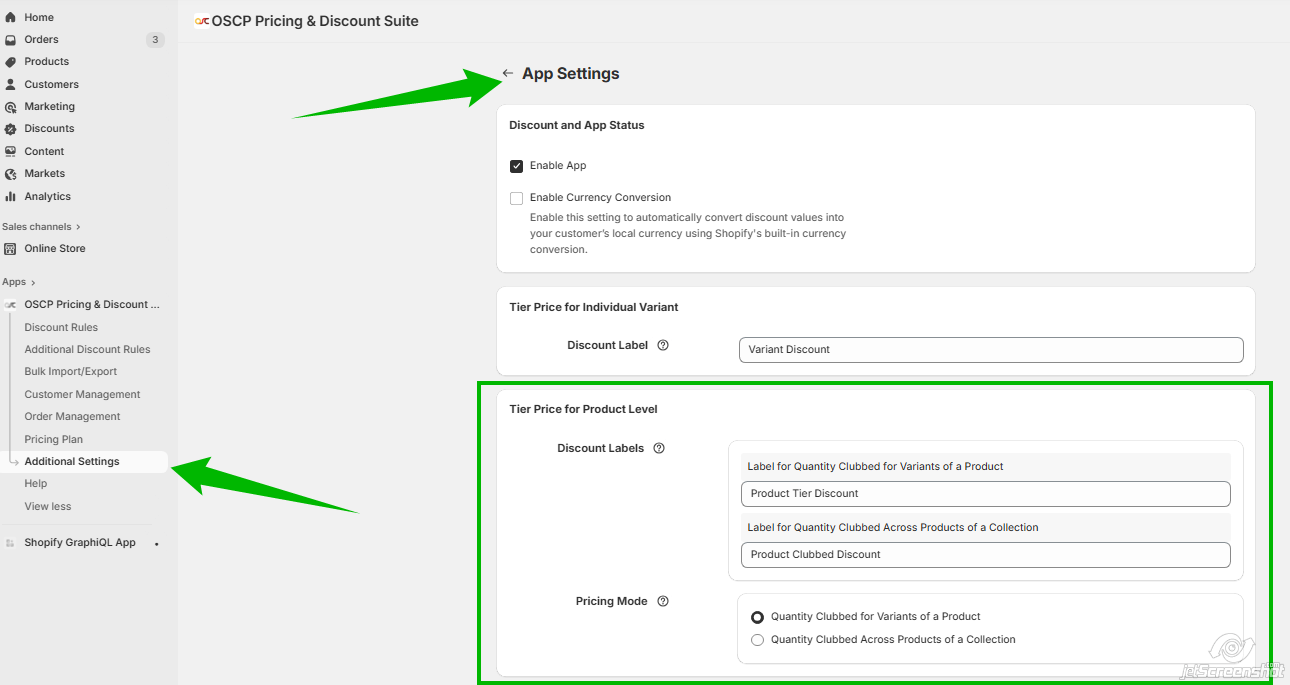
You can change the discount labels which are displayed on the cart and checkout page.
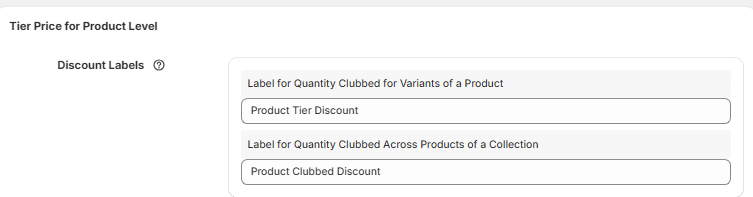
Step 2: Choose your Pricing Mode:

Pricing Mode Options
Quantity Clubbed for Variants of a Product
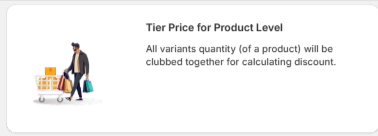
- Discount is calculated based on the total quantity across all variants of a single product.
- Example: For product P1 with variants P1V1 and P1V2, if a customer buys 2 of each, the total quantity = 4. The discount tier is applied based on 4 units of P1.
Quantity Clubbed off all Products in a Collection (Subscription Feature)
- Discount is calculated based on the total quantity of products within a selected collection.
- Example: If P1, P2, P3 belong to Collection C1, and the customer buys 1 each, the total quantity is 3. Discounts are applied based on this clubbed quantity.
Set Up: Quantity Clubbed for Variants of a Product
Step 1: Create a New Discount
- Click on Create Product Rule
Click the Create Discounts button.

Step 3: Select Products
Use the Product Picker to select products → Click Add.
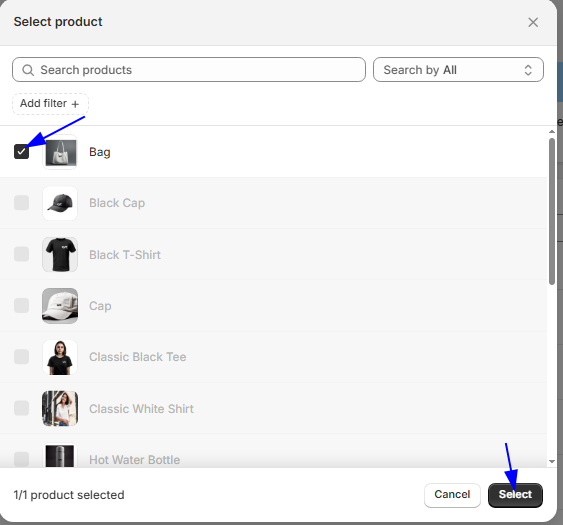
Step 4: Configure Tier Pricing
- Choose the customer group you want to target.
- Define:
-
- Quantity range
- Discount type: Fixed price or Percentage
- Discount value
- Click Save.
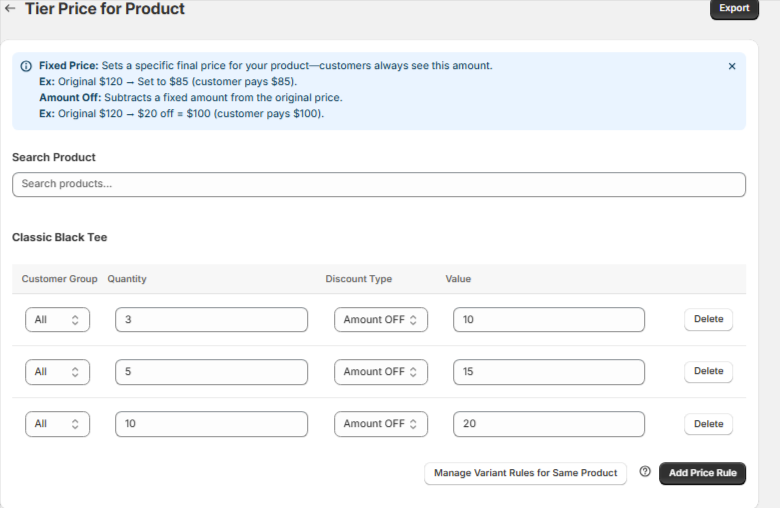
Use “Add Price Rules” to create multiple pricing tiers for the same product.
- Search Product: Type product name in Search product field; select from results to load product rule table.
- Variant -Level Rules: Click Manage Variant Level Rules button to redirect to the variant rules page for the same product.
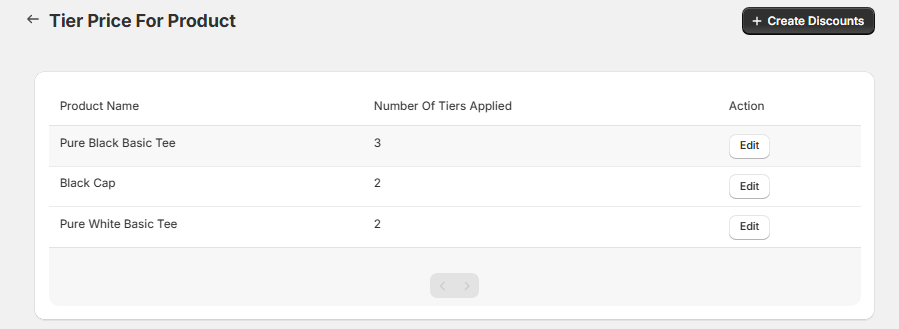
Step 3: View Created Tier Pricing Rules
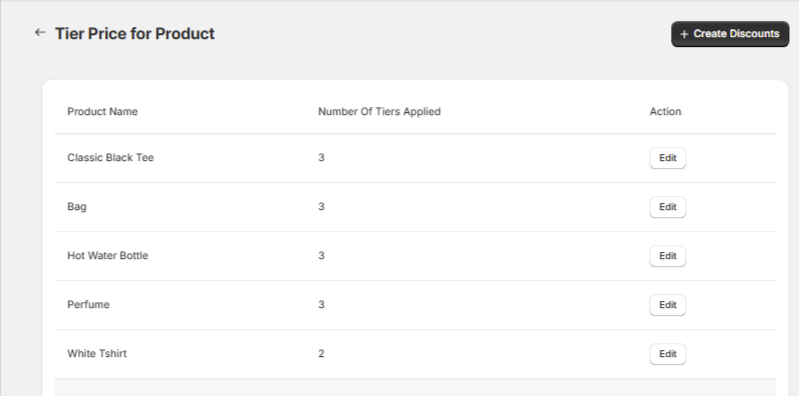
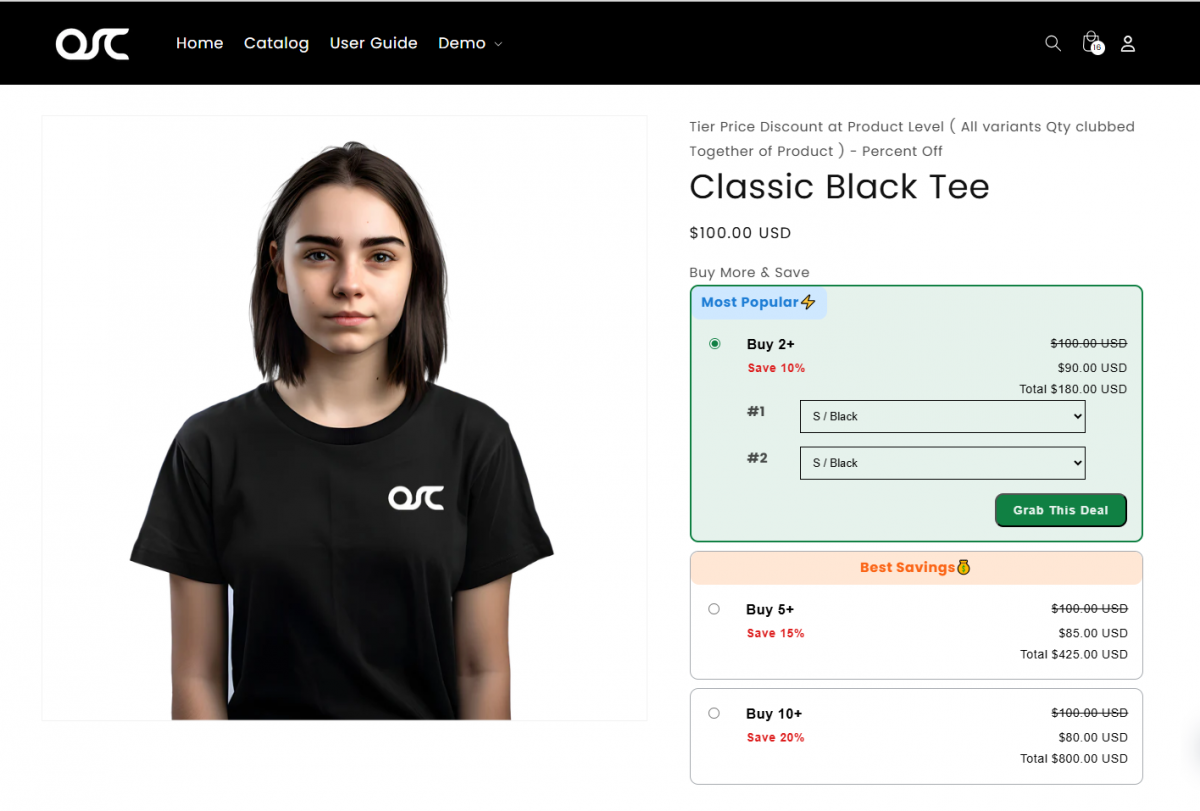
Where Will the Offer Display?
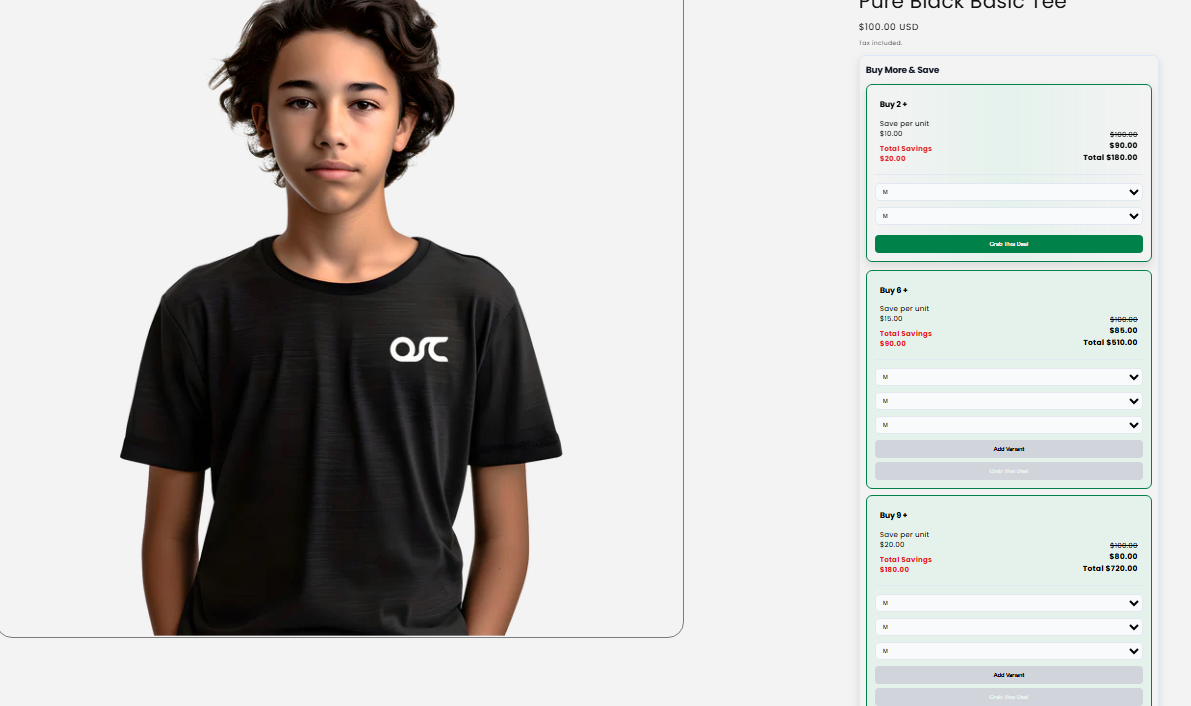
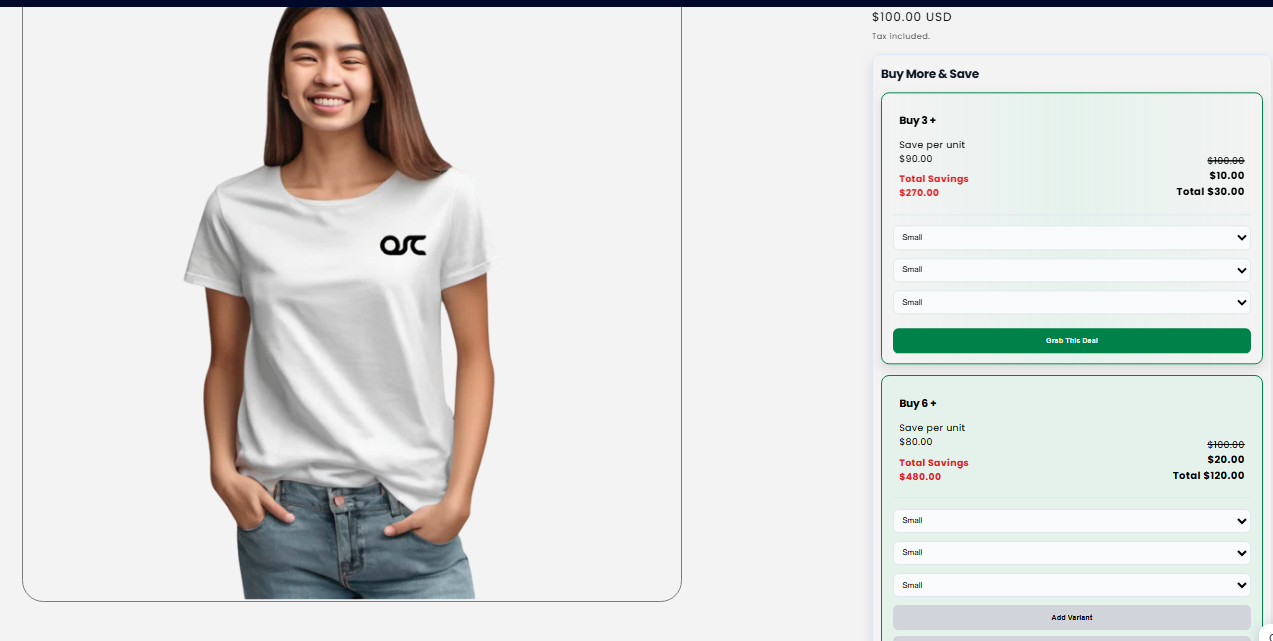
Once configured, the tier pricing will be automatically shown on the respective product pages, making it visible to customers directly on your storefront.
Set Up: Quantity Clubbed off all Products in a Collection
Step 1: Upgrade Your Plan
- Go to Pricing Plan > Subscribe to the Essential Plan.
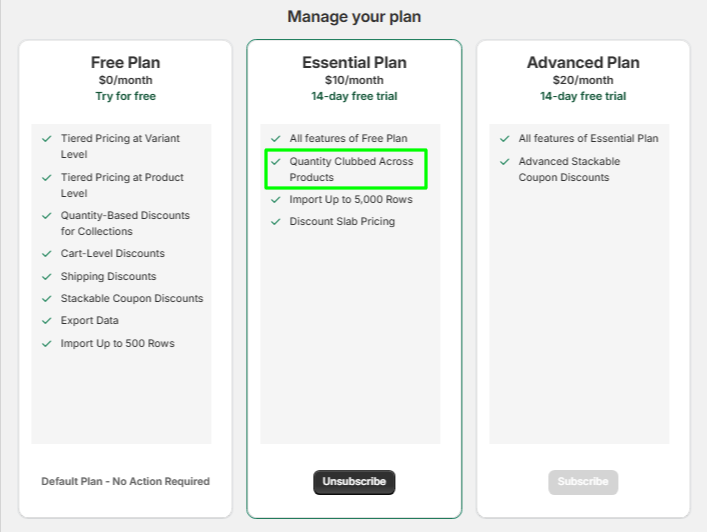
Step 2: Enable the Feature
- Go to Additional Settings >> Select Quantity Clubbed Across a Product
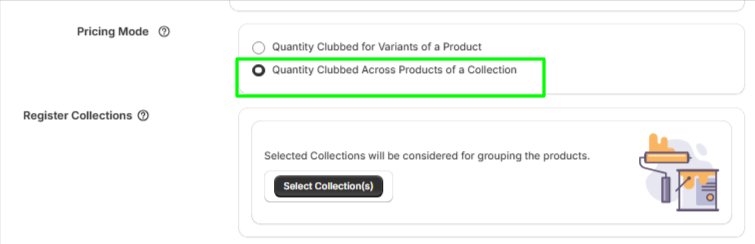
Step 3: Register Your Collection
- Choose the collection that includes the products you want to group together.
- Add it to register for the clubbed discount logic.

Step 4: Save Your Settings
Step 5: Create Discount Rules
- Click on Create Product Rule
- Select the products for which the discount should apply.
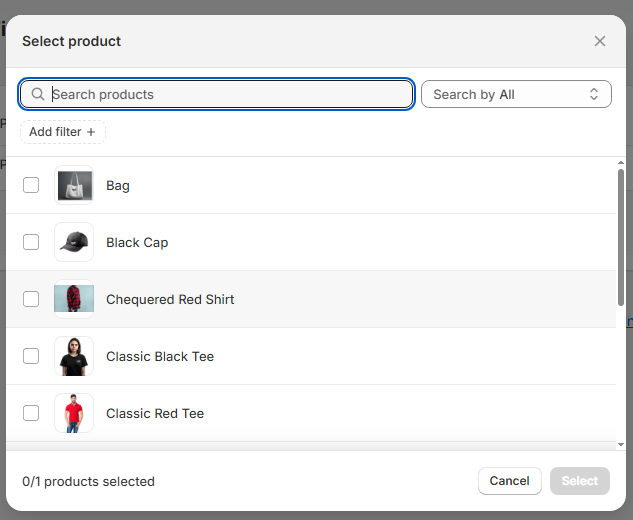
Then, configure the rule:
- Choose the Customer Group
- Define the:
-
- Quantity Range
- Discount Type: Fixed or Percentage
- Discount Value
- Click Save
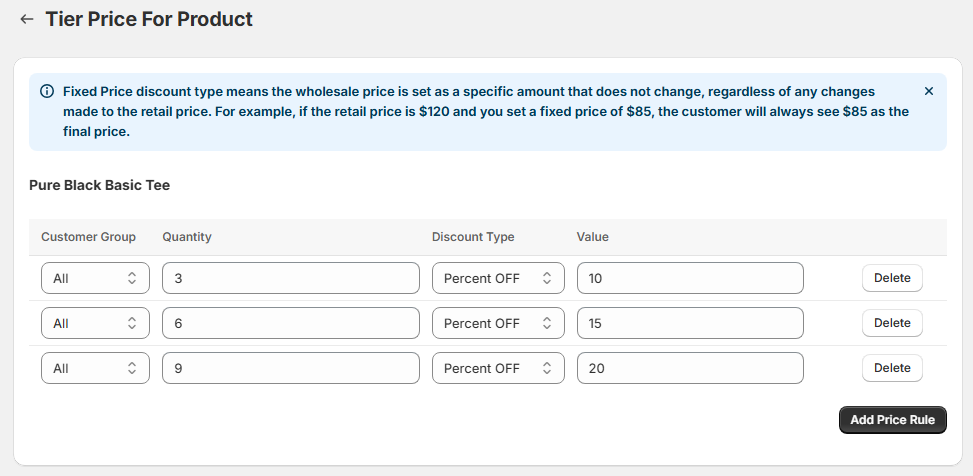
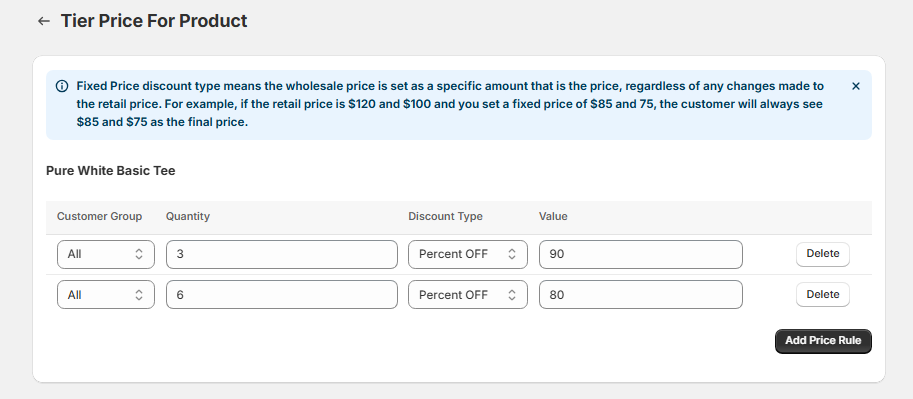
Use Add Price Rules for multiple discount tiers.
Step 6: View & Manage Rules
- All rules will appear under Tier Price for Product Level.
- Edit or delete rules as needed.
Storefront View
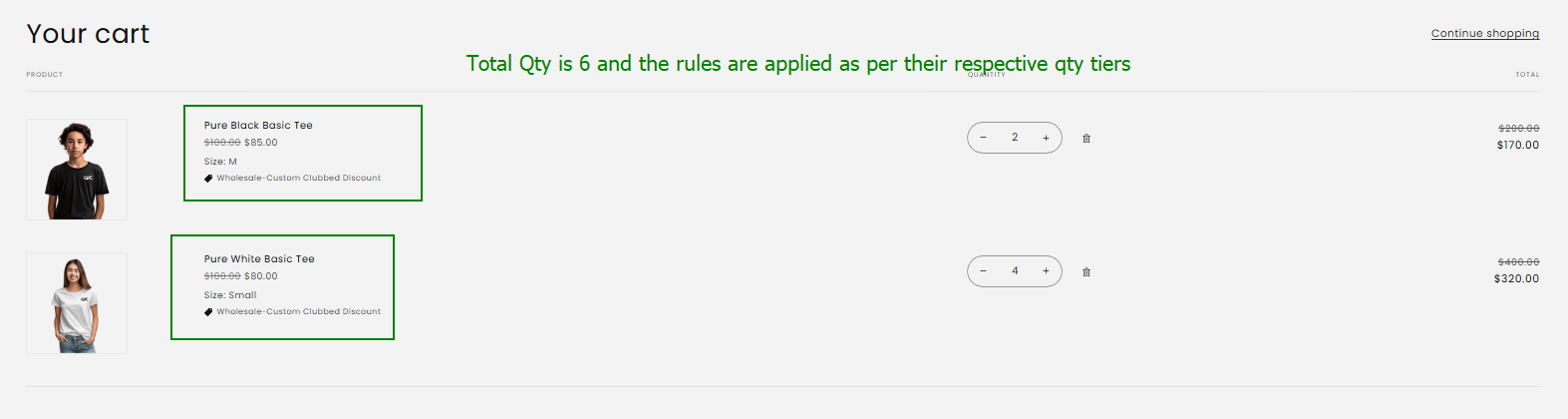
Tier pricing appears on the PDP and updates based on combined quantity from the assigned collection.
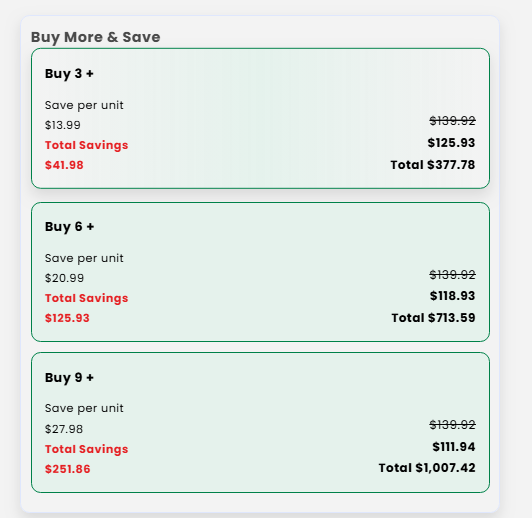
Cart Page
Need Help?
For any queries or support, feel free to reach out to us via the email our support team.