Skip to content

How to Create a Stackable Coupon Discount
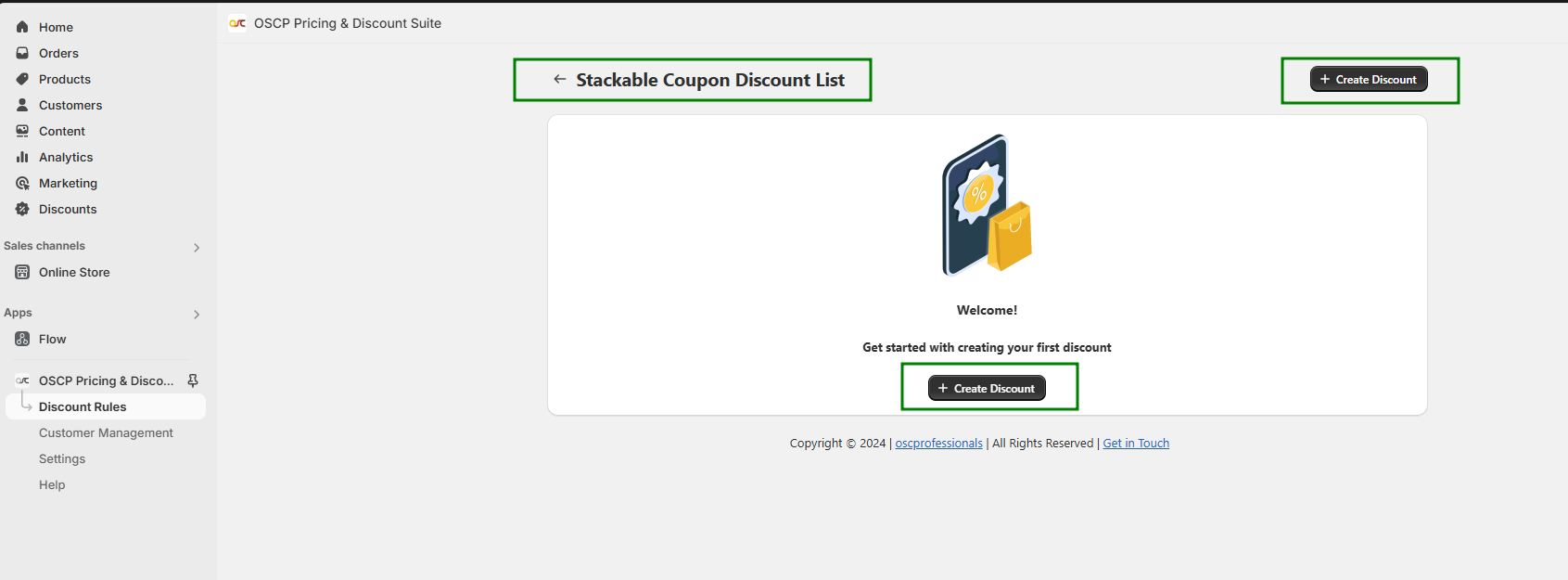
Step 1: Open Discount Rules from your app navigation.
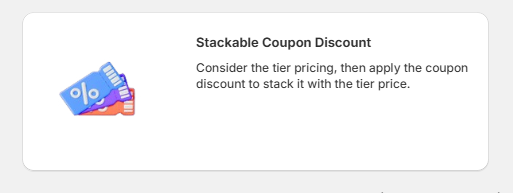
Click Stackable Coupon Discount.
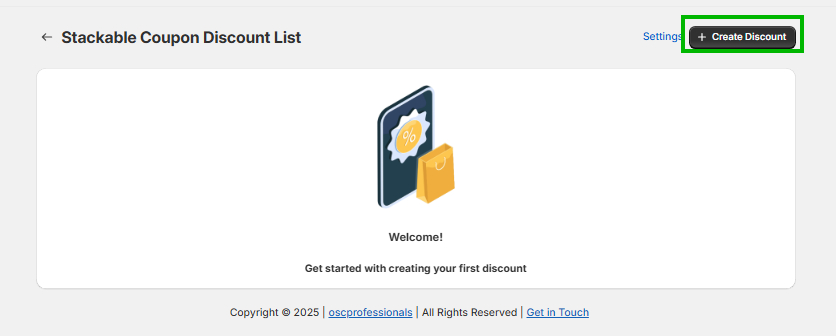
Step 2: On the next page, click Create Discount.
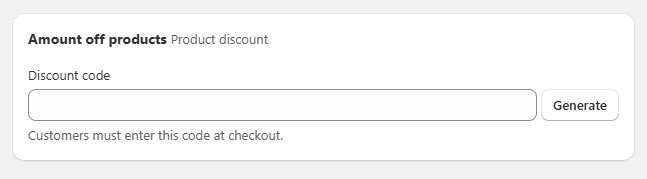
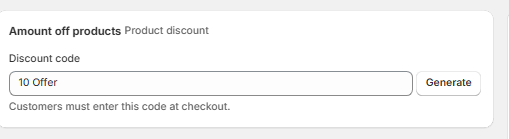
Step 3: Set Discount Code : generate a code either automatically or manually to enter . This code will be used at checkout.
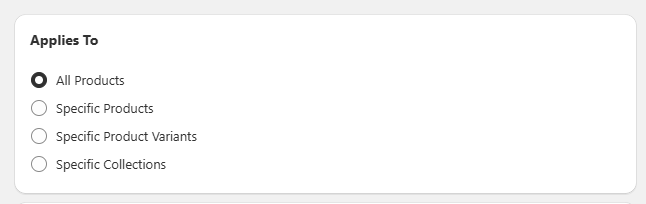
Step 4: Choose Discount Condition – apply the discount to:
- All Products
- Specific Products
- Specific Product Variants
- Specific Collections
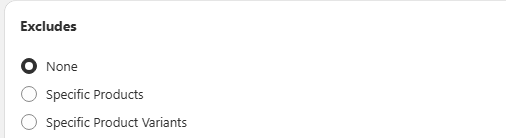
Step 5: Select Exclude Condition
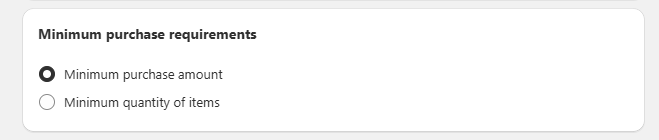
Step 6: Choose whether to apply the discount based on Total Cart Amount or Total Cart Quantity.
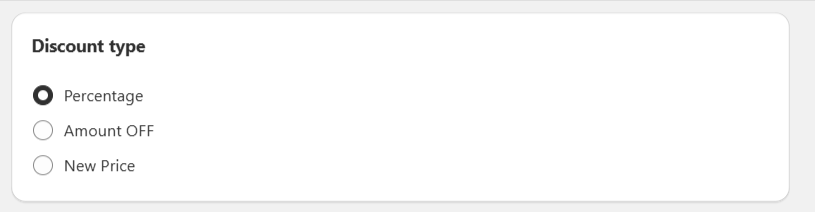
Step 7: Select Discount Type : Percentage, Amount Off or New Price.
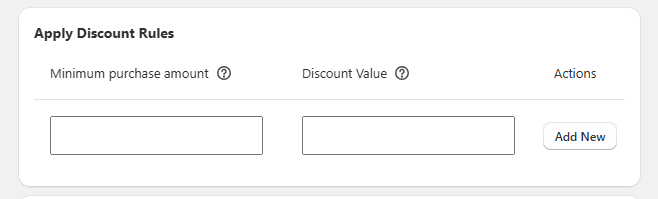
Step 8: Set Cart Value Rules : apply conditions based on order value.
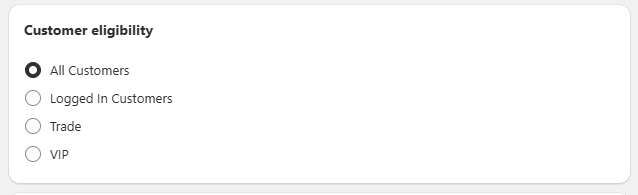
Step 9: Apply Customer Rules : target discounts for specific customer groups.
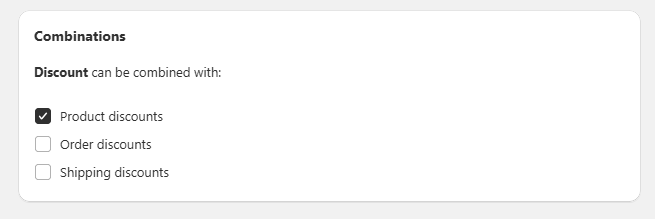
Step 10: Set Combination Rules : choose if this coupon can be combined with other discounts.
Step 11: Set Active Dates : define when the offer will run.

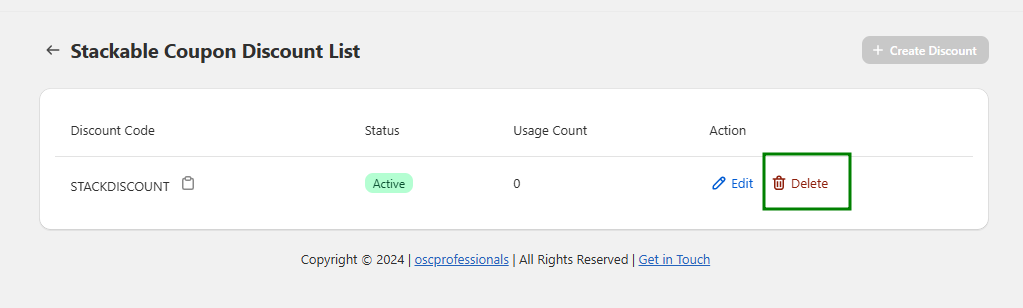
Step 12: Click Save to activate the coupon.

Step 13: To remove the offer, click Delete.
Where Will the Offer Display?
Once configured, the Stackable coupon Discount will be automatically shown on the respective, making it visible to customers directly on your storefront.
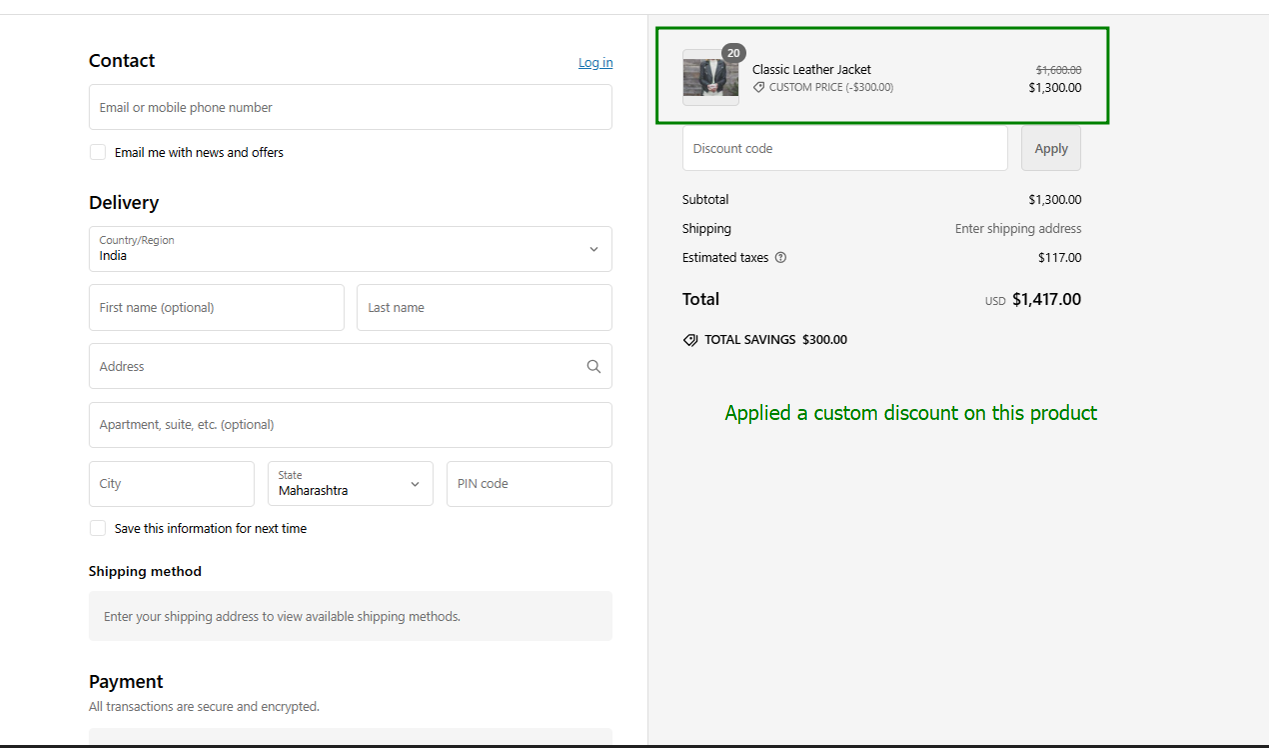
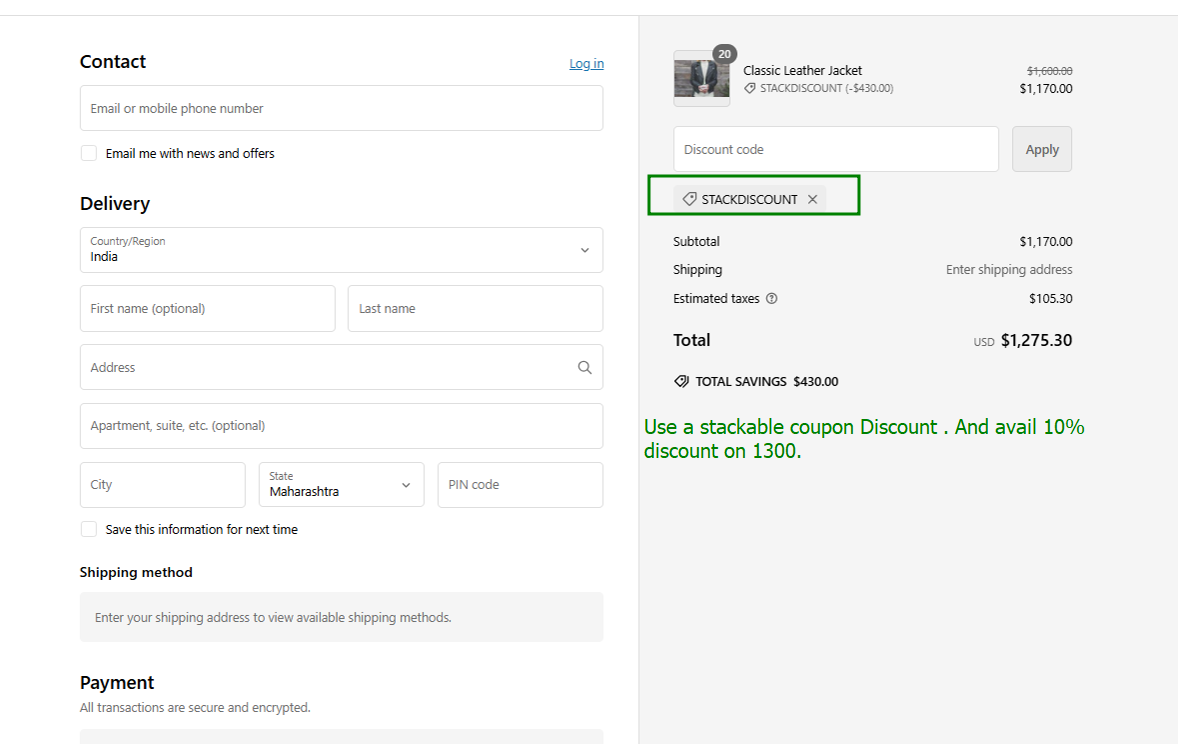
Support
If you need assistance while setting up your Stackable Coupon Discount:
- Contact our support team via Email – we’ll guide you through the process.
Setting Metafields (True/False) for Variants in Stackable Coupon Discount
Step 1: Enable Stackable Coupon Feature
- Go to Discount Rules in your admin dashboard.
- Click on the Stackable Coupon Discount feature.
- Click on Settings.
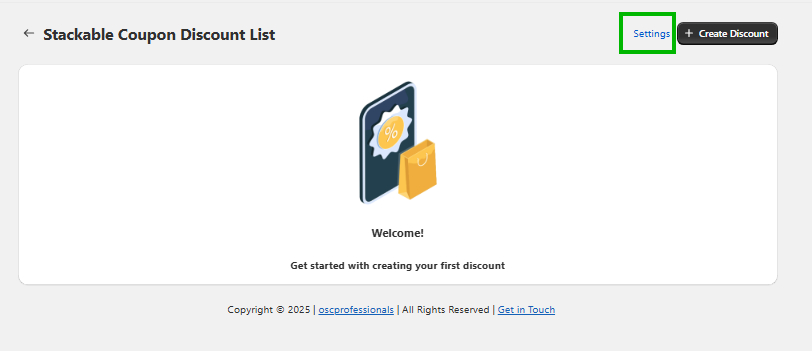
- Click Upgrade to Advanced Plan to activate this feature.
- After subscribing, go back to the Stackable Coupon Discount settings.
- Click the checkbox to enable the feature and Save Changes.
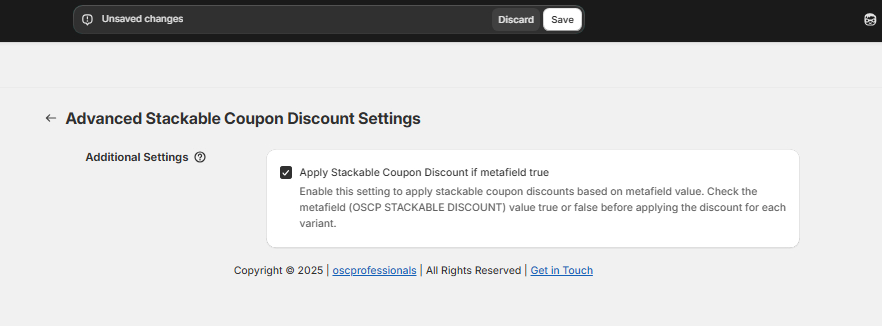
Step 2: Create a Discount
- Click Create Discount.
- Define your discount offer.
- Add a discount code.
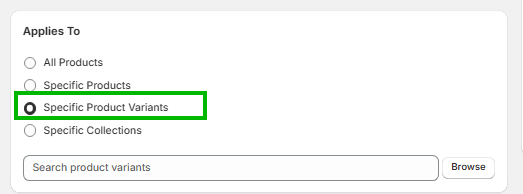
- In the Applies to option, select Specific product variants.
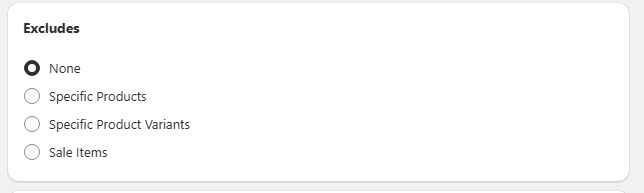
- Select Exclude condition
- After selecting Specific product variants, an additional setting will appear where you can set the metafield value to true or false.
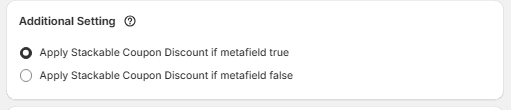
- Select the minimum requirement.
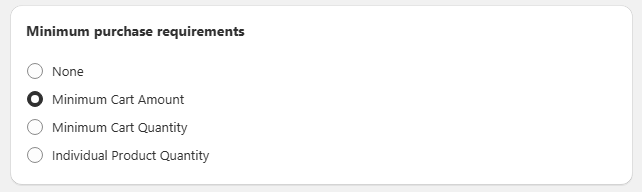
- Choose the discount type and add the rule.
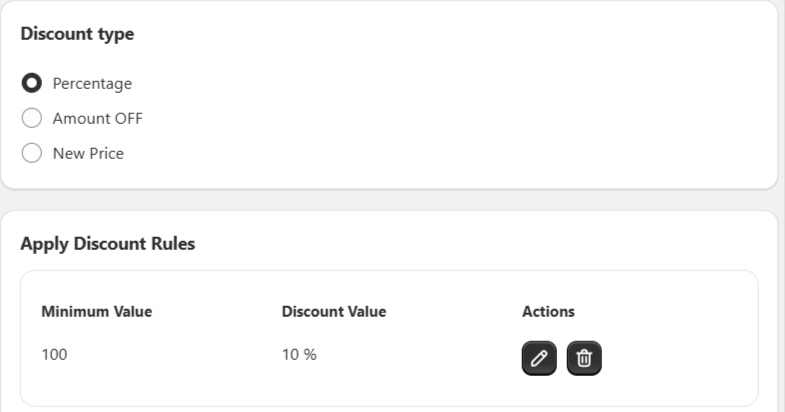
- Apply Customer Rules : target discounts for specific customer groups.
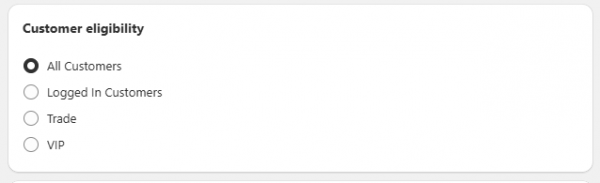
- Click Save Changes.
Step 3: Set Metafields for Selected Product Variants
This ensures the discount applies only to specific variants.
- Go to the Product Page.
- Click on the variant for which you want to set the metafield.
- Scroll down to the Metafields section.
- Locate the OSCP Stackable Discount Field.
- Set the value to true.
- Save the changes.
Note: If the OSCP Stackable Discount field is left blank, the default value will be false.
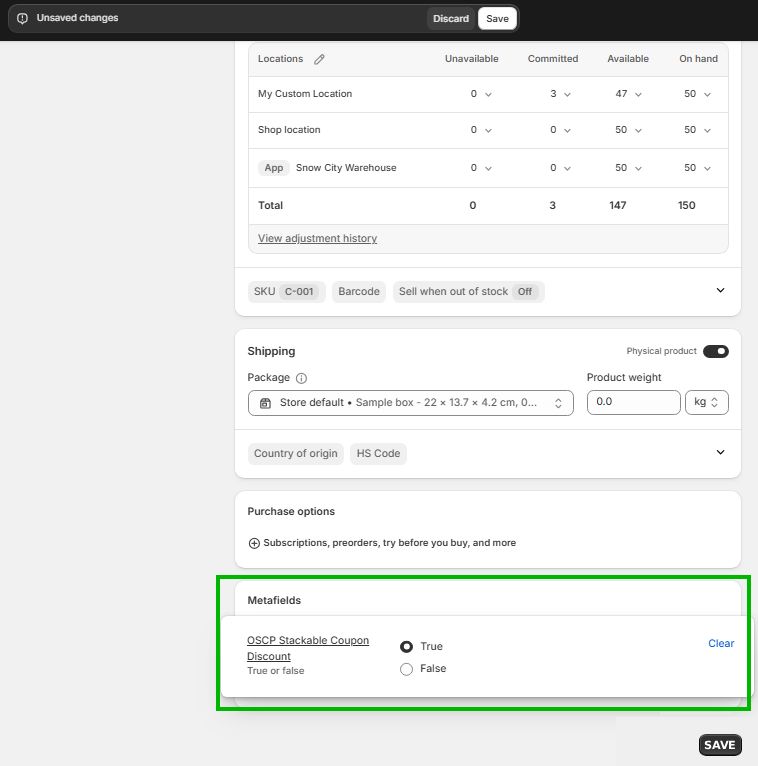
Step 4: Frontend Scenario
Example: Add two product variants to the cart:
- Choker with Gold Pendant (Gold / 18K) – Metafield value set to true
- Choker with Gold Pendant (Silver / 16K) – Metafield value false
At Checkout, apply the stackable coupon code:
- Discount will apply to Choker with Gold Pendant (Gold / 18K) (metafield value true)
- Discount will apply to Choker with Gold Pendant (Silver / 16K) (metafield value false)
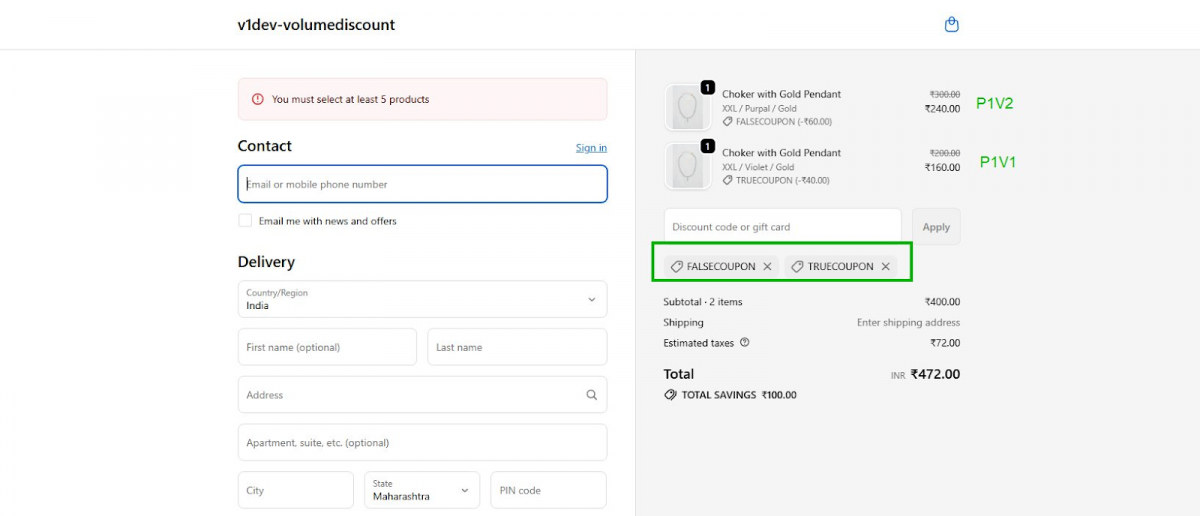
Create Shipping Discount with Stackable Coupon Discount
Step 1 : Go to Additional Discount Rules
Example: Add two product variants to the cart:
- Go to Additional Discount Rules >> Stackable Coupon Discount
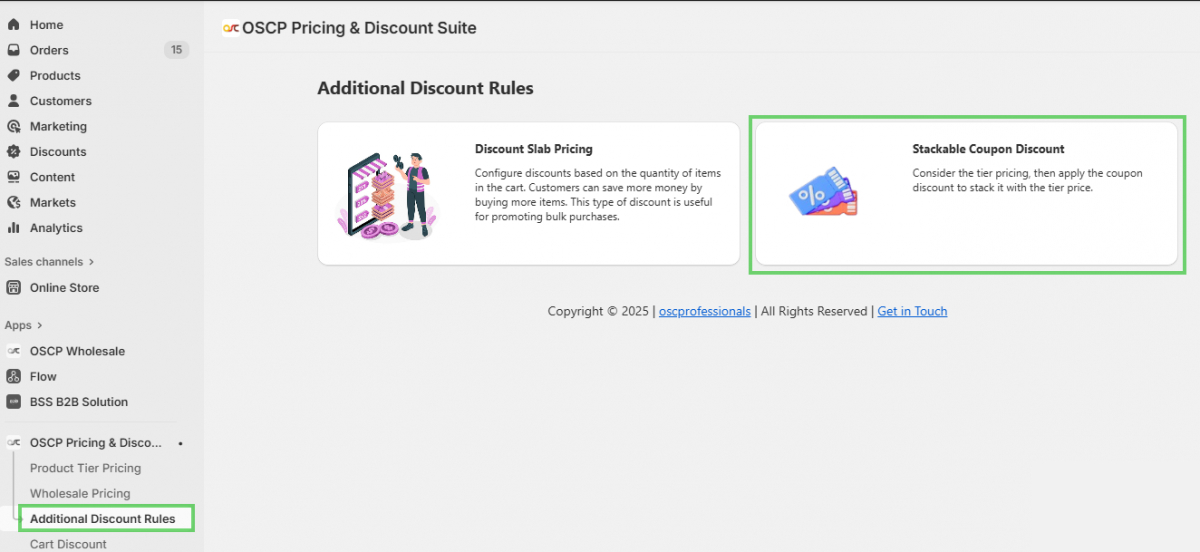
Step 2: Create a New Stackable Coupon
- Click Create Discount.
- Enter a Discount Code (or click Generate).
- Under Applies To, select All Products (or choose a specific option).
- Select Excludes condition if needed.
- Set Minimum Purchase Requirement → choose Minimum Cart Amount → enter 150.
- Under Discount Type, select Percentage.
- Add Discount Rule
- Minimum Value: 150
- Discount Value: 10%
- Under Customer Eligibility, select All Customers.
Step 3: Create Shipping Discount
Note: Upgrade to the Advanced Plan to use shipping discount features
- Turn ON the Shipping Discount toggle.
- Under Order Requirements, choose Minimum Purchase Amount → enter 150.
- Under Apply to Markets, select the target market (e.g., German)
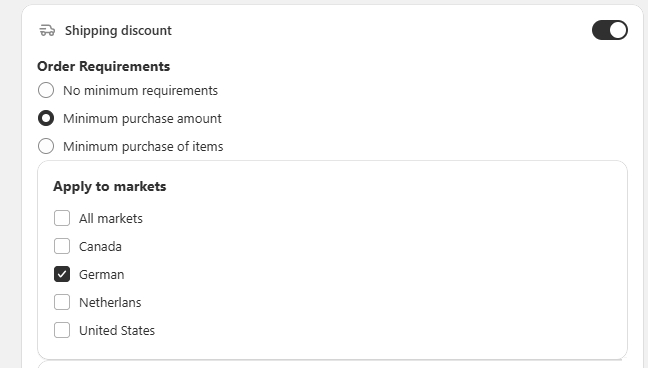
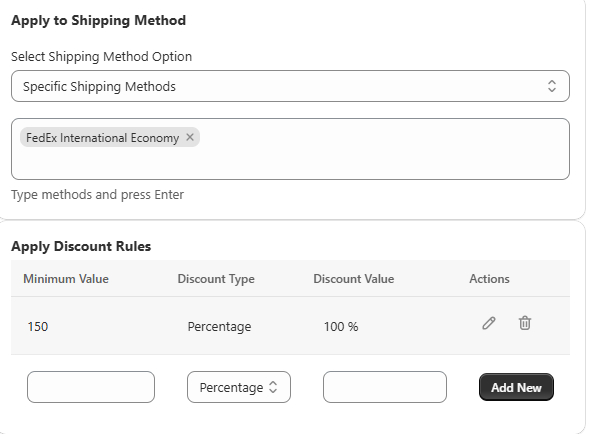
- Under Apply to Shipping Method, select Specific Shipping Methods → choose FedEx International Economy.
- In Apply Discount Rules, set:
- Minimum Value: 150
- Discount Type: Percentage
- Discount Value: 100% (Free Shipping)
- Minimum Value: 150
- Click Save.
Frontend Page
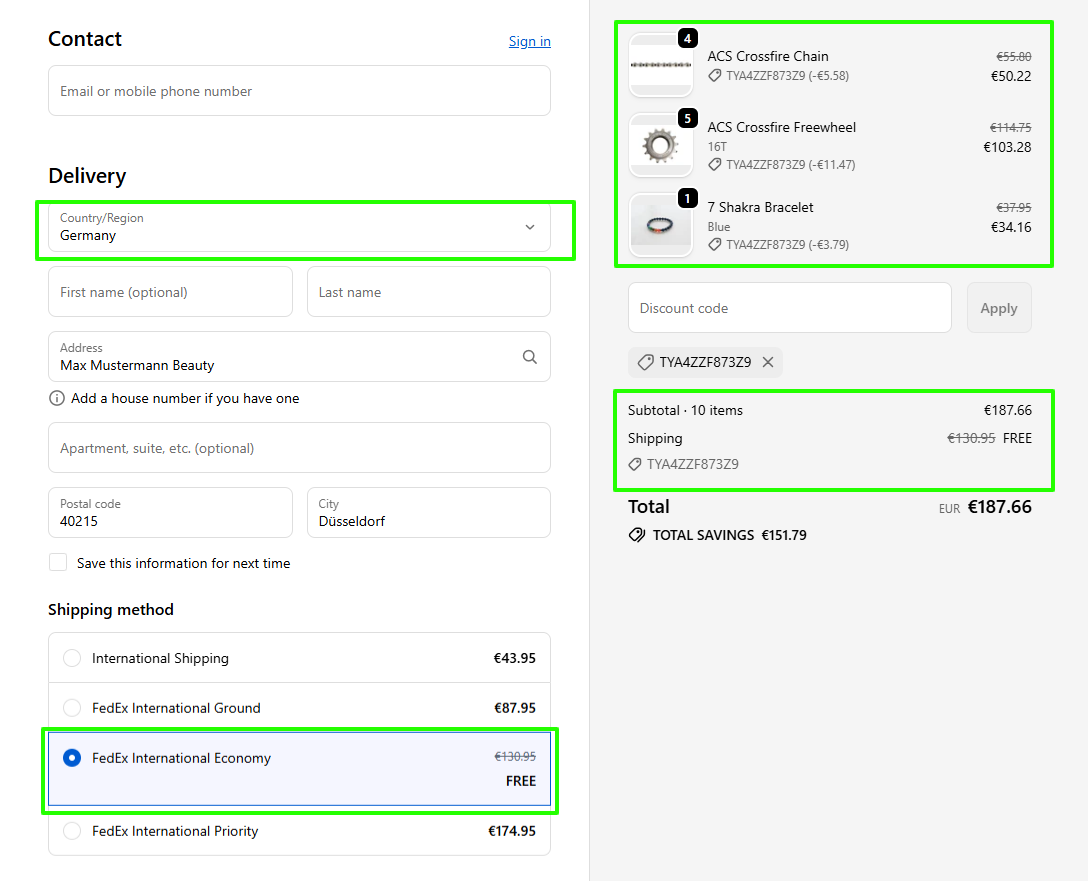
Checkout Page:
Customers will see both the stackable discount and the shipping discount applied using a single coupon code.