Skip to content

How to Configure Component-Based Pricing
Verify App Installation & Activation
Before configuring Component-Based Pricing, ensure the app is properly installed and activated.
Enable Additional Settings
- Open OSCP Add-ons Tier Pricing App.
- Navigate to Additional Settings.
- Verify that Component-Based Pricing is enabled.
- Click Save Settings.
Important: Component-Based Pricing will not work unless both the App Embed and Additional Settings are enabled.
Enable App Embed
- Go to Online Store → Themes → Customize.
- Click App Embeds.
- Locate OSCP Add-ons Tier Pricing.
- Enable the app embed.
- Click Save.
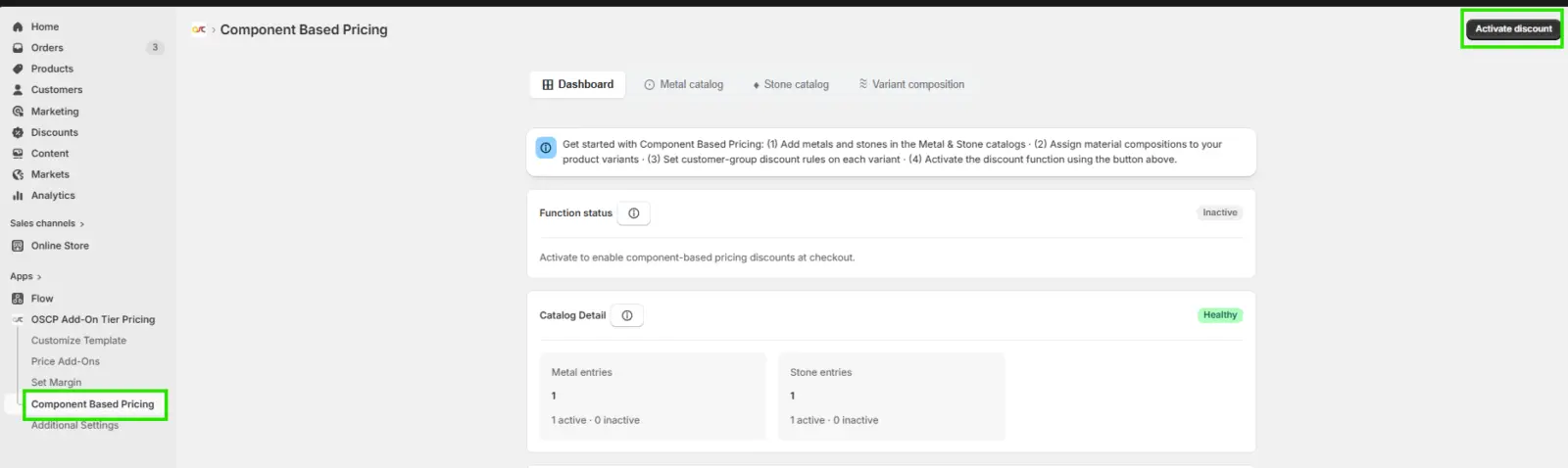
Step 1: Activate Component-Based Pricing
- Open OSCP Add-ons Tier Pricing App.
- Navigate to Component-Based Pricing.
- Activate Discount the Component-Based Pricing feature.
Once enabled, the app will use component catalogs and pricing rules to calculate prices automatically.
Step 2: Create a Metal Catalog
Navigate to:
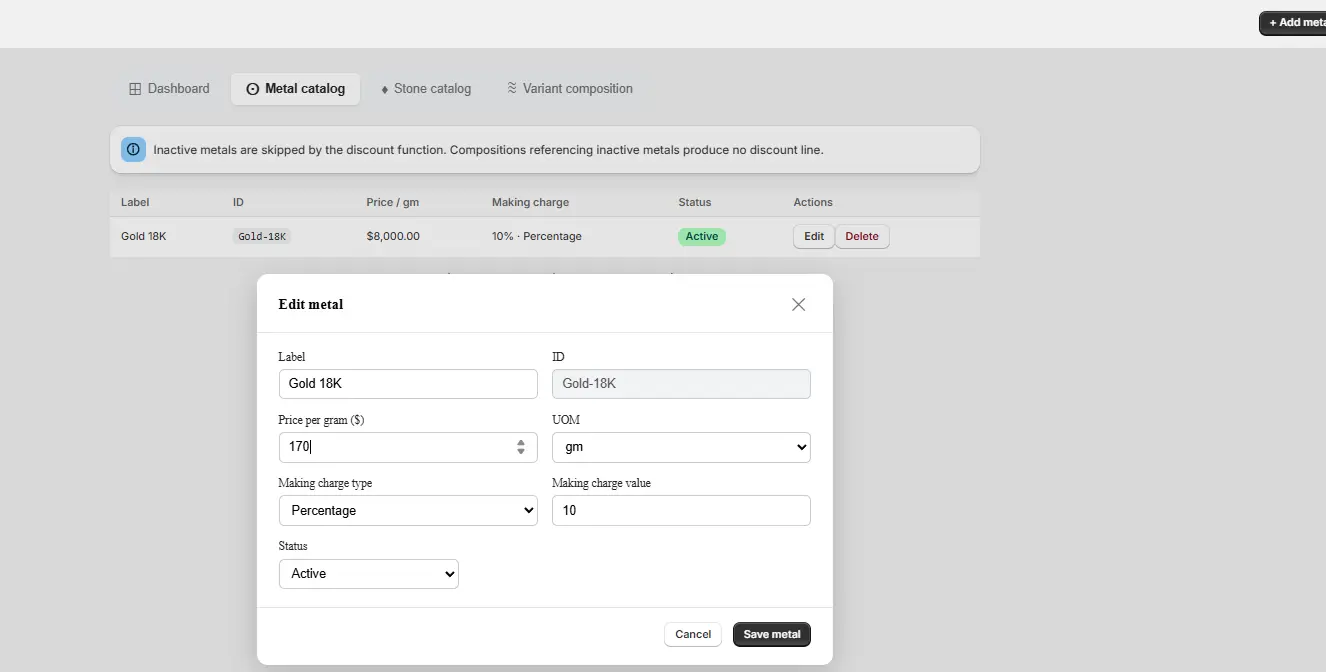
OSCP Add-ons Tier Pricing → Component-Based Pricing → Metal Catalog → Add Metal
Configure the metal details:
| Field | Example |
| Label | Gold 18K |
| Price per Gram | $170 |
| UOM | gm |
| Making Charge Type | Percentage (%) |
| Making Charge Value | 10 |
| Status | Active |
Supported Making Charge Types
- Percentage (%)
Applied as a percentage of the material value. - Fixed
Adds a fixed amount to the material cost. - Per Unit
Applies a charge for each unit of material used.
Click Save Metal to create the catalog entry.
Step 3: Create a Stone Catalog
Navigate to:
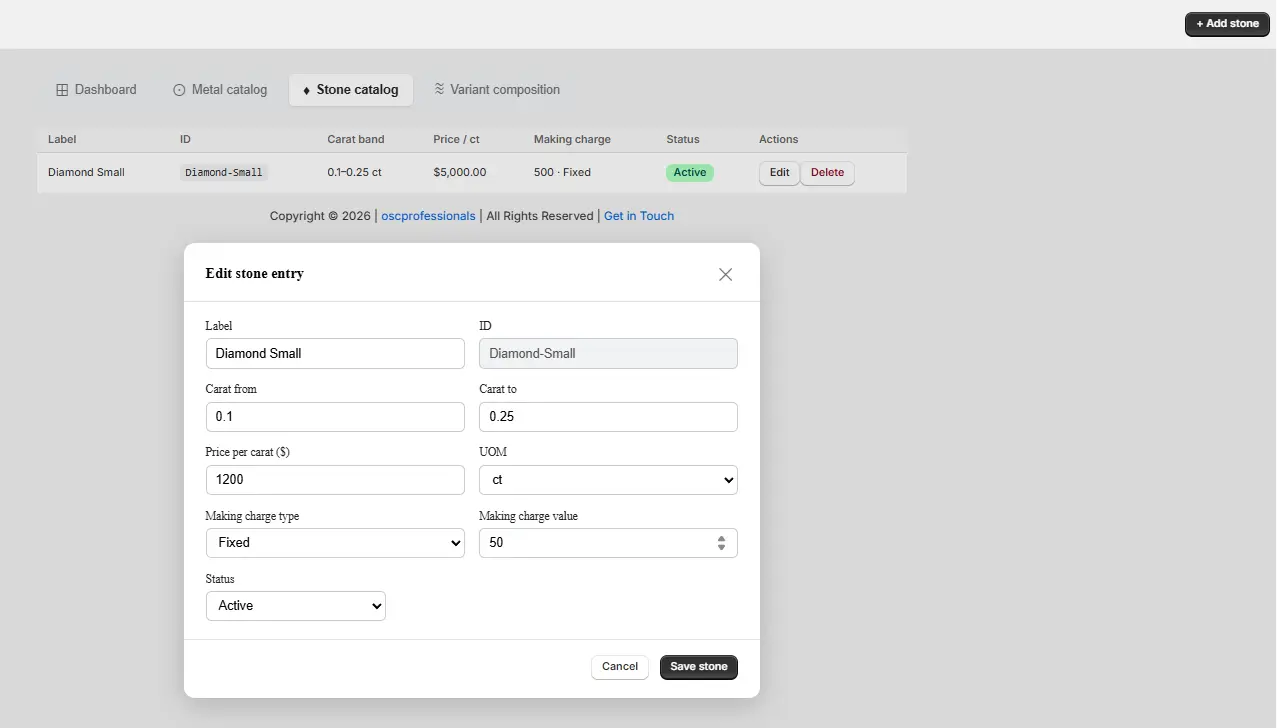
OSCP Add-ons Tier Pricing → Component-Based Pricing → Stone Catalog → Add Stone
Configure the stone details:
| Field | Example |
| Label | Diamond Small |
| Carat Range | 0.10 – 0.25 ct |
| Price per Carat | $1,200 |
| UOM | ct |
| Making Charge Type | Fixed |
| Making Charge Value | $50 |
| Status | Active |
Supported Making Charge Types
- Percentage (%)
Applied as a percentage of the material value. - Fixed
Adds a fixed amount to the material cost. - Per Unit
Applies a charge for each unit of material used.
Click Save Stone to create the catalog entry.
Step 4: Configure Variant Composition
Navigate to:
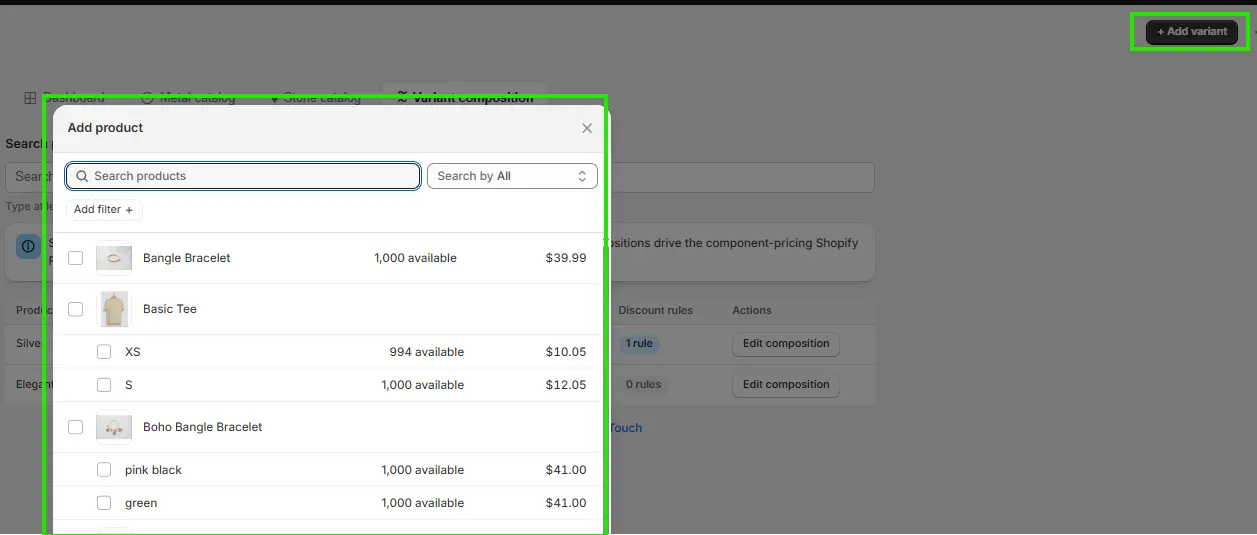
OSCP Add-ons Tier Pricing → Component-Based Pricing → Variant Composition → Add Variant
Select Shopify Variant
Choose the Shopify product variant you want to configure.
Add Components
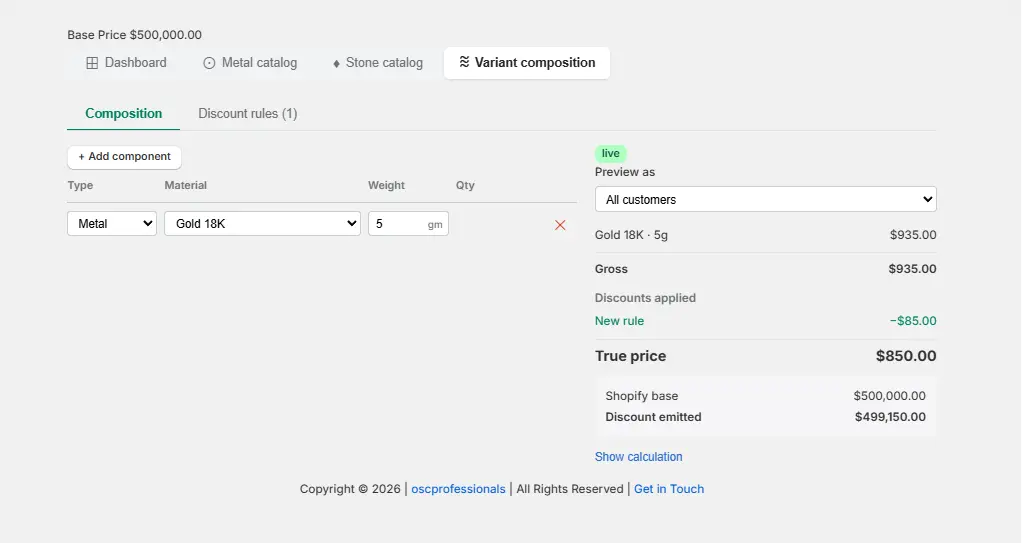
Click Add Component and configure the following details:
| Field | Description |
| Type | Metal or Stone |
| Material | Select from the corresponding catalog |
| Weight | Material weight or carat value |
| Quantity | Number of units used |
Supported Component Types
- Metal
- Stone
Example Composition
| Type | Material | Weight | Qty |
| Metal | Gold 18K | 5 gm | 1 |
| Stone | Diamond Small | 0.20 ct | 2 |
After adding all components, click Save Composition.
Step 5: Configure Discount Rules
Navigate to:
OSCP Add-ons Tier Pricing → Component-Based Pricing → Variant Composition → Discount Rules → Add Rule
Discount rules allow you to provide customer-specific pricing at the component level.
Customer Groups
- All Customers
Applies to all visitors and customers. - Logged-in Customers
Applies only to customers with an active account. - Specific Tag
Applies only to customers assigned a specific Shopify customer tag.
Discount Types
- Percentage (%)
Applies a percentage discount to the selected component. - Fixed Amount
Applies a fixed discount amount to the selected component.
Additional Settings
| Field | Description |
| Max Cap ($) | Maximum discount amount allowed (Optional) |
| Status | Active or Inactive |
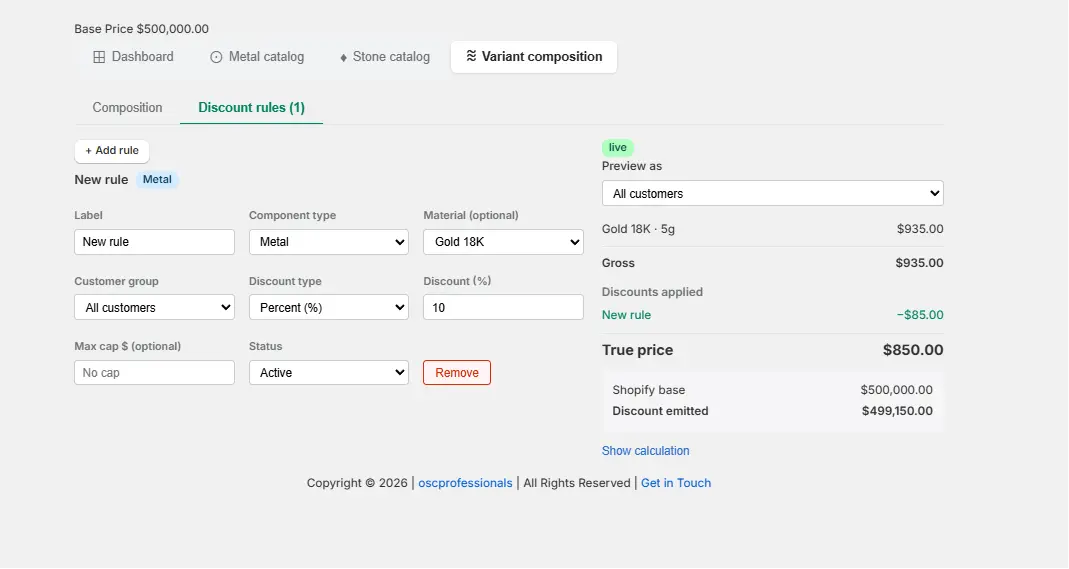
Example Rule
| Field | Value |
| Component Type | Metal |
| Material | Gold 18K |
| Customer Group | All Customers |
| Discount Type | Percentage (%) |
| Discount Value | 10 |
| Max Cap | No Cap |
| Status | Active |
Live Preview
The Live Preview section displays the pricing breakdown for the selected customer group and shows how the final cart discount is calculated.
Preview Settings
Preview As: All Customers
Preview Summary
| Description | Amount |
| Component | Gold 18K · 5g |
| Gross Price | $935.00 |
| Discount Applied | -$85.00 |
| True Price | $850.00 |
| Shopify Base Price | $200,000.00 |
| Discount Emitted | $199,150.00 |
Pricing Calculation Example
Variant Composition
| Component | Details |
| Material | Gold 18K |
| Weight | 5 gm |
| Price per Gram | $170.00 |
| Making Charge | 10% |
| Discount Rule | Discount Rule (10%) |
Detailed Calculation
Gold 18K · 5g
Material Value
Weight × Catalog Price
5 × $170.00/gm = $850.00
Making Charge
$850.00 × 10% = $85.00
Gross Price
$850.00 + $85.00 = $935.00
Discount Applied
Discount Rule (Applied on Material Value Only)
$850.00 × 10% = $85.00
Component Price
Gross Price − Discount
$935.00 − $85.00 = $850.00
True Price
Gross Price − Discount
$935.00 − $85.00 = $850.00
Cart Discount Calculation
| Description | Amount |
| Shopify Base Price | $200,000.00 |
| True Price | $850.00 |
| Discount Emitted | $199,150.00 |
Formula
Discount Emitted = Shopify Base Price − True Price
$200,000.00 − $850.00 = $199,150.00
Result
The calculated component price for Gold 18K is $850.00.
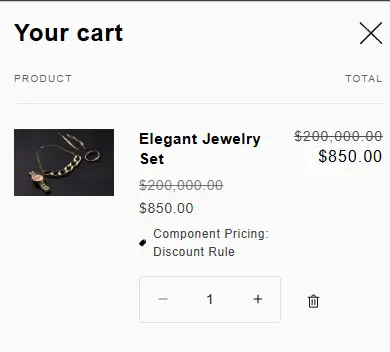
Since the Shopify product’s base price is $200,000.00, the app automatically emits a cart-level discount of $199,150.00.
This ensures the customer pays the calculated component-based price while maintaining Shopify’s standard pricing workflow.
Calculation Breakdown Shown in Live Preview
Gold 18K · 5g
Material Value (Weight × Catalog Price)
5 × $170.00/gm = $850.00
Making Charge
$850.00 × 10% = $85.00
Gross (Material + Making)
$850.00 + $85.00 = $935.00
Discount · Discount Rule (On Material Value Only)
$850.00 × 10% = $85.00
Component Price (Gross − Discount)
$935.00 − $85.00 = $850.00