Skip to content

How to Create Free Gift Rule
Step 1: Navigate to Free Gift Rules
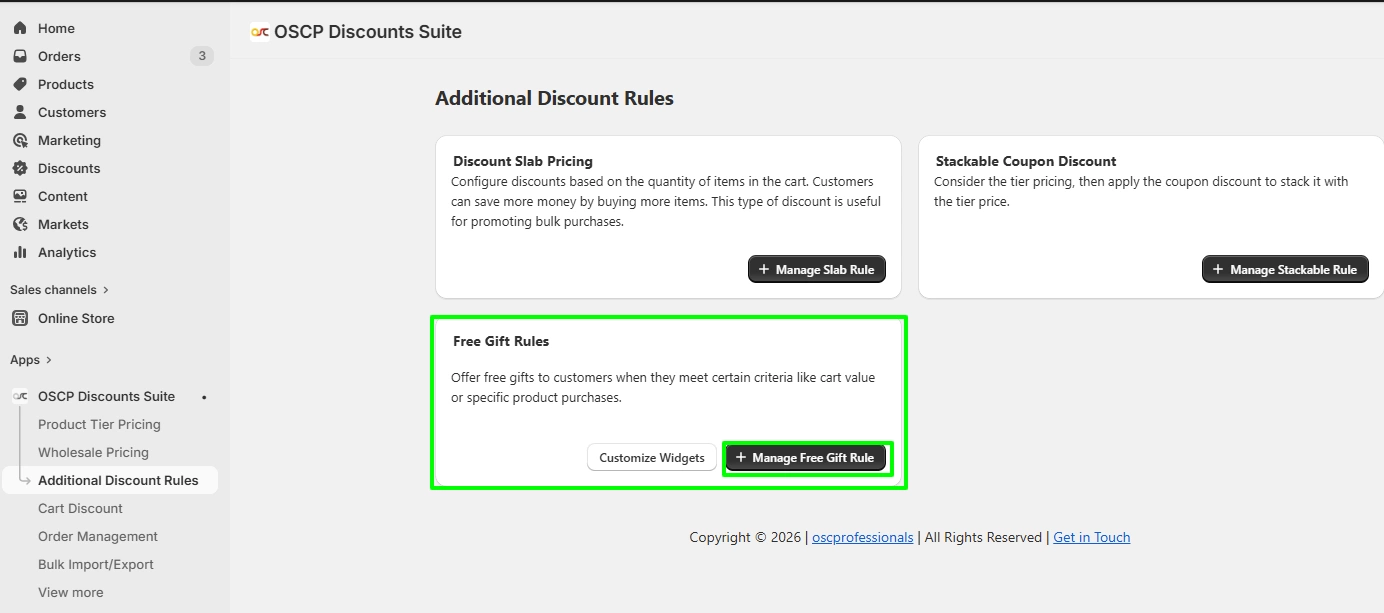
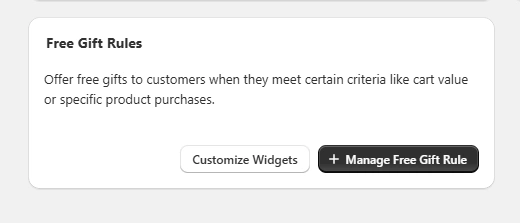
Go to Additional Discount Rules → Free Gift Rules
Click “+ Manage Free Gift Rule” to start creating a free gift rule.
Step 2: Create a Rule
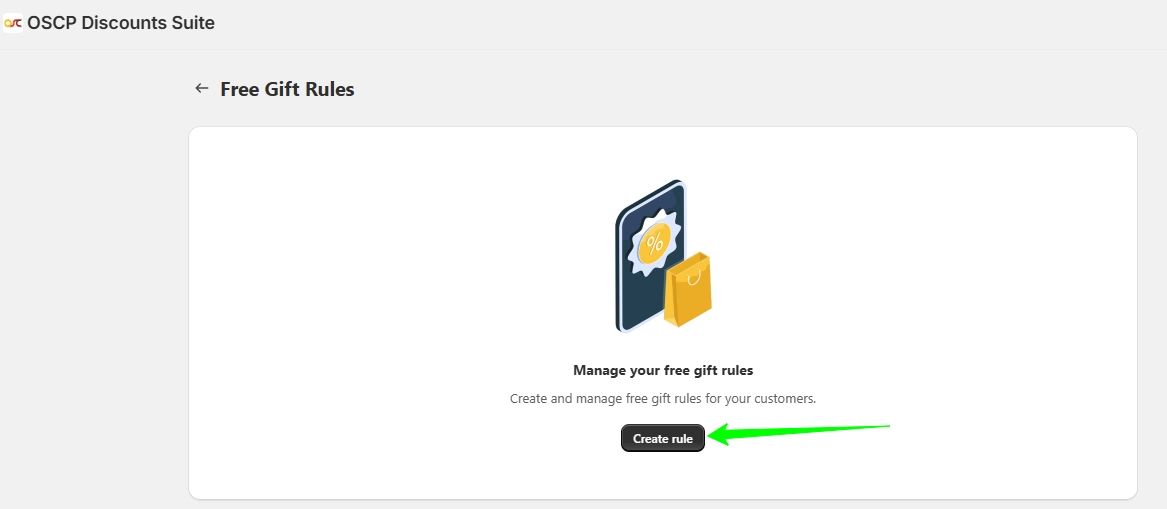
On the next screen, click “Create Rule”
This will open the free gift rule configuration page.
Step 3: Basic Rule Setup
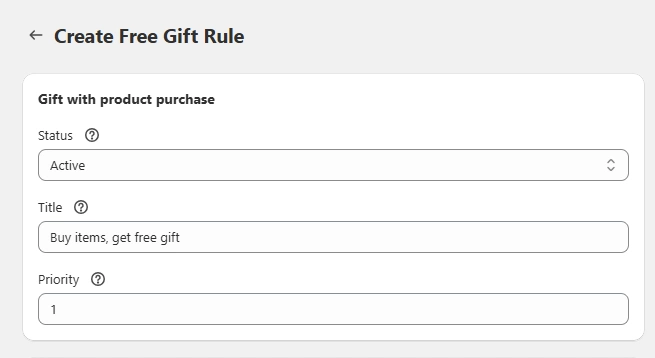
Fill in the following details:
- Status
Set the rule as Active or Inactive - Title
Enter a name (e.g., Buy items, get free gift)
Priority
Set rule priority (lower number = higher priority)
Step 4: Apply Rule To
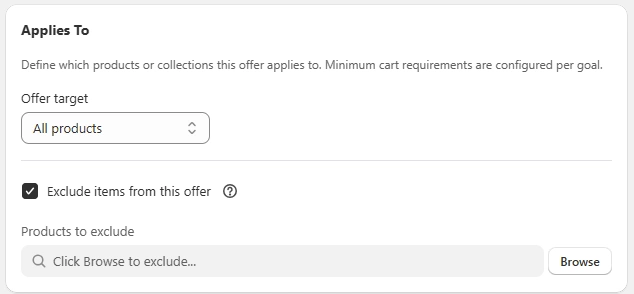
Choose where the free gift offer applies:
- All products
- Specific products
- Specific variants
- Specific collections
Only selected items will trigger the free gift.
Exclude Items from this Offer
You can exclude specific products from the free gift rule.
Step 5: Configure Free Gift
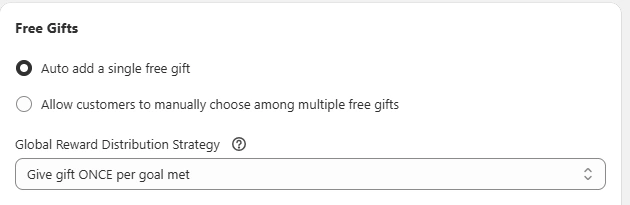
- Gift Type
- Auto add a single free gift
- Allow customers to choose from multiple gifts
2. Distribution Strategy
- Give gift ONCE per goal met
- Give gift PER X value spent
Step 6: Set Conditions
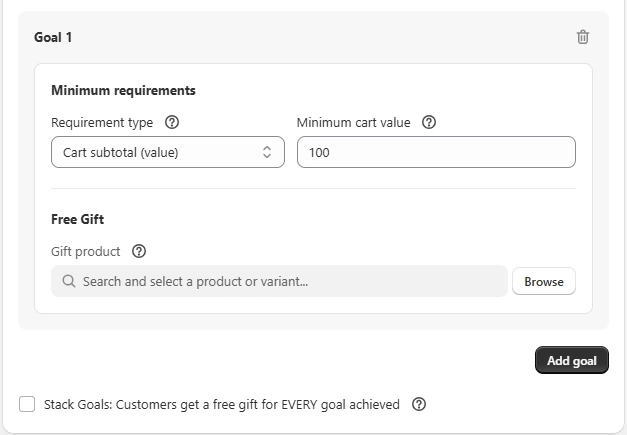
- Requirement Type
- Cart subtotal (value)
- Cart quantity (items)
2. Minimum Value / Quantity
- Example: ₹100 cart value
3. Gift Product
- Select the product to be given as a free gift
Click “Add Goal” to apply the condition.
Step 7: Additional Settings
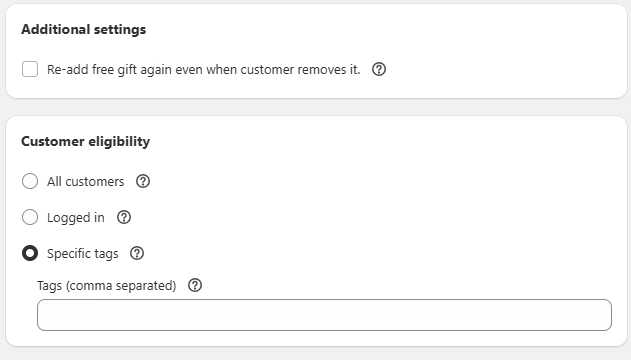
- Enable Re-add free gift if customer removes it
- Enable Stack Goals to allow multiple gifts
Step 8: Customer Eligibility
Choose who can get the free gift:
- All customers
- Logged-in customers
- Specific customer tags
Storefront View
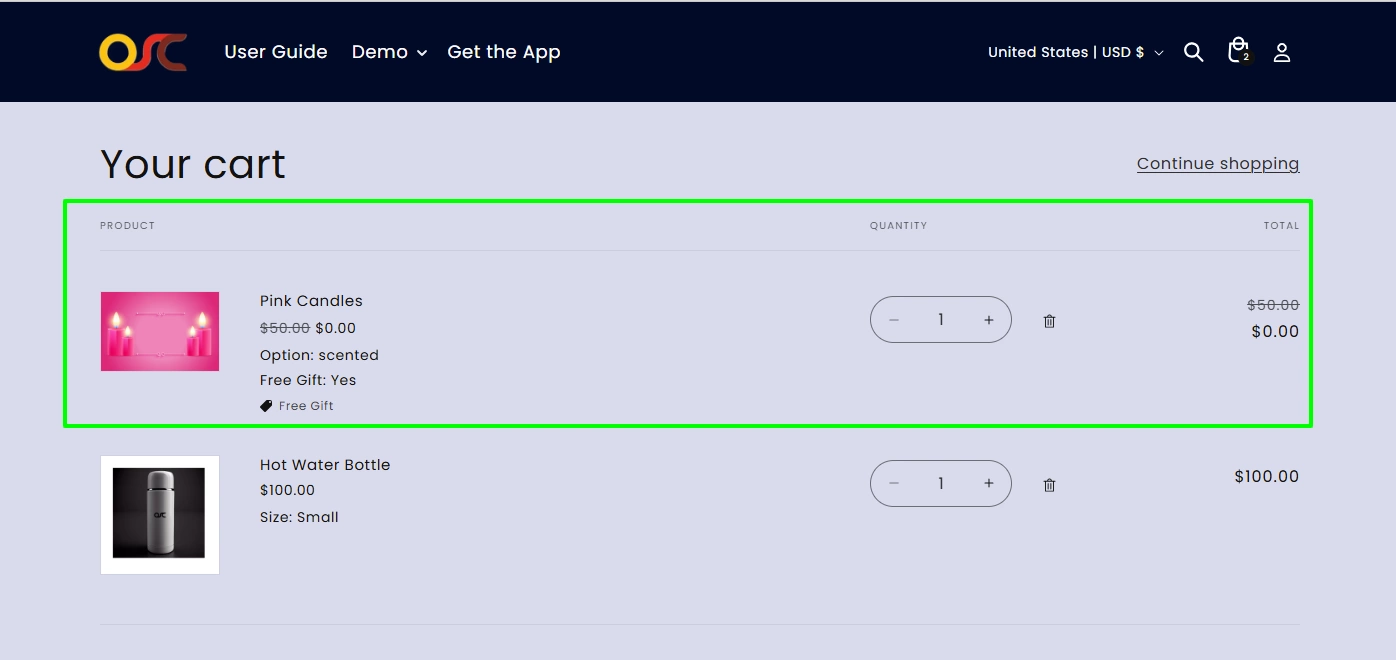
- Free gift is automatically added when conditions are met
- If multiple gifts → customer can choose
- Gift updates based on cart changes
Free Gift Customization (Widget Settings)
Go to Free Gift Rules → Click “Free Gift Widget Settings”
Available Widgets
- Progress Bar
- PDP Widget
- Popup Widget
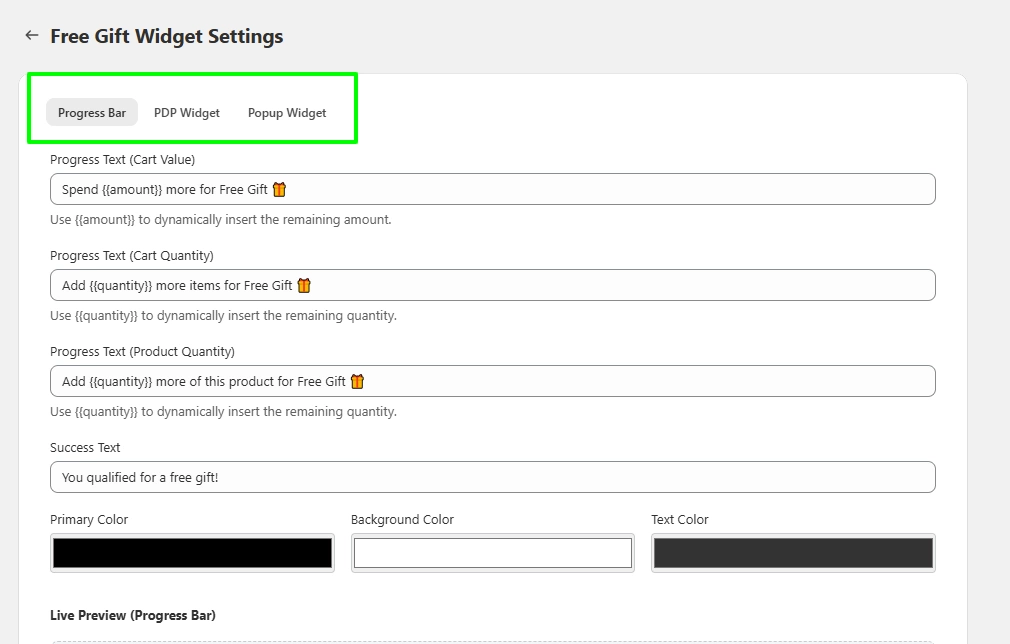
Progress Bar Settings
- Progress Text (Cart Value)
Spend more for Free Gift - Progress Text (Cart Quantity)
Add more items for Free Gift - Progress Text (Product Quantity)
Add more of this product for Free Gift - Success Text
You qualified for a free gift! - Colors
- Primary Color
- Background Color
- Text Color
PDP Widget Settings
- Title Text
Pick your FREE Gift - Subtitle Text (Cart Value)
Spend over to unlock - Subtitle Text (Cart Quantity)
Add more items to unlock - Subtitle Text (Product Quantity)
Add more of this product to unlock - Colors
- Primary Color
- Background Color
- Text Color
Popup Widget Settings
- Title Text
Congrats! You have unlocked a free gift - Subtitle Text
You can choose any one from the following gifts - Button Text
Claim Gift - Colors
- Primary Color
- Background Color
- Text Color
Notes
- Use to show remaining cart value
- Use to show remaining quantity
- Changes are visible in Live Preview