Skip to content

OSCP Shipping Rates – User Guide (Zone-Based Shipping)
Overview
The Shipping Rates feature enables you to configure shipping charges based on:
- Customer location (Shipping Zone)
- Cart value or quantity
- Customer segments (tags)
This helps you control shipping pricing and offer flexible delivery options.
Step 1: Open Shipping Rates
- Navigate to Apps
- Click on OSCP Shipping Rates
- Select Shipping Rates from the left menu
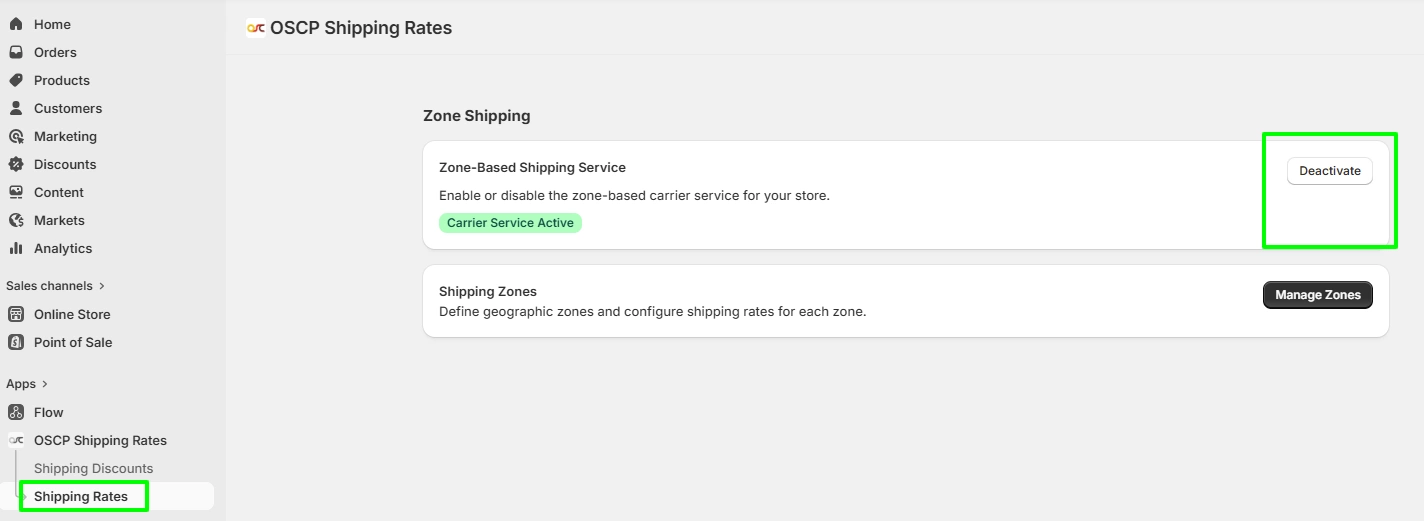
Step 2: Enable Zone Shipping
- On the main screen, locate Zone Shipping
- Click Activate (or ensure the status shows Carrier Service Active)
Note: This step is mandatory. Shipping rates will not function unless the service is activated.
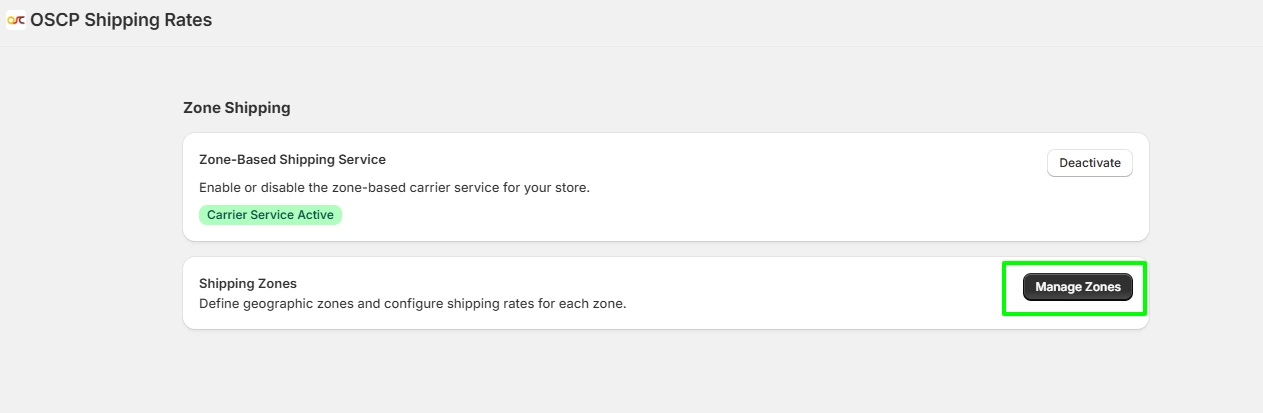
Step 3: Go to Manage Zones
- Click Manage Zones
- You will be redirected to the Shipping Zones page
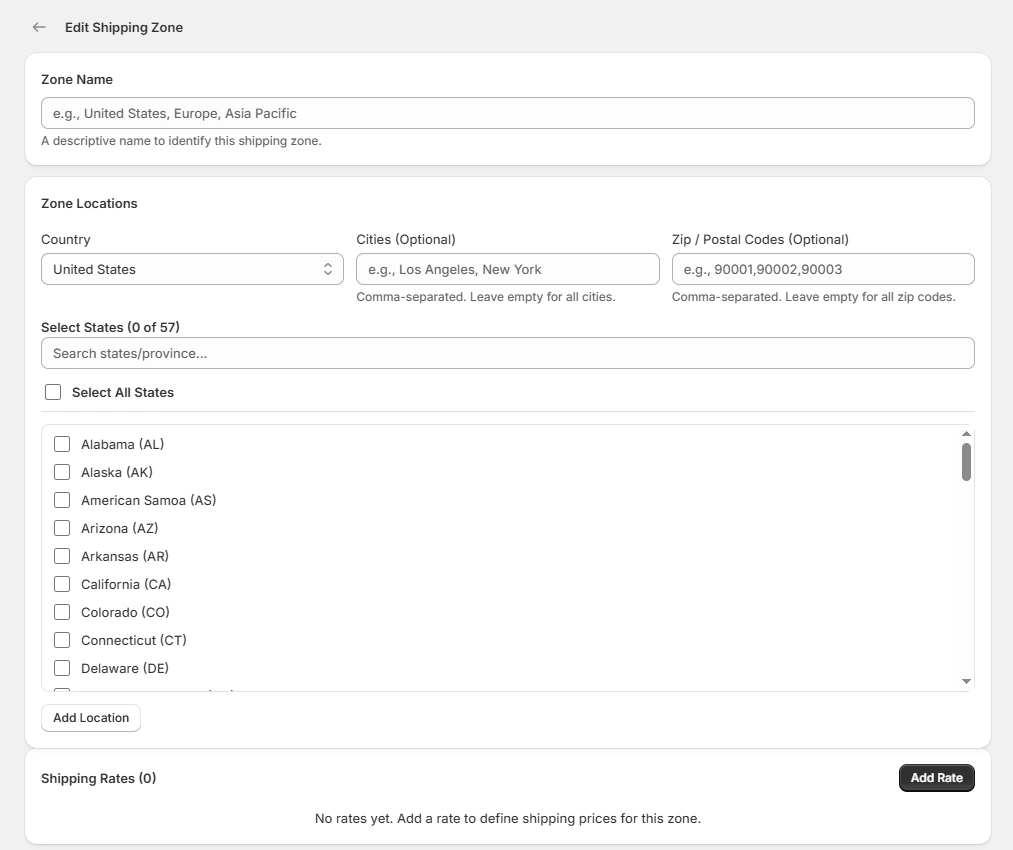
Step 4: Create a Shipping Zone
- Click Create Shipping Zone
- Enter a Zone Name
Step 5: Configure Zone Location
- Select the Country
- Choose the States
- (Optional) Add:
- Cities
- Zip/Postal Codes
- Click Update Location, then Save.
You can configure multiple locations within a single zone.
Step 6: Save Zone & Add Rate
- Scroll to the Shipping Rates section
- Click Add Rate

Step 7: Configure Shipping Rate
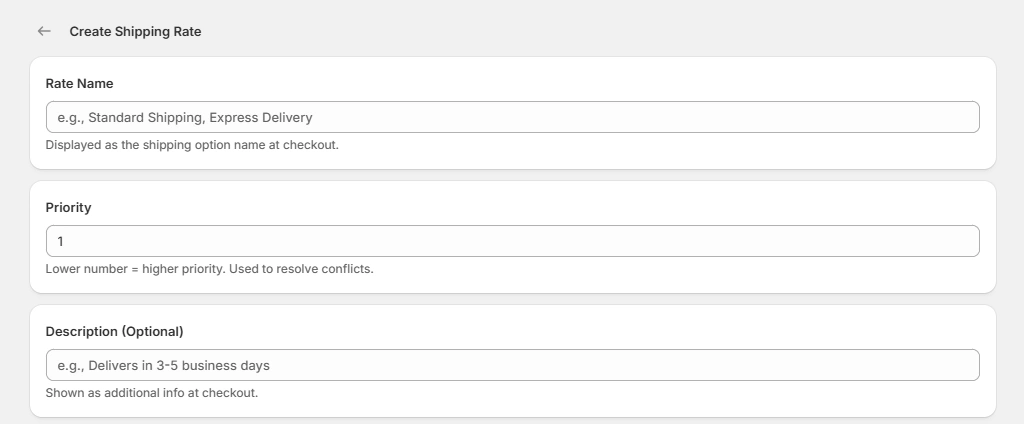
7.1 Basic Details
- Rate Name → Example: Standard Shipping
- Priority → Lower number = higher priority
- Description (Optional)
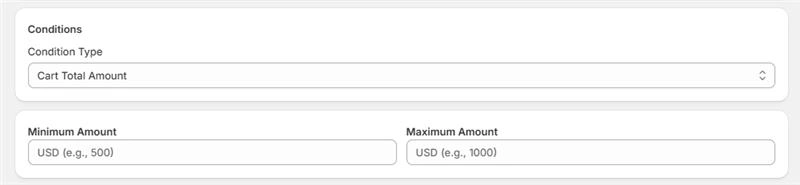
7.2 Condition Type
Select one:
- Cart Total Amount
- Cart Total Quantity
7.3 Set Condition Range
- Enter Minimum Value
- Enter Maximum Value
7.4 Customer Tag (Optional)
- Add tags such as:
- wholesale
- vip
- b2b
- Leave blank to apply the rate to all customers

7.5 Rate Type
Select one:
- Fixed Amount → $100
- Percentage (%) → 10%
- Free Shipping → $0
7.6 Enter Rate Value
- Fixed → Enter amount
- Percentage → Enter percentage
- Free Shipping → No value required

Step 8: Save Shipping Rate
- Click Save
- Your shipping rate will now be active for the selected zone.
Final Flow (How It Works)
- Customer adds products to cart
- System evaluates:
- Customer location (Zone)
- Cart value or quantity
- Matching shipping rule is applied
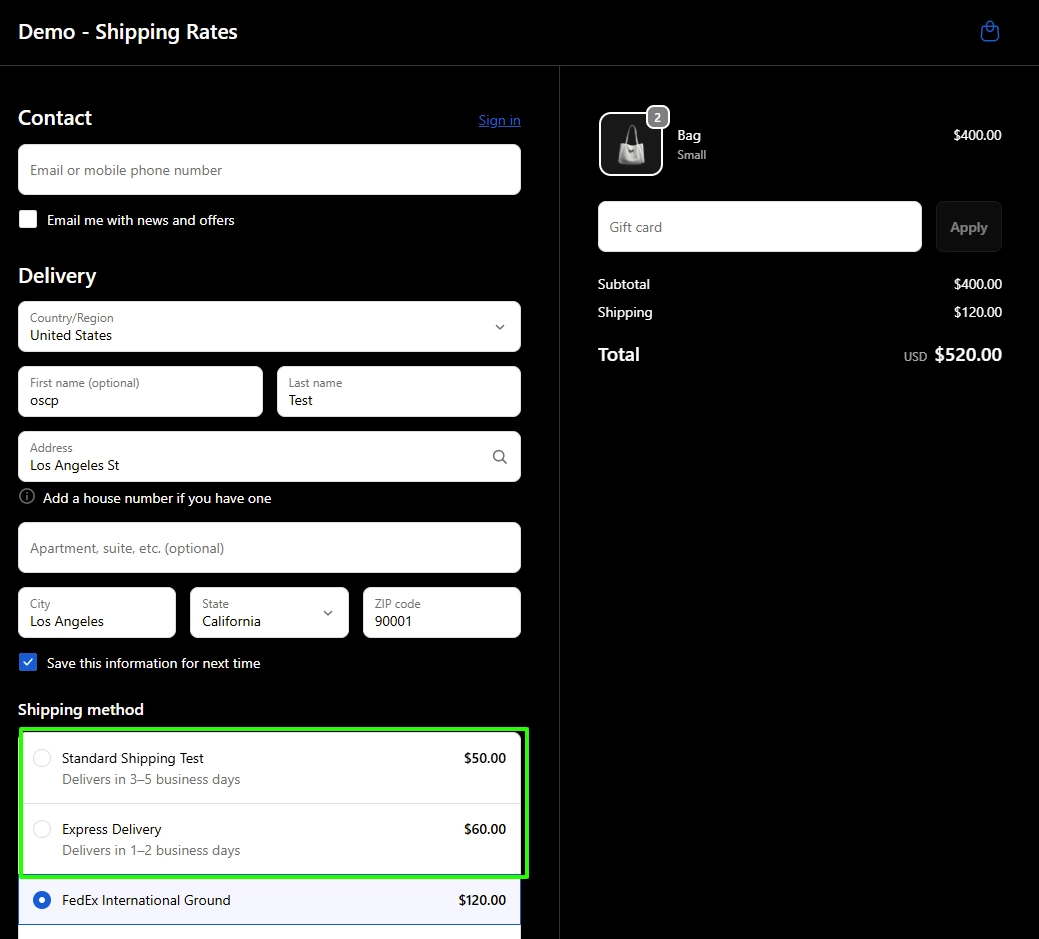
- Shipping cost is displayed at checkout