Skip to content

How to Set Up a Cart Discount
Table of Contents
-
- Step 1: Navigate to Cart Discount
- Step 2: Create a New Cart Discount
- Step 3: Configure the Cart Discount Offer
- Step 4: Select Where the Discount Applies
- Step 5: Select Customer Group
- Step 6: Choose the Discount Condition
- Step 7: Configure the Discount Rule
- Step 8: Save the Cart Discount
- Customer Experience
- Need Help?
Step 1: Navigate to Cart Discount
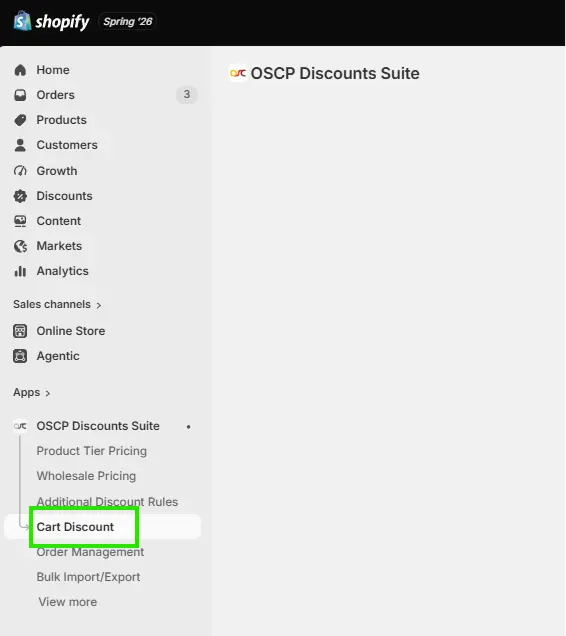
From your app dashboard, in the left sidebar under OSCP Discounts Suite, click Cart Discount.
Step 2: Create a New Cart Discount
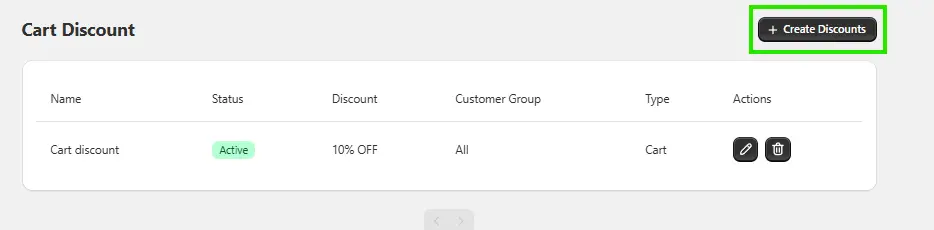
On the Cart Discount page, click the + Create Discounts button in the top-right corner.
Step 3: Configure the Cart Discount Offer
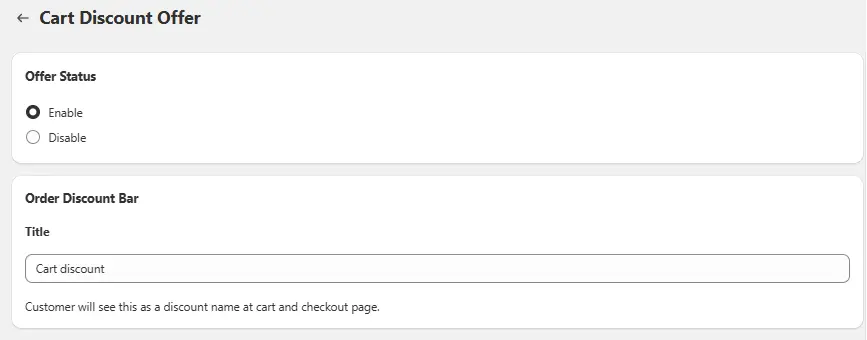
On the Cart Discount Offer page, configure the following settings:
Offer Status
- Select Enable to activate the discount.
- Select Disable if you want to save the configuration without making it active.
Order Discount Bar
Enter a Title for the discount. This title is displayed to customers on the Cart and Checkout pages.
Step 4: Select Where the Discount Applies
Under Apply To, choose one of the following:
- Cart Level – Apply the discount to the entire cart.
- All Products – Apply the discount across all eligible products.

Step 5: Select Customer Group
Choose which customers can receive the discount:
- All Customers
- Logged In Customers
- Tagged Customers
If Tagged Customers is selected, choose the required customer tag(s).

Step 6: Choose the Discount Condition
Under Discount Conditions, select how the discount should be triggered:
- Total Order Amount (Cart Subtotal) – Apply the discount when the cart subtotal reaches the specified amount.
- Total Order Quantity (Cart Quantity) – Apply the discount when the cart contains the specified quantity of items.

Step 7: Configure the Discount Rule
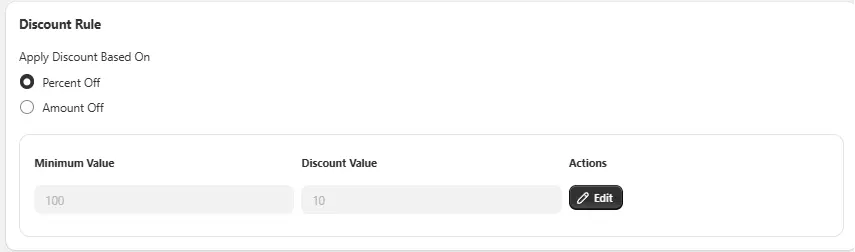
Under Discount Rule, choose the discount type:
- Percent Off
- Amount Off
Add your discount tiers by entering:
- Minimum Value – The minimum cart subtotal or quantity required.
- Discount Value – The percentage or fixed amount to discount.
Step 8: Save the Cart Discount
After completing the configuration, click Save to create and activate the Cart Discount.
Customer Experience
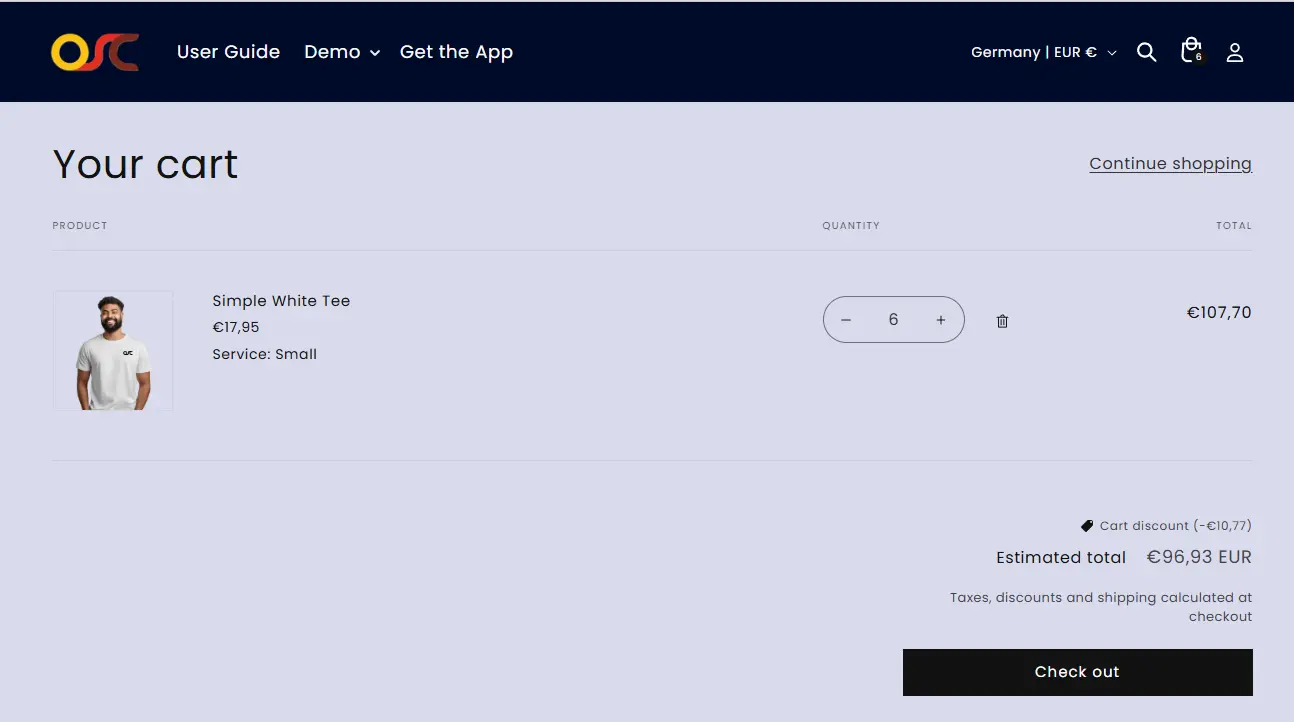
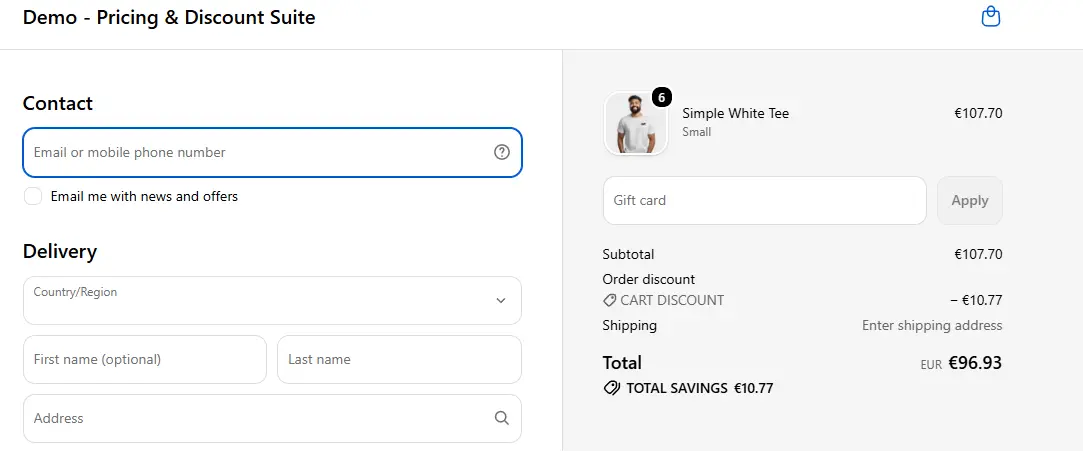
Once enabled, the Cart Discount is automatically applied when customers meet the configured conditions.
Customers will see:
- The discount title on the Cart page.
- The applied discount on the Checkout page.
- The discount amount reflected in the order total.
Need Help?
If you have any questions or need assistance, contact our support team through the in-app chat or email us. We’re happy to help!